
Search
Find tasks, projects, Areas, Goals, Phases, milestones and comments with the Search pop-up or the results page, or jump straight to one by its reference.
Search is the fastest way to reach something you cannot place. It has two parts. The Search pop-up matches names as you type and runs commands. The results page searches deeper, into descriptions and comments.
Both only return work you can read.
The Search pop-up#
Press Cmd+K on a Mac or Ctrl+K on Windows, or click Search at the top of the left rail. The box reads "Search tasks, projects, Goals and actions". On a phone, the Search icon in the top bar opens the results page instead.
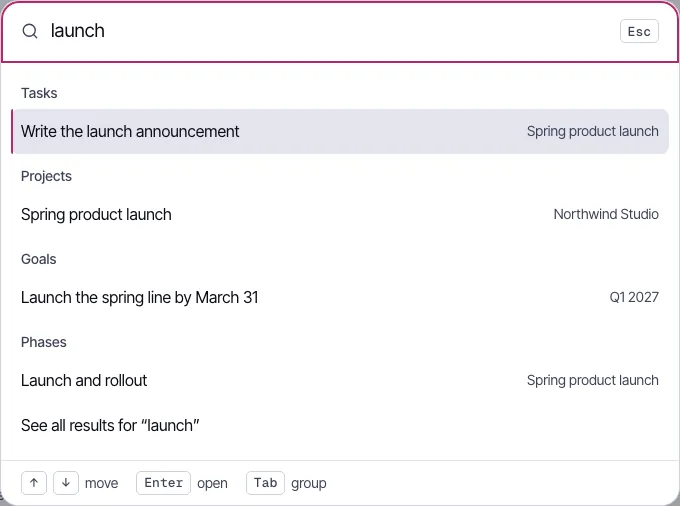
Type a word. The pop-up lists matches that contain it anywhere in their name, ignoring case:
- Tasks: up to five, open ones first, then completed ones. The project's name sits on the right.
- Projects: up to three, with the workspace's name or "Personal projects" on the right.
- Entities: this is the pop-up's heading for your Areas. Up to three, each with its kind (Product, Client, Program or Internal) on the right. Archived Areas are left out.
- Goals, Phases and Milestones, up to three of each. A Goal shows its quarter, such as "Q4 2026". A Phase or milestone shows its project.
- Actions: Add task, Start a focus timer, Go to Today, Go to Upcoming, Go to Inbox, Go to Planning, Go to Settings and Keyboard shortcuts. With nothing typed, you see only the actions. Typing narrows them by name.
The last row, "See all results for" followed by your words, opens the results page.
| Key | What it does |
|---|---|
↑ and ↓ |
Move through the rows |
Tab and Shift+Tab |
Jump to the next or previous group |
Enter |
Open the highlighted row |
Esc |
Close the pop-up |
A task opens in the task panel. Any other result opens its own page. A Phase or milestone opens the Plan tab of its project.
The results page#
Press / anywhere outside a text field, or choose See all results, to open the Search page. The box is ready to type in, and / moves the cursor back to it. Results appear after a short pause, and the address keeps your search, so you can bookmark or share the link.
The page finds more than the pop-up:
- Tasks by title and description.
- Projects, milestones, Phases and Goals.
- Comments, on tasks and on projects.
Each result carries a label above it: "Task · opens details", "Project", "Milestone", "Phase", "Goal" or "Comment". A line under the title shows the matching words in context. A task opens in place, and the rest open their own page. You get at most 50 results, best match first.
Every word you type has to match, and each word can match just the beginning of a word. Typing inv pay finds a task titled "Invoice payment". Completed tasks are tucked into a Completed group at the bottom. Open it to see them.
An empty page says "Find your next task". A search with no matches says "No results".
Search by reference#
Every task and milestone has a short reference, such as YIP-12 for a task or YIP-M3 for a milestone. The prefix is the project's code. When what you type is a valid reference, the page shows only the records with that reference. Typing just a project's code finds the project. Copy a task's reference from the task panel, under its title. See The task panel.
If several projects you can read share a reference, the page says "Several accessible records use this reference. Choose by project and scope." and shows the project and workspace beside each result.
Search from Quick Add#
Once you type in Quick Add, a magnifier button appears. Its tooltip reads "Search for this instead". It closes Quick Add and searches for what you typed. See Quick Add.
Tip: The shortcuts
/,Cmd+KandCtrl+Kdo nothing while the cursor is in a text field. Click outside the field first, or click Search in the rail.