
Final milestones
Mark a milestone as a promise, name what someone will receive and who it is for, and see where it shows up.
Needs Pro
A Final milestone is a milestone you have promised to someone. It names what they get (the Claim) and who they are (For whom). A client, a team or you yourself can be the person it is for. Marking one puts the commitment on the Plan, the Brief, the Timeline and the Goal.
A Goal holds at most one Final milestone across all its Phases. Within a project, the Plan, the Brief and the Timeline all show it.
Mark a milestone as a Final milestone#
- Open the project's Plan tab.
- Open the ⋯ menu on the milestone and choose Mark as final milestone. The same item is on the Overview tab's Status card, in its milestone menu.
- In the side panel, fill Claim. This is required. Say what the person gets, for example "Public beta live".
- Fill For whom if you want to name them (see below).
- Click Save final milestone.
A toast confirms "Final milestone set."
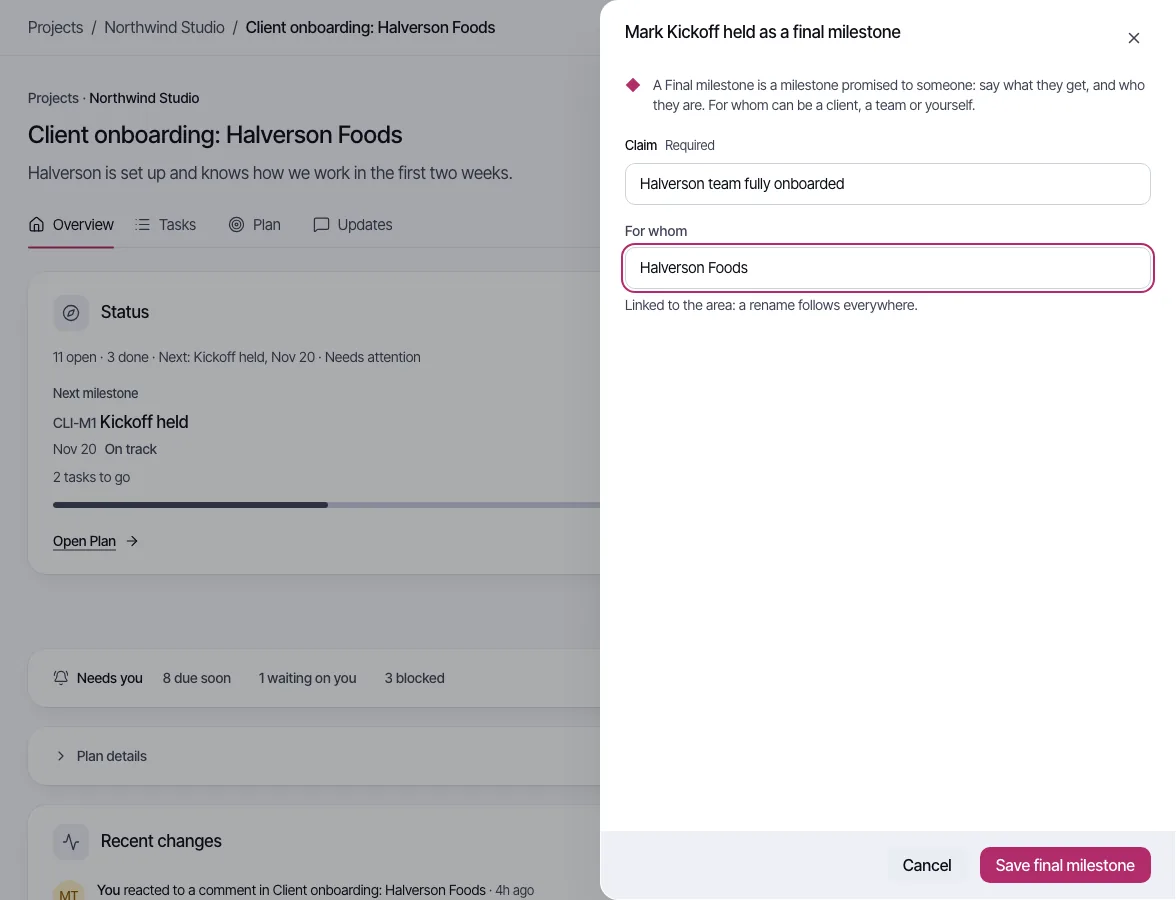
The For whom field#
For whom is optional. What you can pick depends on where the project lives.
- In a workspace project, pick an Area or a Team Contact from the menu, or type plain text. If you leave it empty, it saves as the workspace name. Workspace admins can also choose Create area "name" to make an Area from the text they typed.
- In a personal project, For whom is plain text. If you leave it empty, it saves as your name.
Prefer an Area when you have one. The panel then reads "Linked to the area: a rename follows everywhere", and renaming the Area updates every Final milestone for it. Typed text does not. If a milestone still holds typed text from before, the field offers Match to an area. See Areas.
Note: Final milestones need Pro or a Team seat. Free accounts cannot create them. A Final milestone already set can still be cleared.
Where it shows#
| Place | What you see |
|---|---|
| Plan tab | A diamond on the milestone's card |
| Brief | The Final milestones card lists each one with its title, Claim and For whom |
| Timeline and Roadmap | A Final milestone diamond (pink on the Timeline), and on the Timeline a Final row under the Goal with the milestone's title |
| Goal page | The Final milestone under Phases and milestones, reading "For" the person, then "Claim:" and the text |
| Area page | The Final milestones tab, and the "Used as For whom" card counting how many name this Area |
| Goals list | Next Final milestone, with its title, date and who it is for |
The Timeline legend lists Final milestone beside Goal, Phase and Milestone. See Timeline.
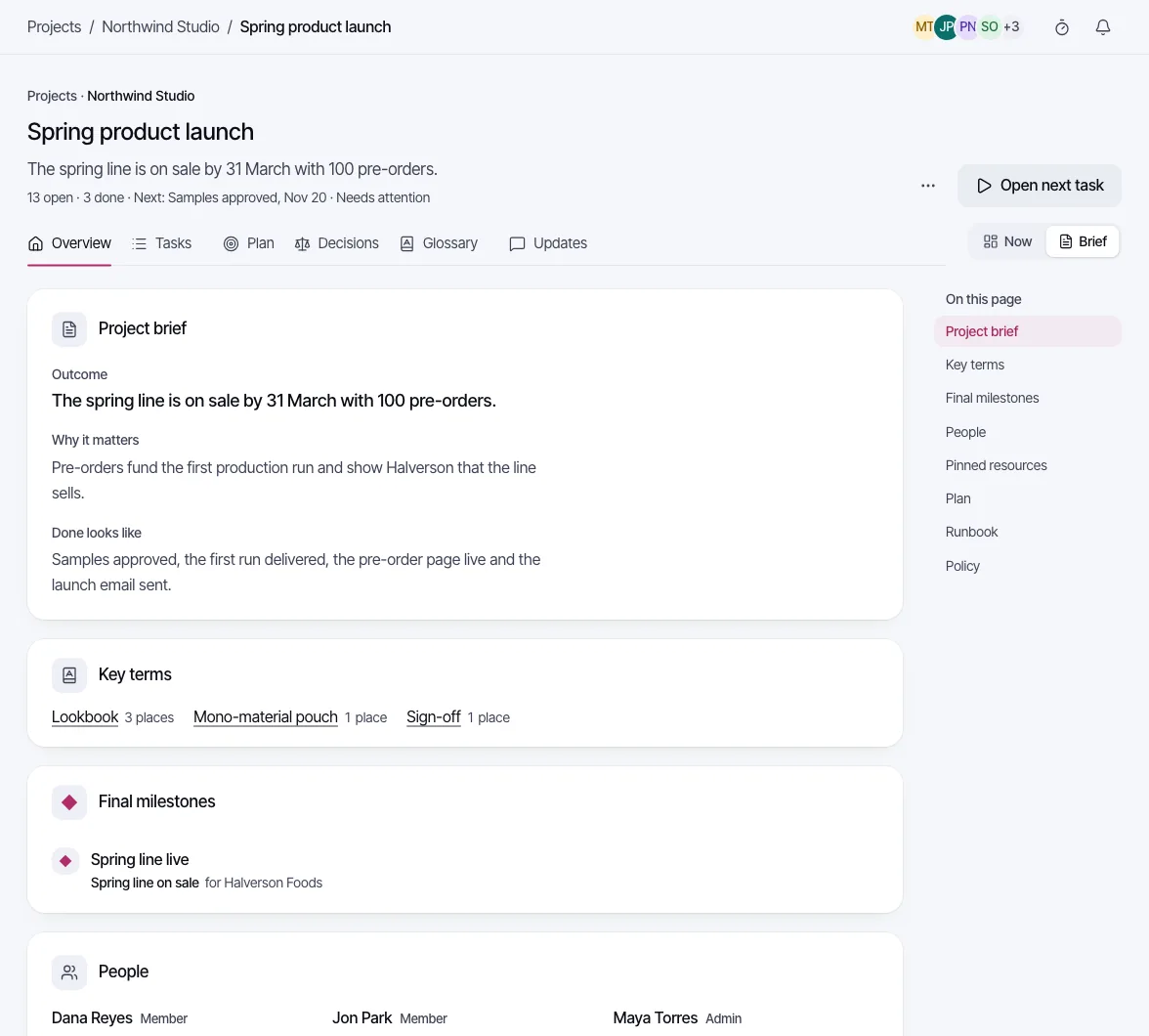
Change or remove it#
Open the milestone's ⋯ menu again. Once a Final milestone is set, the menu also offers two items.
- Edit final milestone reopens the panel with the Claim and For whom filled in. Change either, then click Save final milestone. The toast reads "Final milestone updated." and offers Undo.
- Clear final milestone removes the promise and leaves an ordinary milestone.
Editing changes how the promise reads in every place above at once. You do not update the Brief, the Timeline and the Goal separately.
One per Goal#
A Goal can hold only one Final milestone, so choose the milestone that closes it. Different Goals each keep their own.
Related#
- Milestones covers the checkpoint a promise is made on.
- Goals covers the outcome the Final milestone closes.
- Areas covers naming who it is for with an Area.
- Timeline shows Final milestones across your Goals.