
Roadmap
Read one project's milestones, Phases and tasks as a chart over time, then jump to the Timeline for the wider picture.
Needs Pro
The Roadmap is a chart of one project's plan over time. It shows the project's Phases, milestones, Final milestones and the tasks behind them, with dependencies drawn between tasks. Use it when you want to see how a single project fits together before you commit to dates.
The Roadmap covers one project. To see every project at once, use the Timeline.
Open the Roadmap#
- Open the project and click the Plan tab.
- Under Plan views, click Roadmap.
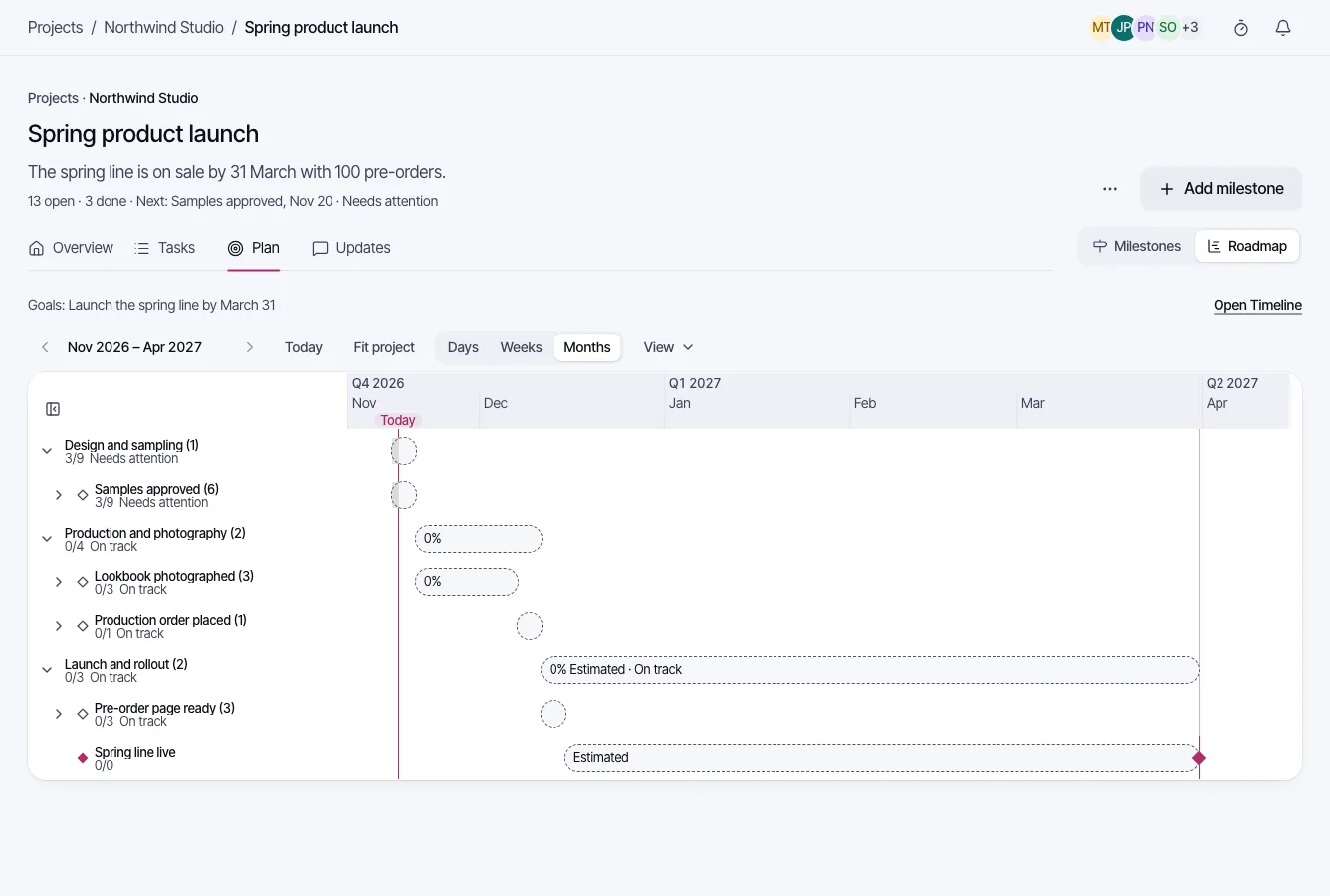
The other view in Plan views is Milestones, where you build the plan. See Milestones and Phases. The lead button on the Roadmap is Add milestone.
A Goals line lists the Goals the project serves. You connect a project to a Goal by linking its Phases; see Plan the quarter with a Goal.
Note: The Roadmap needs Pro or a Team seat. On the Free plan the view reads "Roadmap requires Pro" and points you to See plans. Your tasks stay available in the List view. A seat doesn't extend to guests, so a guest on the Free plan sees the same message.
Read the chart#
The chart marks Phases, milestones and Final milestones against the calendar, with tasks as bars beneath them. Open Legend and help in the View menu for the full key. It explains marks such as Today, Overdue, Flagged, the task span, a due-only point and a dependency conflict.
If a note below the chart says "N tasks without a date", click View in List to give them dates.
Move around the chart#
The controls match the Timeline's, with one difference in wording.
- Previous range and Next range move the window, and the label between them shows the range.
- Today jumps to today.
- Fit project fits the whole project in view. On the Timeline the same button reads Fit all.
- Scale switches between Days, Weeks (the default) and Months.
- View holds Fit visible, Expand all, Collapse all, Expand chart, a Completed checkbox to show finished work, a Dependencies checkbox, Tasks or Milestones only, and Legend and help. Click Exit full window, or press
Escape, to leave an expanded chart.
On a phone, View as switches between Agenda and Chart.
The header ⋯ menu on this view holds the density switch, Focused or Full.
Change dates on the chart#
If you can edit the project, you can drag a bar to move it, or drag one end to change only that date. On a touch screen, hold a moment first. With a bar focused, press an arrow key to move it a day, or Shift plus an arrow to move its due date. Guests and archived projects can't be changed.
Choosing Roadmap saves it as that project's layout. When you go back to Tasks, you return to the List, Board or Calendar you used last.
Go to the Timeline#
Click Open Timeline, at the top right of the Roadmap, to move to the Timeline, where every project and Goal sits on one chart.