
Finish, undo and delete
Complete a task, take it back with Undo, use the Task actions menu and Duplicate, recover deleted work from the Bin, and clear overdue tasks in bulk.
Finishing, copying and deleting a task all start from a few controls, and nearly every action can be taken back. This page covers them, the Bin where deleted work waits, and the Overdue tools for tasks that slipped.
Finish a task#
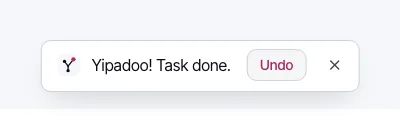
Press the round checkbox at the start of a row. The row slides away and a toast says Task completed. (or Yipadoo! Task done. while celebrations are on). In an open task panel, a banner says Done. (or Done. Yipadoo!).
Other ways to finish a task:
- Press
Xon a selected task. Click a row to select it, or move withJandK.Shift+click selects a range, andCmd+click on a Mac orCtrl+click on Windows adds a row, soXfinishes them all at once. - Choose Complete in the Task actions menu.
- Press Done on Focus on one task.
Finishing a parent task also finishes its open subtasks. A repeating task does not leave the list: it moves to its next date. To reopen a finished task, press its checkbox again, choose Reopen in the Task actions menu, or press Undo.
When a task can't be completed yet#
In a project whose work rules gate Hard tasks, a task marked Hard to undo completes only once it has a sign-off or an admin linked an Accepted decision to it. Until then, completing it is refused, the banner and the task panel say what it needs, and the task stays open. A parent is refused the same way while an open Hard subtask under it is held. See Hard to undo and sign-off.
Undo#
After you complete, delete, move or reschedule a task, a toast appears at the bottom of the window with an Undo button. It stays for 5 seconds. Press Undo to reverse that one action, or the X (Dismiss) to close the toast early. A newer action replaces the toast. Other messages include Task deleted. and Task rescheduled.
The Task actions menu#
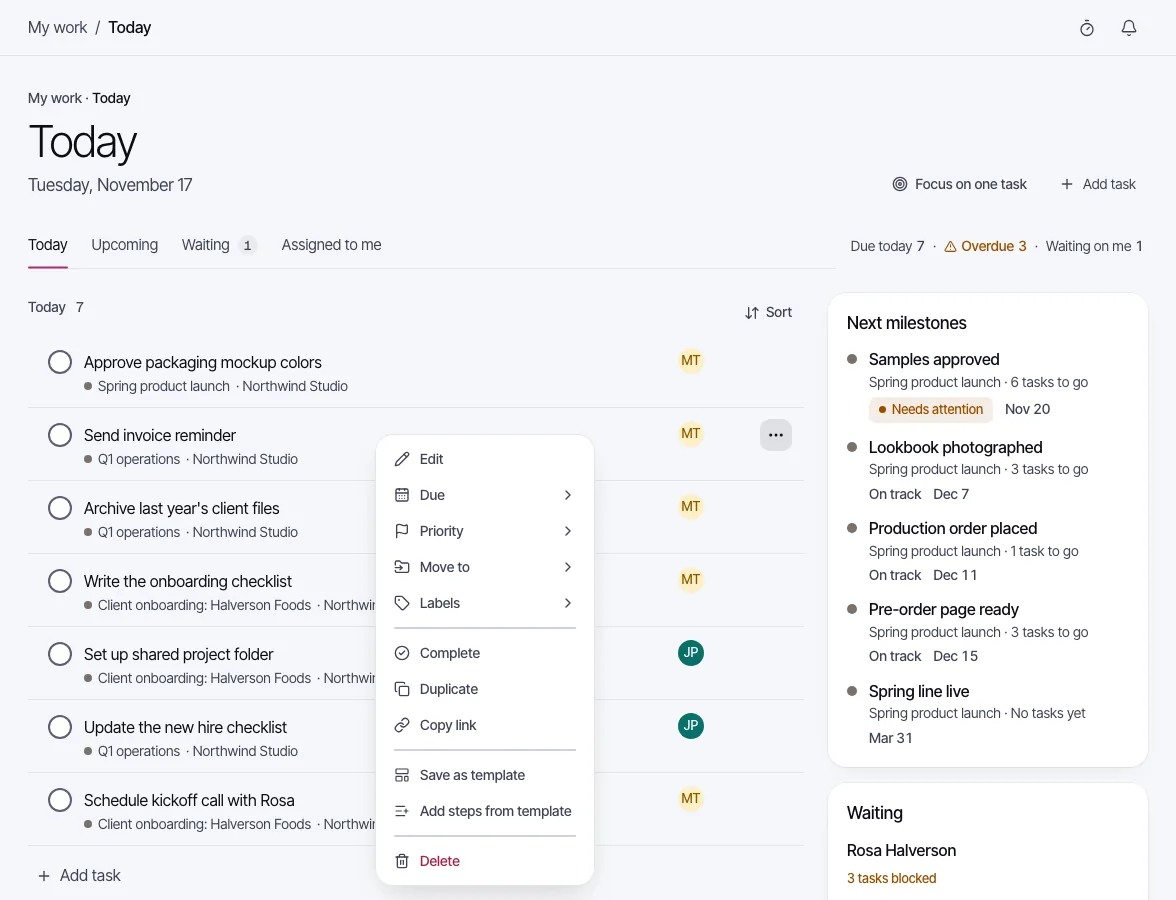
The three-dot Task actions button shows when you hover or focus a row, and is always visible on a phone. It is also in the top bar of the task panel. Right-clicking a row opens the same menu. So does pressing the Menu key (or Shift+F10) on a focused row, and, on a touch screen, holding a finger on the row for about half a second. The rest of a row is covered in Read a task row. The menu offers:
- Edit
- Due: Today, Tomorrow, Next week, This weekend, No date or Pick a date
- Priority: High, Medium, Low or No priority
- Move to: the Inbox or a project, and a section if the project has any
- Labels: tick the labels the task should carry
- Complete or Reopen
- Duplicate
- Copy link
- Save as template and Add steps from template (see Templates)
- Delete
Someone with view-only access sees Copy link and Save as template only.
Duplicate#
Duplicate adds a copy right after the original. It carries the title, description, project, section, parent, priority, labels, due date, deadline and size. Subtasks, comments, reminders and the assignee stay with the original. The copy's reversibility and blast radius come from the project's work rules, not from the original.
Delete and the Bin#
Choose Delete in the Task actions menu and the task goes at once, with an Undo toast. Pressing # (Shift+3 on a US keyboard) on a selected task asks "Delete this task?" first. A parent's subtasks go with it.
Deleted work waits in the Bin. In the left rail, open Tools, then Archive, then Bin. Each entry names what it is (Task, Project, Section, Label, Filter, Comment and more), where it was, when it was deleted and how long it has left: "N days left" or "Goes today".
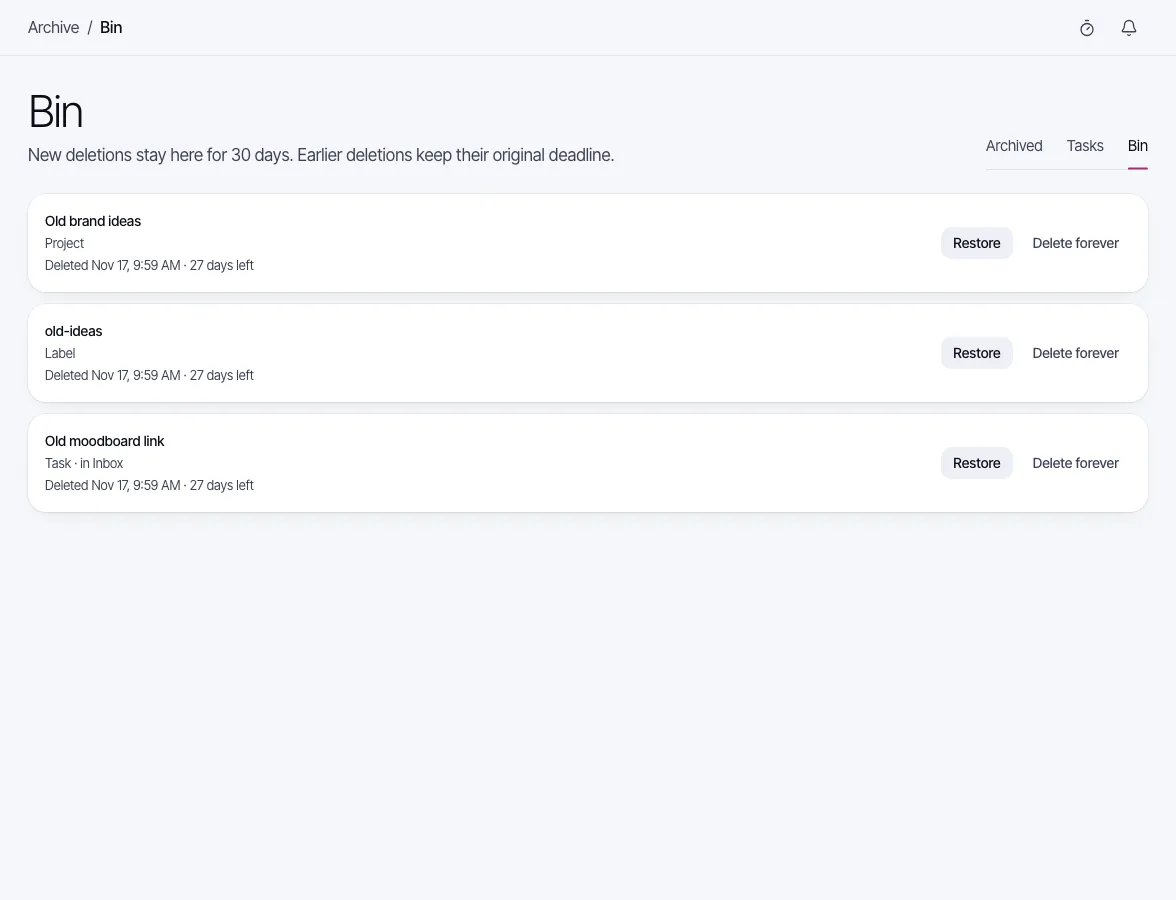
- Restore brings an entry back.
- Delete forever asks you to confirm. It names what else goes with the entry, such as its tasks and comments. If your account has an authenticator app, you are asked for a fresh code first.
The line under Bin states how long new deletions stay: "New deletions stay here for N days." N is 7 for personal work you delete on Free and 30 on Pro and Team. Work deleted inside a workspace stays 30 days, whatever the plan. Earlier deletions keep their original deadline. Restore and Delete forever appear only on entries you may act on.
Overdue tools#
When tasks have slipped, Today shows an Overdue card, oldest first, with the first 10 rows and a Show N more button. Each row has Today, Tomorrow and Next week buttons. The toolbar at the top of the card works on many tasks at once:
- Reschedule to today moves them all to today. Pick date moves them all to the day you choose.
- Re-plan N tasks opens Give it a new date. It steps through one task at a time with Today, Tomorrow, Next week and a date picker, or Do them all tomorrow.
- Archive stale is covered below.
- Group by project groups the card by project. This browser remembers the choice.
Every move here can be undone. These tools skip tasks you can only read.
Archived tasks#
Archiving hides old overdue tasks without deleting them.
- On the Overdue card, press Archive stale.
- Under Older than, choose 14, 30, 60 or 90 days. 30 is the default.
- Read the count and the first few titles, then press Archive N tasks.
Archived tasks and their subtasks leave every list. To find them, open Tools, then Archive, then Tasks. Each row shows its project, its due date and the day it was archived. Press Restore on one, or Restore all N at the top when there is more than one.
Related#
- Dates, repeats and reminders: moving a due date and repeating tasks.
- My work: Today and its Overdue card.
- Celebrations: what changes the completion toast.
- Keyboard shortcuts: the full list.