For small teams and owner-run businesses

Know the next task. See the plan behind it.

Yipadoo is a task manager that tells you what to do next, and shows the Goal, the Phase and the timeline each task belongs to.

Start your 14-day Pro trial, no card.

How it works

From the next task to the whole plan.

Finish a task and its milestone moves forward. The plan stays in view the whole way: the Goal, the Phase and what comes next.

  1. See what's next

    Open My work for Today, Upcoming, Waiting and Assigned to me. Next task picks the one to do now.

  2. Plan the bigger picture

    Put the work on a Goal, split it into Phases and milestones, and see your dated work across projects on one Timeline.

  3. Write the task so it holds

    Add a Game plan, what Done looks like, a size and a start date. Note what blocks it, or who you are waiting on.

  4. Capture it in one line

    Press Q and type. Quick Add picks up the project, the date, the priority, labels and who it is for.

Features

What you can actually do here.

Start with today's list. Add Goals, Phases and a team when the work grows.

  • Next

    Know what to do next

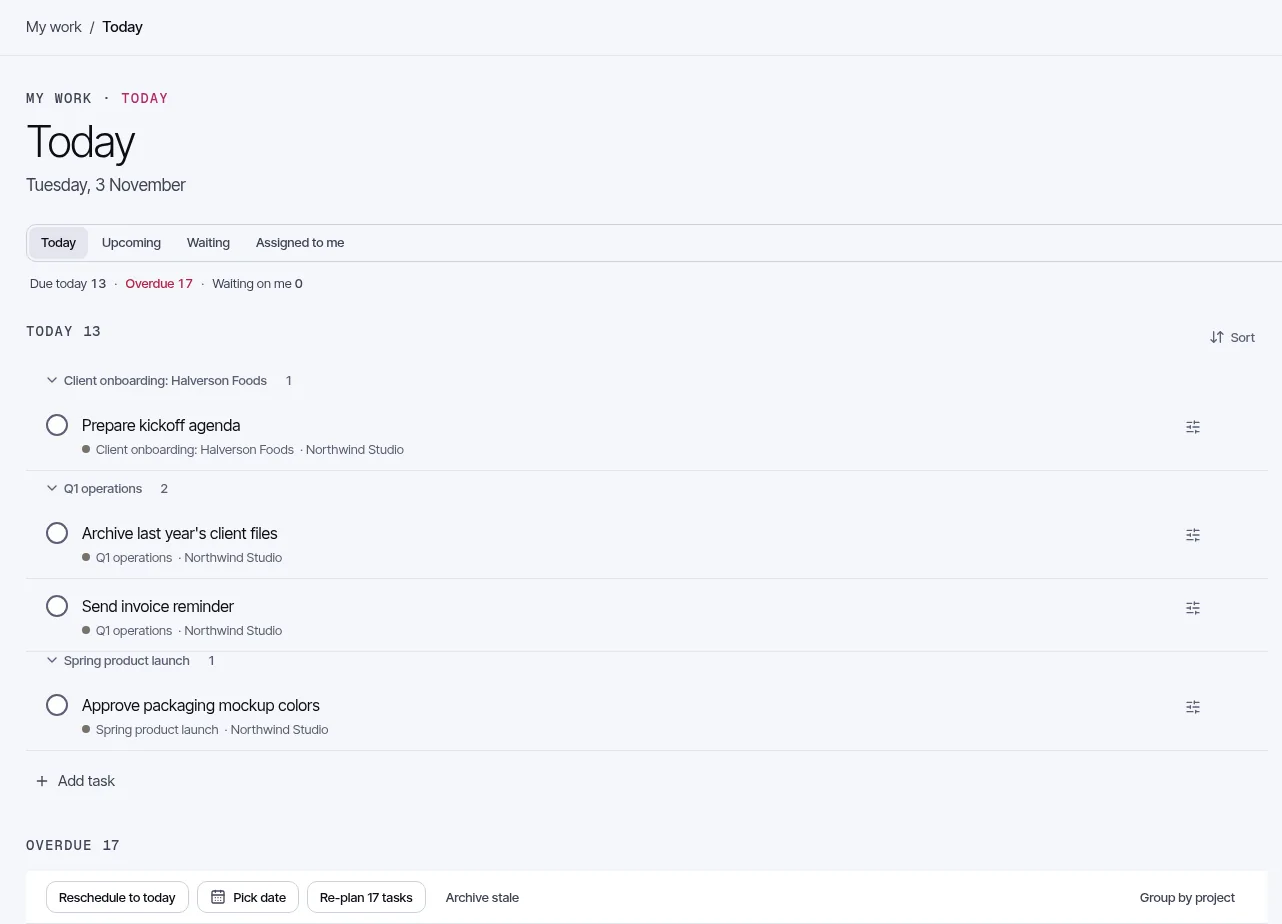
    My work holds Today, Upcoming, Waiting and Assigned to me. Next task weighs what is overdue or due soon, priority and the next milestone, then names the one task to do now. Blocked work, work waiting on someone and tasks that start later stay out of its way.

    Your own work first

    Due within a week

    Skips blocked work

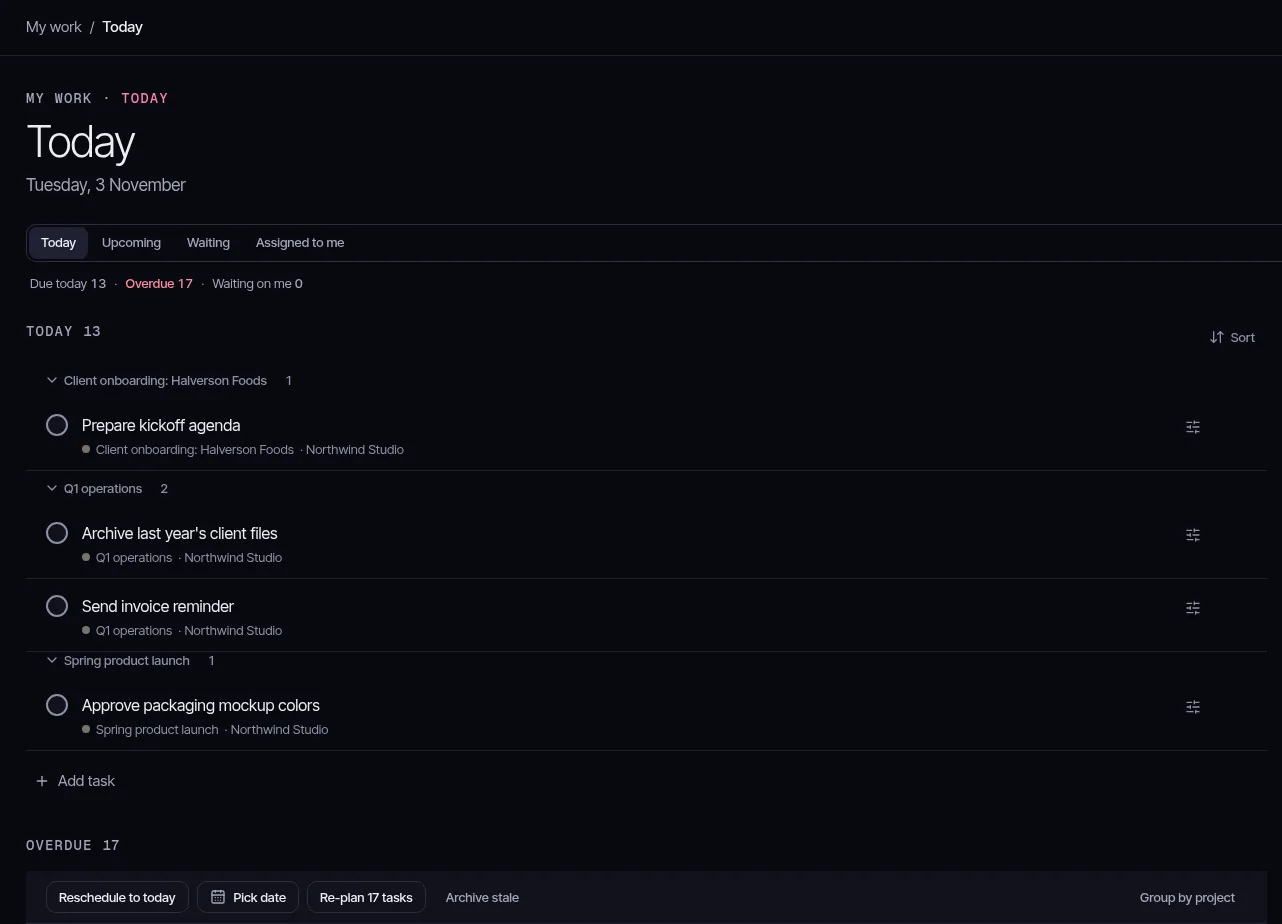
    Today in My work for Northwind Studio, with onboarding, operations and the product launch.
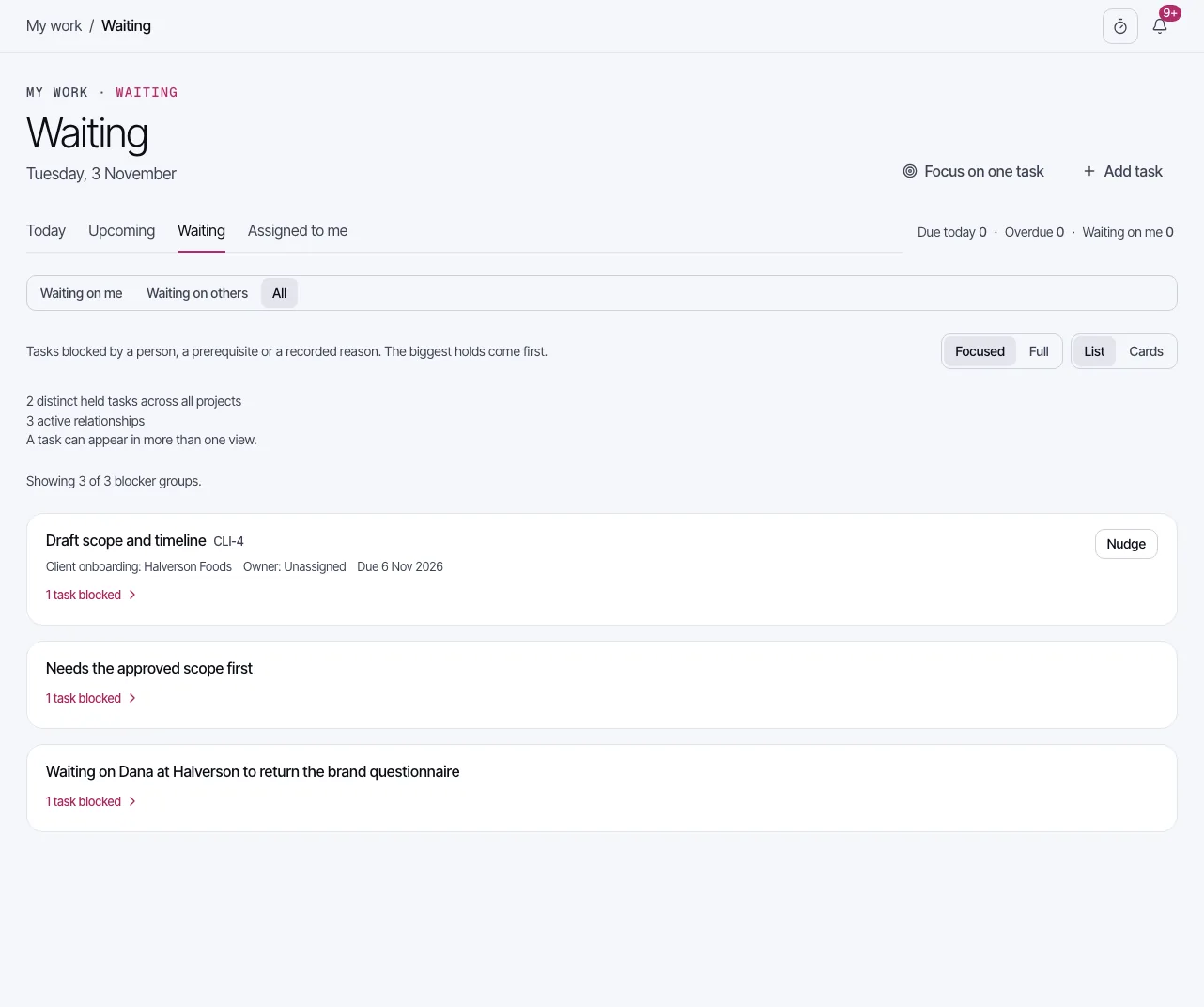
    Waiting in My work, with onboarding tasks blocked on a person or a prerequisite.
  • Planning

    Plan the bigger picture

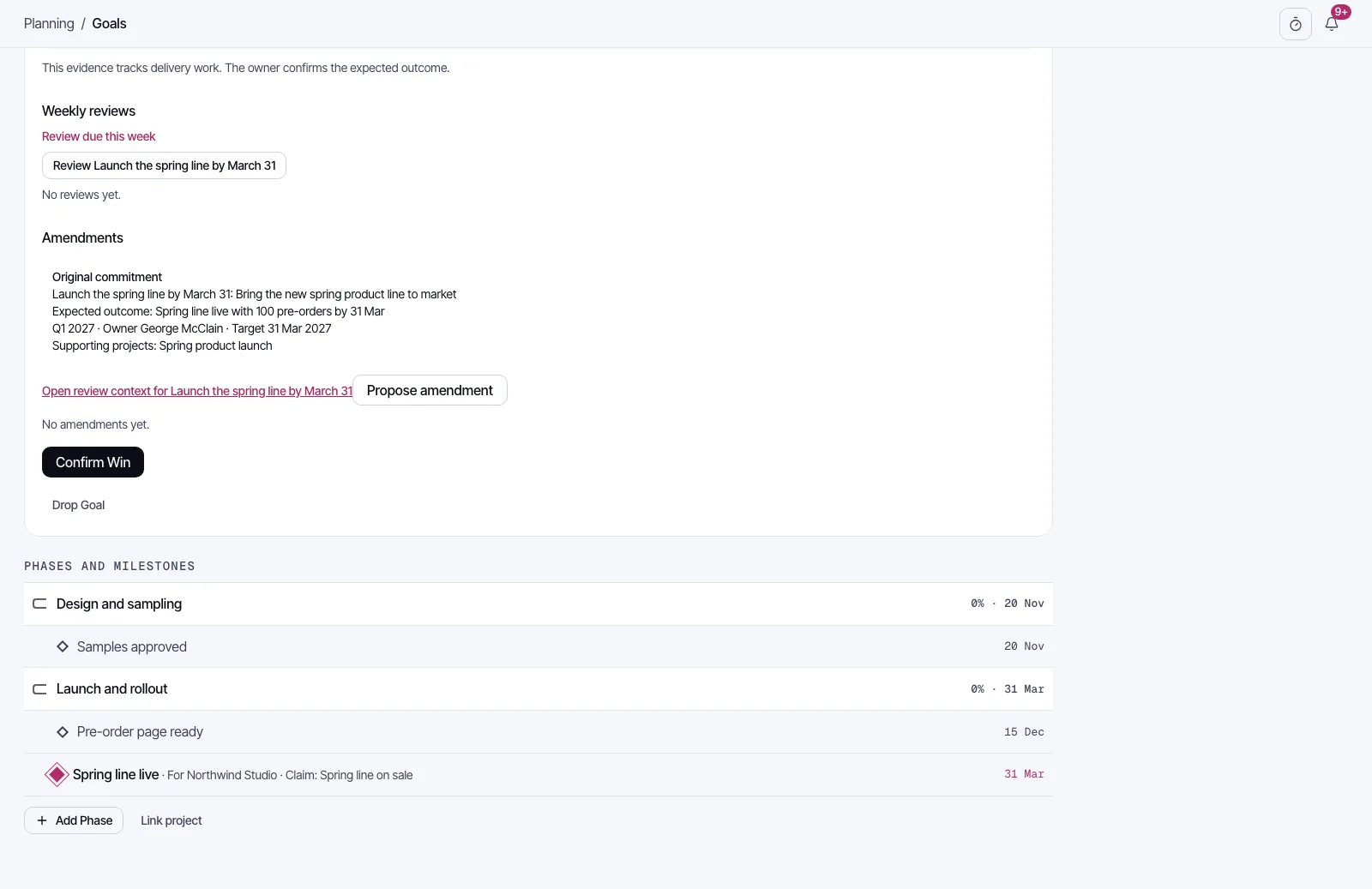
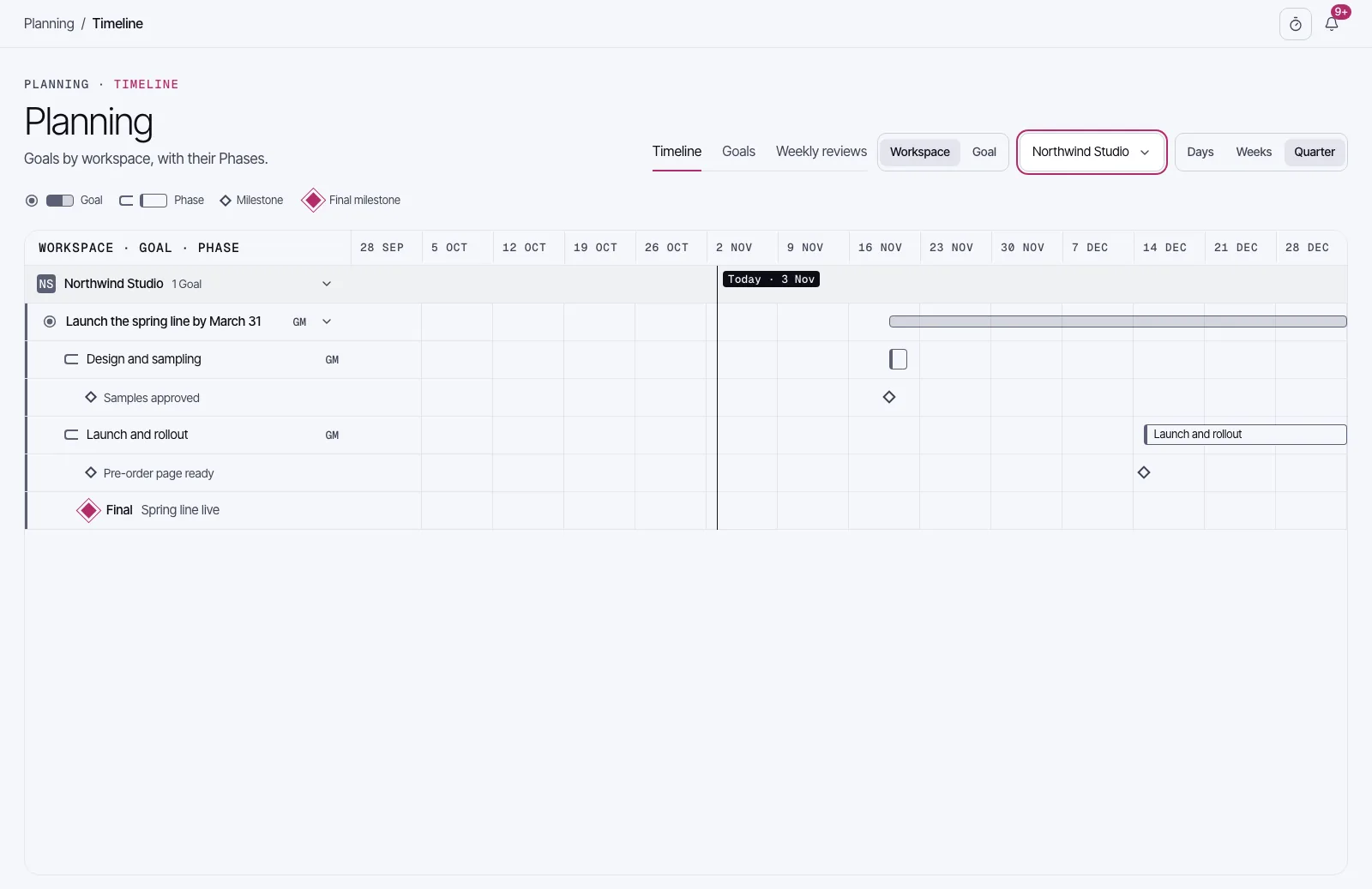
    A Goal holds Phases, and each Phase holds milestones. One Final milestone closes the Goal. Give a task a date and Planning puts it on one Timeline with the rest of your projects, and you can group it by Goal. Weekly reviews are in Planning too. On the Team plan, workspace admins can see when someone's week is overloaded.

    Goal

    Phase

    Final milestone

    Goal
    A Goal for Northwind Studio, with its Phases and the Final milestone Spring line live.
    Timeline
    The Planning Timeline for the Northwind Studio Goal and its Phases.
  • Tasks

    A task that holds the whole picture

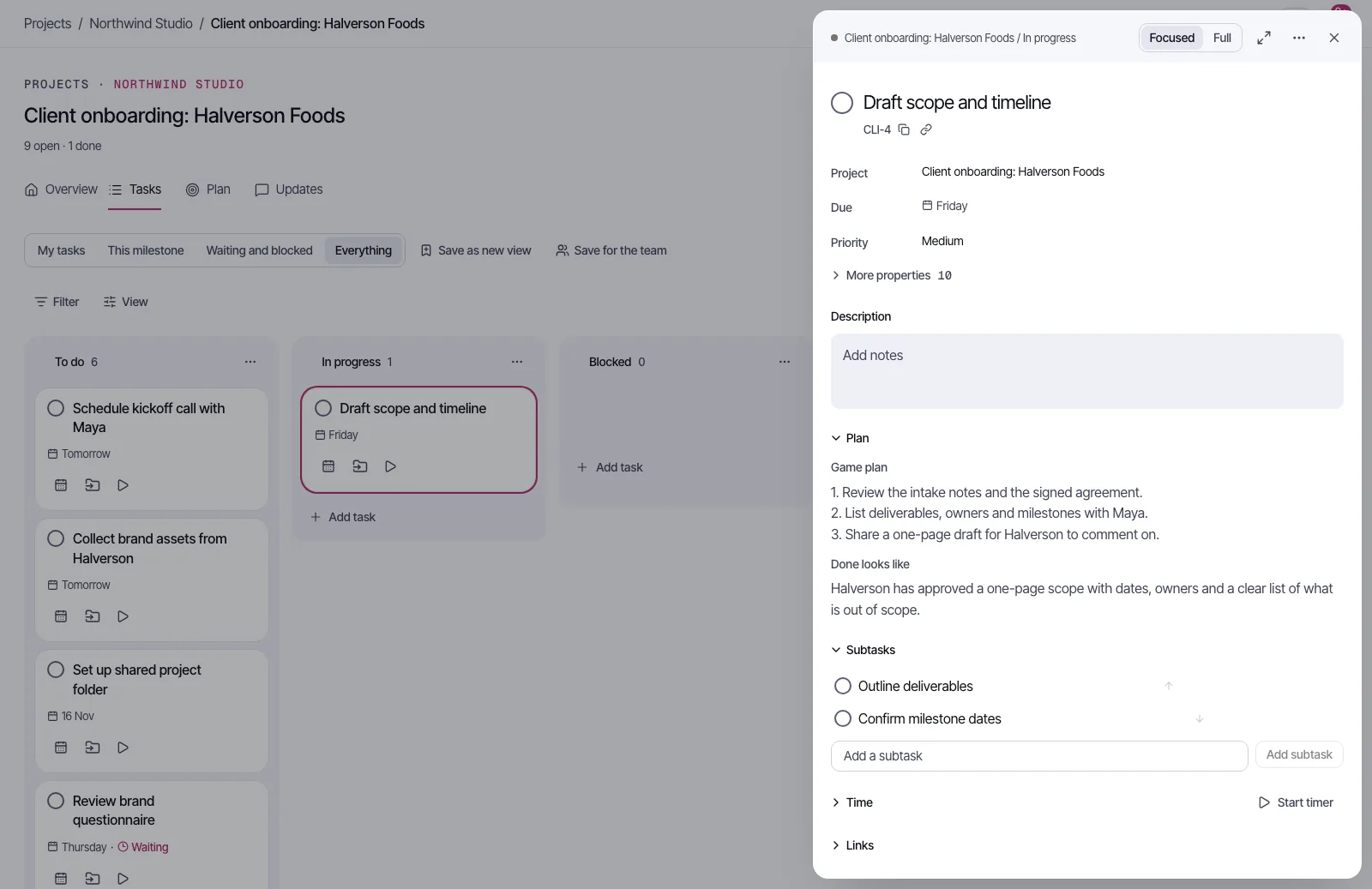
    Write the Game plan and what Done looks like before you start. When you check it off, How'd it go? keeps the outcome. Give it a size and a start date, and name what blocks it or who you are waiting on.

    Game plan

    Send the agenda, book the room, and name the owner.

    Done looks like

    The kickoff is on the calendar.

    Task
    A task open beside the board, with its Game plan and what Done looks like.
  • Workspaces

    A workspace is the business

    Each workspace is one business. Admins, members and guests each see what their role allows, and your personal projects stay beside the workspace, not inside it.

    Overview
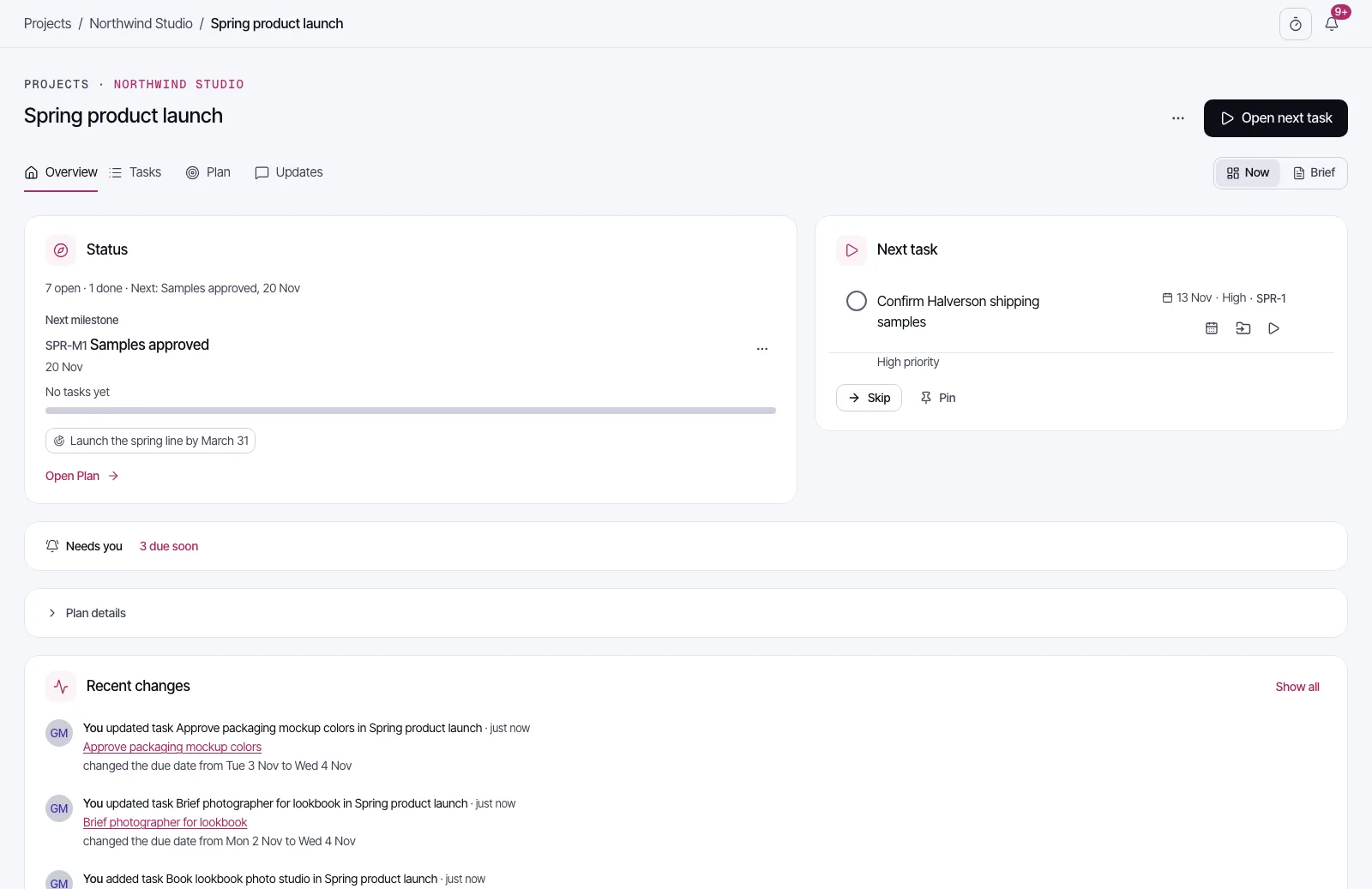
    The Spring product launch overview in Northwind Studio, with the next task and milestone.

    Admin

    Runs the workspace and its people.

    Member

    Works in the team projects.

    Guest

    Views and comments where invited.

  • Capture

    Capture it in one line

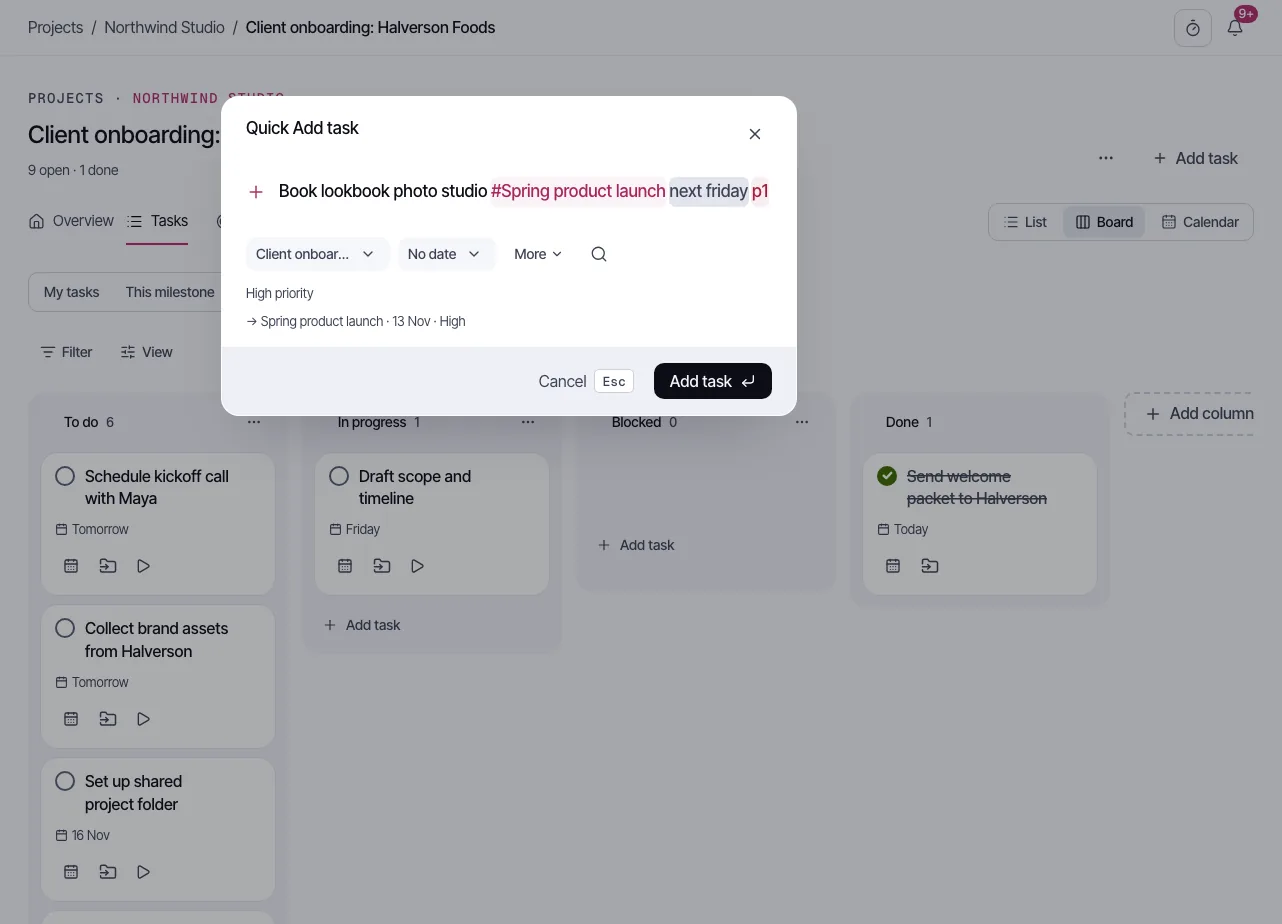
    Press Q and type. Quick Add reads the project, the date, the priority, labels and the assignee from one line. Open any project as a list, a board or a calendar, and save a template to start the next one faster.

    QBook kickoff#OnboardingFridayp1%launch+Sam
    Quick Add
    Quick Add reading the project, the date and the priority from one typed line.
    List
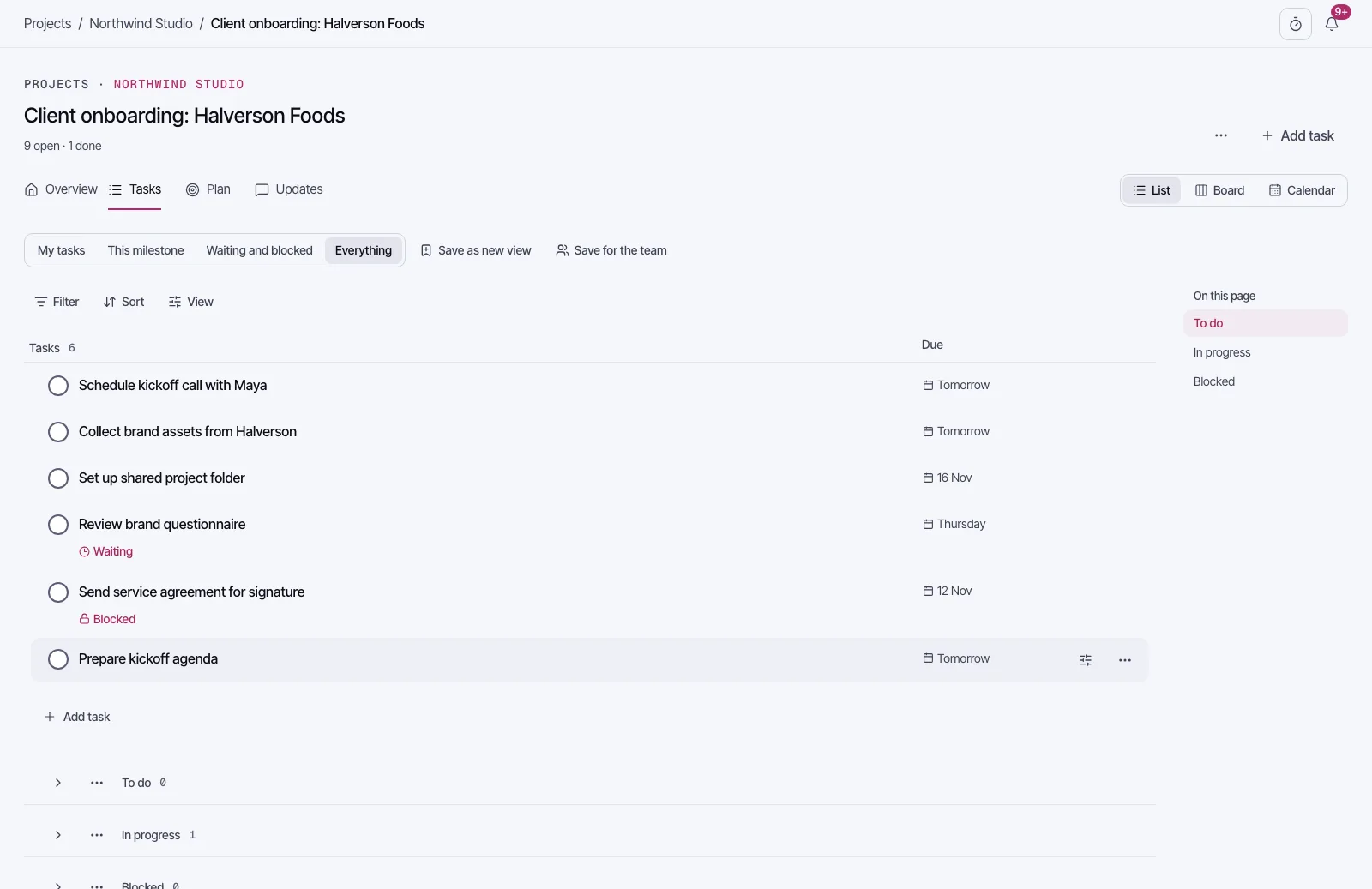
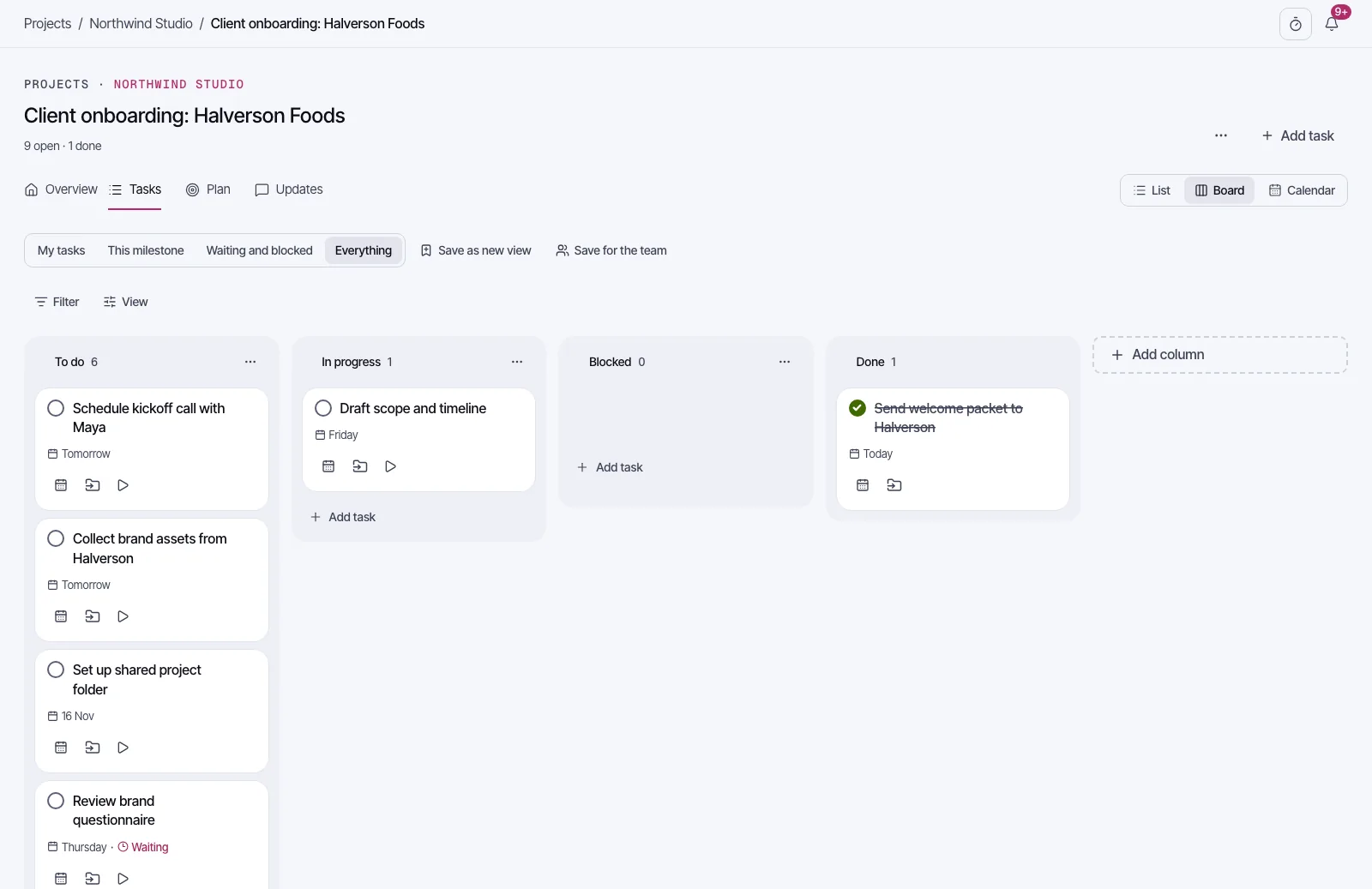
    The Halverson onboarding project as a list, with due dates and a blocked task.
    Board
    The Halverson onboarding project as a board, from To do through Done.
  • Assistant

    Your assistant can work here

    Connect Claude, ChatGPT or another assistant through MCP, the open connector standard. You choose what it may do. It acts as you, and never more than you can.

The fun part

Do the thing. Get the ding.

Finishing work should feel like something. Every checked task gets a small burst and a ding. Finish a milestone and the confetti comes out. All of it switches off in Settings.

Check it off, hear "Yipadoo!"

Lime is saved for this moment, so you only see it when something gets done.

Focus round
Confirm the kickoff time

Focus timer

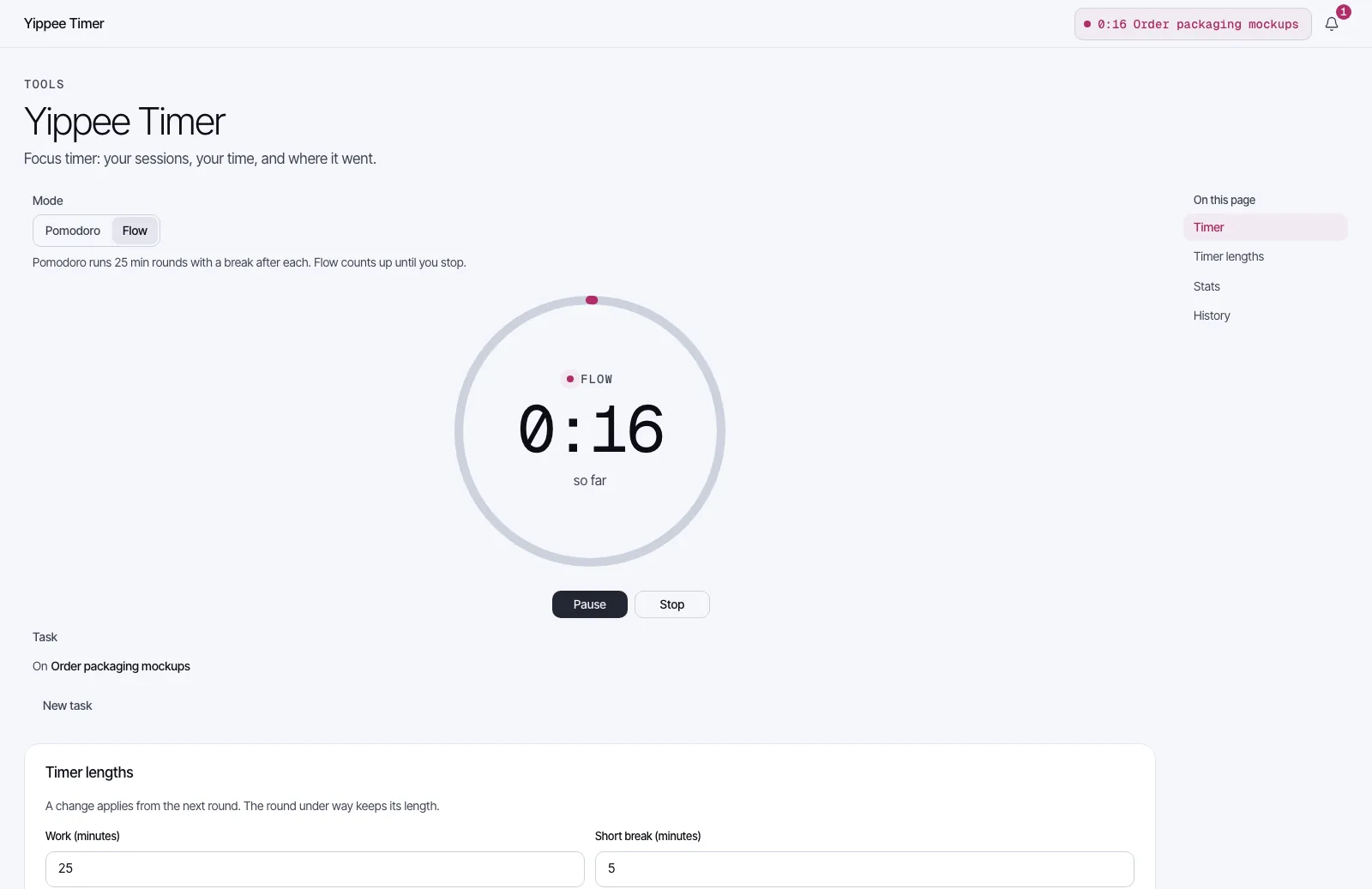
Yippee Timer

Pick your own work and break lengths. The time logs to the task you're on.

Settings › Timer and celebrations

Yipadoo moments
Surprise moments
Sounds

Yours to turn off

Quiet office? Mute the sound and keep the confetti, or switch both off.

Focus timer
The Yippee Timer in Flow, running on the packaging mockups task.

Light or dark

A dark theme for late nights

The app comes in light and dark. Pick one in Settings, or let it follow your device.

Today, dark
Today in My work, drawn in the dark theme.

Pricing

Start free. Add Pro when you need it.

Every new account gets 14 days of Pro with no card, then stays on Free unless you choose a plan. These are launch prices. Phone and tablet apps are planned, and every plan will include them.

Billing period

Free

For your own tasks and a first Goal.

$0

Always free

  • Inbox, Today and Upcoming
  • 5 active projects
  • 1 active Goal, with milestones and health
  • List, Board and Calendar layouts
  • 3 saved filters
  • Reminders and Quick Add
  • The Yippee Timer, with 30 days of history
  • Share a project with 3 people
  • Join a team workspace as a member or guest
  • 500 MB of files
  • The assistant connector, unlimited
Get started free

14 days free

Pro

For people planning bigger work, on their own or across several businesses.

$80 a year

or $8 paid monthly

Launch price. Standard: $90 a year, or $9 paid monthly, once the phone and tablet apps are out.

  • Everything in Free
  • Unlimited projects, filters and views
  • Up to 3 Goals a quarter for you, and up to 3 more in each workspace you run
  • Phases, Save plan and Final milestones
  • A Roadmap in each project, and milestone health on the Timeline
  • Templates
  • Full history and a 30-day recycle bin
  • Share a project with 10 people
  • As many workspaces as you run on your own
  • Larger files and more space
Start your free Pro trial

Team

For teams running work across projects.

$110 a year for each paid person

or $11 paid monthly for each paid person

Launch price. Standard: $120 a year, or $12 paid monthly, for each paid person, once the phone and tablet apps are out.

  • Everything in Pro
  • Invite people, with admin, member and guest roles
  • Team projects and Folders
  • Assign tasks and see Assigned to me
  • Team Inbox, with meeting notes that become tasks
  • Shared Contacts
  • Saved views for the whole team
  • Goals for the workspace and for each Area
  • Deadline alerts and digests
  • Guests are free, up to 5 for each paid seat
Get started
  • The assistant connector is unlimited on every plan, Free included.
  • Subscribe at a launch price and you keep it at least until your first renewal 12 months after the phone and tablet apps are out. We tell you 90 days before it changes.
  • Prices are per paid person, counted once across all your workspaces. Tax calculated at checkout.

Questions

Good to know before you start.

What does it cost?

Free is free. Every new account starts with 14 days of Pro, no card, and keeps Free after that. Pro and Team are priced above.

What happens when my trial ends?

Your account moves to Free on its own. Nothing is charged and nothing is deleted. The app reminds you on day 10 and day 13.

Can I cancel any time?

Yes, in the app under Settings, Plan, Manage subscription. You keep your plan until the end of the period you paid for, then the account moves to Free with nothing deleted.

Do you give refunds?

For a yearly plan, ask within 14 days of the payment and we refund it in full. Monthly plans are not refunded for the month you cancel in.

Does it work on my phone?

Yes, in your phone’s browser. Phone and tablet apps are planned and will be included in every plan, at no extra cost. There is no date yet.

Can I take my data with me?

Yes. Export a project, your Inbox or a whole workspace as Markdown, CSV or XML.

Will the assistant connector be limited?

No. It has no usage quota on any plan, Free included. Only the limits that protect Yipadoo from abuse apply.

Who can join?

Anyone 16 or older. Make an account with your email or Google.

Can I turn off the sounds and confetti?

Yes. In Settings, under Timer and celebrations, switch off Yipadoo moments, Surprise moments or Sounds.

Who builds Yipadoo?

A small studio called BytesNation. See About below.

About

Who makes Yipadoo.

Yipadoo is a BytesNation product. BytesNation is a small studio that builds tools for people who run their own work. Capstan, our planning tool, comes from the same team.

We use Yipadoo to run our own projects. What you tell us decides what we build next, so replies to our emails get read.

BytesNationCapstanYipadoo

Get started

Start your 14-day Pro trial.

Start your 14-day Pro trial, no card.