
The Inbox
Capture tasks in the Inbox now, order the list, and file them into projects later, one at a time, with Sort the Inbox.
The Inbox is where a task goes when you have not said where it belongs. You write the task down in seconds and pick its project later, in one sitting.
Your Inbox is your own. The Team Inbox, a separate feature for workspaces, is covered elsewhere. The Inbox is a project you cannot delete, archive or move, and it does not count toward the five active personal projects that Free allows.
How tasks get there#
- Quick Add with no project. Press
Q, type a line and pressEnter. Unless you name a project or start from one, the task lands in the Inbox. See Quick Add. - The add bar on the Inbox page. Type in the bar at the top, which says "Add to inbox…", and press
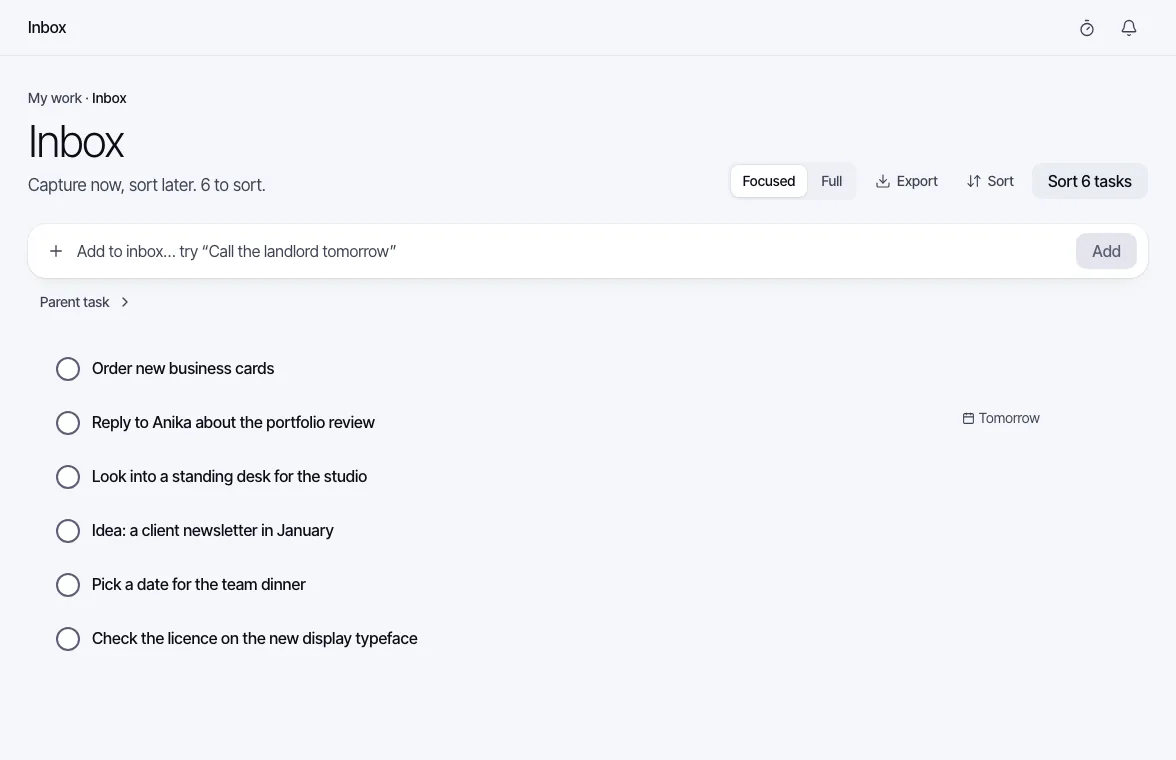
Enteror click Add. It reads the same marks as Quick Add, so "Call the landlord tomorrow" arrives with a date. On the Inbox, pressAto jump to the bar. A#projectin the line sends the task to that project instead, and a toast says where it went. - A parent for the next task. Under the bar, Parent task opens a search field. Pick a task there and the next task you add becomes its subtask, in the parent's project.
Any task created without a project goes to the Inbox.
Read the Inbox#
Click Inbox in the left rail, or press G then I. The rail shows how many open tasks it holds. The header reads "Capture now, sort later. N to sort."
Click a task to open it in the task panel. See The task panel.
- Reorder. The default order is Manual (drag). Drag a row to move it, or hold it over another row to make it a subtask.
- Sort and group. The Sort menu has Sort by (Manual (drag), Date, Priority, Name, Date added, Assignee) and Group by (None, Date, Priority, Label, Project, Assignee). Any other order, or any grouping, turns dragging off.
- Density. The Focused and Full switch changes how much each row shows.
- Done. Finished tasks leave the list and wait under a Done toggle at the bottom.
An empty Inbox reads Inbox zero (for now), with a reminder that Q adds a task.
Sort the Inbox#
Sort the Inbox walks you through the list one task at a time and asks only where each one goes.
- Click Sort 5 tasks in the header. The number is how many open tasks the Inbox holds, not counting subtasks.
- The card shows the first task and a line such as "5 tasks left in this batch".
- Under File in project, choose a project. Subtasks move with their parent.
- If that project has sections, File in section appears. It starts on No section.
- Click File task at the top of the page. The next task appears.
To skip a task, click Leave in Inbox. To stop, click Back to the list or press Esc. A toast reads Task moved, with Undo. Moving a task into a team project cannot be undone; the toast says it now belongs to the workspace.
The batch is fixed when you start, so tasks you add while sorting are not part of it. When it ends, the card says Batch sorted. and tells you how many tasks stayed in the Inbox. If any are left, a button starts another batch.
The projects offered are the ones you can change. If you have no project yet, the card says "Make a home for this task." and points you to Projects in the rail.
Export the Inbox#
Export, in the header, opens a side panel called Export Inbox. Choose a Format (Markdown, CSV or XML), turn on Include completed tasks if you want them (off by default), and click Download. Export your data covers the formats.