
Add, propose and change terms
Add a glossary term, accept or reject a proposed one, change or retire a term through a decision, and see terms highlighted in the work.
This page walks through adding a term, deciding on a proposed one and changing a term once it is in use. It then covers how terms show up inside your tasks, comments and Briefs, and what a connected assistant can do with them. Glossary covers what a term is, its statuses and who may do what.
Add a term#
- Open a project's Glossary tab, or choose Glossary on the workspace page.
- Click Add term. The Add a term panel opens.
- Type a Name and a Definition. Both are required.
- If you like, fill in Examples, Aliases (separated by commas) and a Category.
- Under Words to avoid, click Add a word to avoid for each word people should not use for this, and type what to say instead beside it. Say instead can stay empty; Yipadoo then suggests the term's name.
- Under Scope, pick where it holds. On a project the choices are the project, its Area and its workspace. On a workspace they are the workspace, each Area and each project where you can change tasks. The menu offers only the places you may add to.
- Click Add term. A message reads "Term added." and the term's page opens, marked Active.
Add term shows only where you may add a term. Who can do what has the rule.
When a name is taken#
Inside one scope, only one Active term may hold a name or an alias. If the name, an alias or a word to avoid clashes with an Active term there, the term isn't added, and the panel says which term holds it, such as "Speed" clashes with the Active term "Velocity" here, which holds it as an alias. An Open Velocity link beside it opens that term. Change your words, or change the other term first.
A word to avoid can't be the term's own name or alias either.
A narrower scope may reuse a broader term's name. A project term called "Lookbook" beside a workspace term called "Lookbook" is allowed, and in that project the project's term wins.
Accept or reject a Proposed term#
Only a connected assistant proposes terms; a term you add in the app is Active at once. A Proposed term waits for a person.
- Open the term from the A to Z list, or from its row in Needs you.
- While it is Proposed, a card at the top reads Waiting for a decision. If you can decide, the card holds Reject and Accept.
- Click Accept to make it Active, or Reject to turn it down. Either way it stays on record.
Anyone else sees who it waits for: "Waiting for a workspace admin to accept or reject it." or, in a personal project, "Waiting for the project's owner to accept or reject it."
If a Proposed term's name or an alias clashes with an Active term at its scope, the card says so and names that term, and Accept is grayed out. Reject still works. Accept comes back once the clash is gone, for example after the other term is renamed or deprecated, or after you change the Proposed term's name with Edit details.
Change or deprecate an Active term#
An Active term's name and definition change only through a decision, so everyone who relies on the meaning sees the change before it happens. These are Glossary decisions: real decisions in the register, decided like any other.
- Open the term and click Propose a change.
- Edit the Name, the Definition or both. Each starts with the term's current words.
- Write a Reason. It becomes the decision's context.
- Click Propose change. A message reads "Change proposed." and the new decision opens, titled
Change the glossary term "Mono-material pouch", or whichever term you changed.
To retire a term, click Deprecate instead, write a Reason and click Propose deprecation. On a phone, Deprecate is under the ⋯ button.
The term doesn't change until the decision is accepted. Accepting it applies the change; rejecting it leaves the term as it was. A deprecated term stays on record, and its name is free for a new term.
Only one Glossary decision waits per term at a time. While one waits, the term page shows "DEC-9 proposes a change to this term." with a link to it, in place of Propose a change and Deprecate.
In the register, a Glossary decision carries a Glossary chip after its title that opens the term. Once the register holds one, a menu offers Show Glossary decisions, Hide Glossary decisions and Only Glossary decisions.
Edit a term's details#
Click Edit details to change what needs no decision: Examples, Category, Aliases, Words to avoid and Related terms. For a Proposed term you can also change its Name and Definition here. Click Save; a message reads "Term saved."
Related terms offers the Active terms that apply where this term does: for a project term its project's, its Area's and its workspace's; for an Area term its Area's and its workspace's; for a workspace term the workspace's own. A related term that has since been deprecated reads "No longer Active". Remove it before you change the related terms.
Aliases and words to avoid on an Active term follow the same clash rule as its name.
Anyone who can add a term in its place can edit its details while it is Active or Proposed. Deprecated and Rejected terms can't be edited.
Link a term#
A link says which decisions, tasks, milestones and projects a term belongs to.
- Open the term.
- Click Link a decision, task, milestone or project and choose one. The list offers decisions in the term's workspace or personal space. It also offers open tasks (not subtasks), milestones and projects inside the term's scope, in projects where you can change tasks.
- To remove a link, click the unlink button at the end of its row.
Decisions show under Linked decisions, with every Glossary decision about the term, whether waiting, accepted or rejected. Tasks, milestones and projects show under Linked records.
When a linked task moves to another project, its link follows it if the term still applies there. Otherwise the link ends.
A project that holds glossary terms can't leave the space it is in, because a term's workspace and Area are fixed. It holds a term when the term is its own, at any status, or is linked to the project or to one of its tasks or milestones. In Move project… the move stops with "This project can't move there right now. A committed Goal may hold it or one of its Phases, or a collaborator may not have answered an earlier move yet. A project that holds decisions or glossary terms stays where it is; see its Decisions tab." A project that holds an Area term this way can't change or clear its Area either. See Moving projects.
Sign-off in Needs you#
When a connected assistant proposes a term in a workspace, at any scope, each of the workspace's admins except the person whose assistant proposed it gets an item in Needs you in the Team Inbox. It reads "proposed a glossary term for you to accept or reject" after that person's name, with the term's name below. Pushes for it follow your Team Inbox alerts. Click the row to open the term.
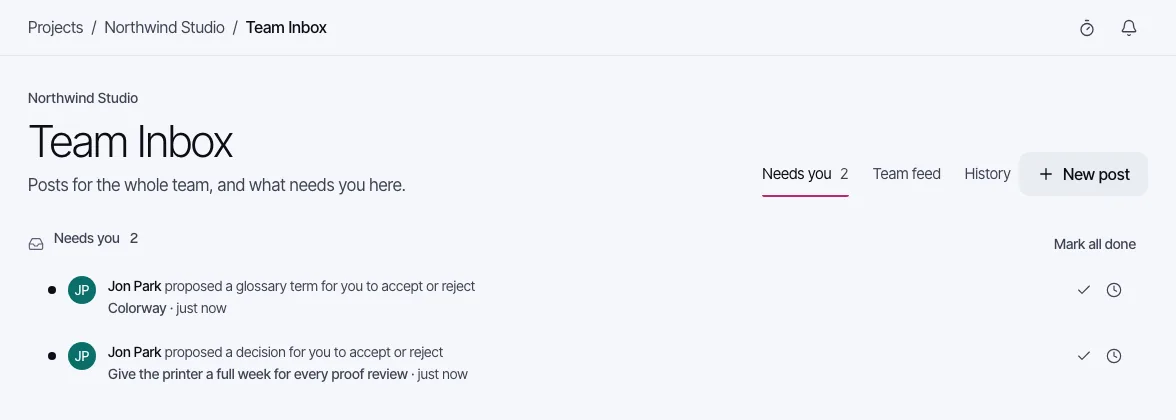
Once any admin accepts or rejects the term, the item is done for every admin. Mark not done brings an item back only while its term is still Proposed. The item follows the Bin and admin changes the way a decision's sign-off does.
A personal project's terms raise no item. A Glossary decision raises its own decision item.
Highlights and the term card#
Where a term applies, Yipadoo underlines it with dots in the text you read, and a small card tells you what it means. A term is marked at its first use in each paragraph, heading, list item or table cell, by its name or an alias.
Highlights appear in:
- a task's saved notes, and its title on the task panel (never in a list row or on a board card);
- task comments and project comments;
- the Brief's Outcome, Why it matters and Done looks like, and the Runbook and Policy;
- a team post's body and its replies, which mark the workspace's own terms.
Text in code, links and mentions is never marked, and neither is a post's title or a draft's preview.
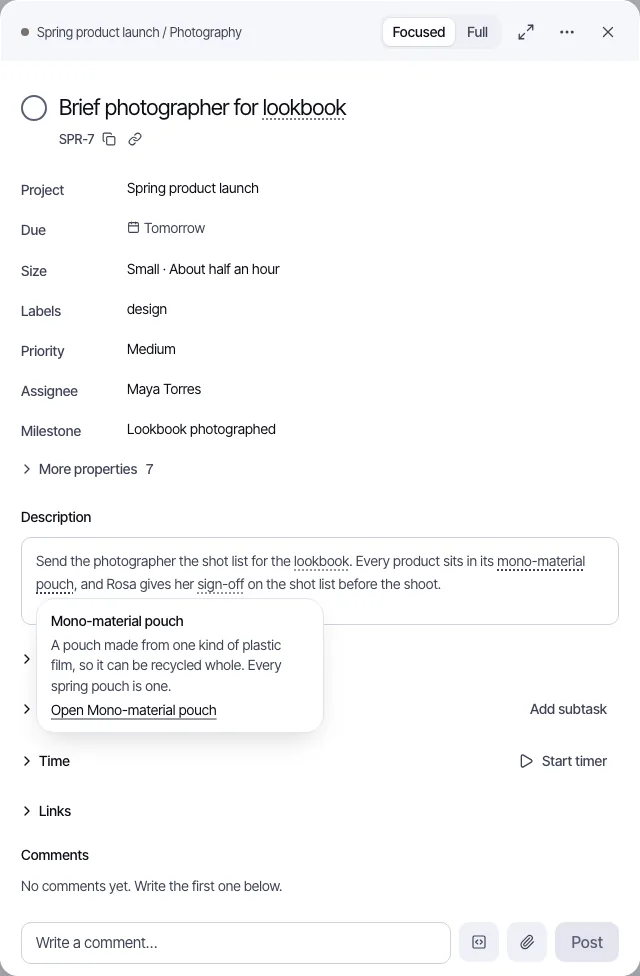
Rest the pointer on a marked word, tab to it, or tap it, and the card opens with the term's name, its definition and a link to its page, such as Open Mono-material pouch. Press Enter or Space on a marked word to open or close it. Esc or a click elsewhere closes it, and leaves any task panel around it open.
Turn highlights off#
Highlights are on by default. To turn them off, choose Profile and settings in the account menu at the foot of the left rail, open the Look and feel tab, and under Glossary switch off Show glossary highlights. The choice is saved to your account, so every device you sign in on follows it.
With highlights off, no text is marked and no card opens. The avoid-word line, Used in and Key terms still show.
The avoid-word line#
When you write a word to avoid, a line under the editor says what this place calls it instead. It shows under:
- a task's notes editor;
- the comment box on a task or project;
- the Brief's Outcome, Why it matters and Done looks like while you edit them;
- the body of a team post, new or being edited.
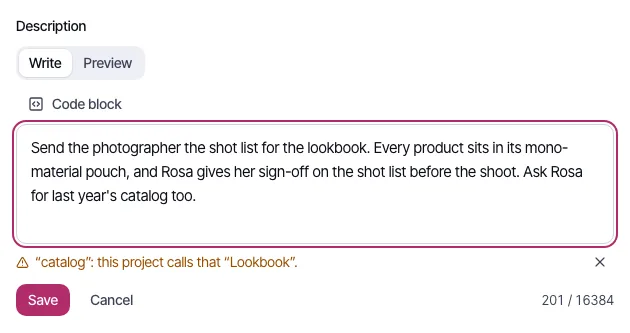
The line appears once you pause typing and names the first word to avoid it finds, such as "catalog": this project calls that "Lookbook". It uses the term's Say instead text when there is one. Under a team post it says "this workspace". It never changes your text and never stops you saving.
Click the dismiss button to hide it while that editor stays open. In the comment box it comes back after you post.
Key terms on the Brief#
A project's Brief has a Key terms card under the project brief. It lists up to ten of the most used terms that apply to the project, most used first, each a link to its page with how many places use it, such as "Lookbook 3 places". The card shows only when at least one term is used in the project.
Assistants and the glossary#
A connected assistant reads the glossary and proposes to it, but a person decides.
- It reads terms at every level. Read only is enough. Asked for a project's glossary, it gets the Active terms that apply there: the project's, its Area's and its workspace's, the narrower winning a shared name. It can also read one term whole, with its history.
- It uses your words. While the Glossary is on, its instructions tell it to use a project's terms exactly and to check the glossary when unsure what a term means. At Propose only and above, they also tell it to propose a missing term rather than define one silently.
- It proposes terms. At Propose only and above, it can propose a term with a name, a definition, aliases and words to avoid. The term is always Proposed and waits for a person in the app.
- It proposes changes. At Propose only or higher, it can propose a new definition for an Active term, or its deprecation, as a Glossary decision. It can't propose a new name.
- It hears about words to avoid. When it creates or edits a task, creates a milestone, adds a comment or adds a Team Inbox post using a word to avoid, the answer it gets back names the word and what to use instead, for example:
This project calls "client" a "Customer" (glossary). Use "Customer".The write still goes through. Editing a comment or a milestone, or replying to a post, gets no such answer. - It never accepts, rejects or edits a term. No level allows it to accept or reject a term, or to edit an Active one. A person does that in the app.
What it does shows in activity marked "via a connected assistant". See What an assistant can do.