
Your first task
Add a task from one typed line with Quick Add, find it on Today, give it a date, open it and finish it.
Quick Add turns one typed line into a task that already has its date, project and priority. This page walks through adding one, finding it on Today and finishing it.
Add the task#
- Press
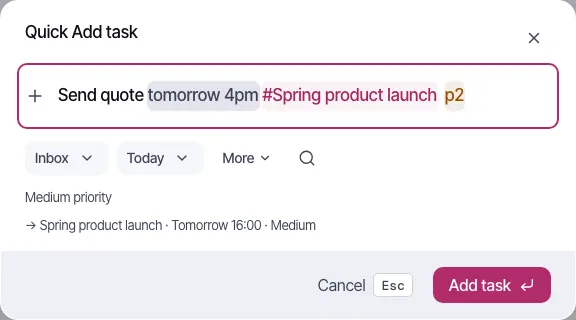
Qanywhere in the app, as long as you are not typing in a field. You can also press Add task at the top of the left rail, or on a phone the Add task button in the middle of the bottom bar. The Quick Add task pop-up opens. - Type a line such as
Send the invoice today p1. - Watch the box as you type. Words Yipadoo recognizes turn into chips, and the line under the box says where the task will land, for example "Spring product launch · Tomorrow 16:00 · Medium".
- Press
Enter. To close the pop-up without adding anything, pressEsc.
A toast at the bottom says Added to Inbox. If the page you are on will not show the new task, the toast also offers Open.
What Quick Add reads#
Type a mark right before the word it applies to. You never have to use them; the pickers under the box do the same job.
| Type | It sets |
|---|---|
today, tomorrow 4pm, next week, in 3 days |
The due date, and a time if you give one |
p1, p2, p3, p4 |
Priority: High, Medium, Low, none |
#name |
The project, by its name |
/name |
A section inside that project |
%name or @name |
A label |
+name |
The person it is assigned to, in a team project |
{friday} |
A hard deadline |
!30m |
A reminder thirty minutes from now |
If you name a project or section that does not exist yet, the suggestion list offers to create it with the task. To keep a mark as plain text, put a backslash in front of it.
Where it lands#
With no project named, a task goes to your Inbox, the place for work you have not filed yet. If you open Quick Add while you are inside a project, that project is the default. Add #name and the task goes to that project instead. A word you type always wins over the pickers.
Tip: From My work on Today, Add task starts with the due date set to Today.
See it on Today#
Open My work in the left rail. It opens on Today, which lists every open task dated today. Your new task is there, and the summary strip reads "Due today" with its count. A task dated tomorrow or later is not on Today; you find it under Upcoming. My work covers the other tabs.
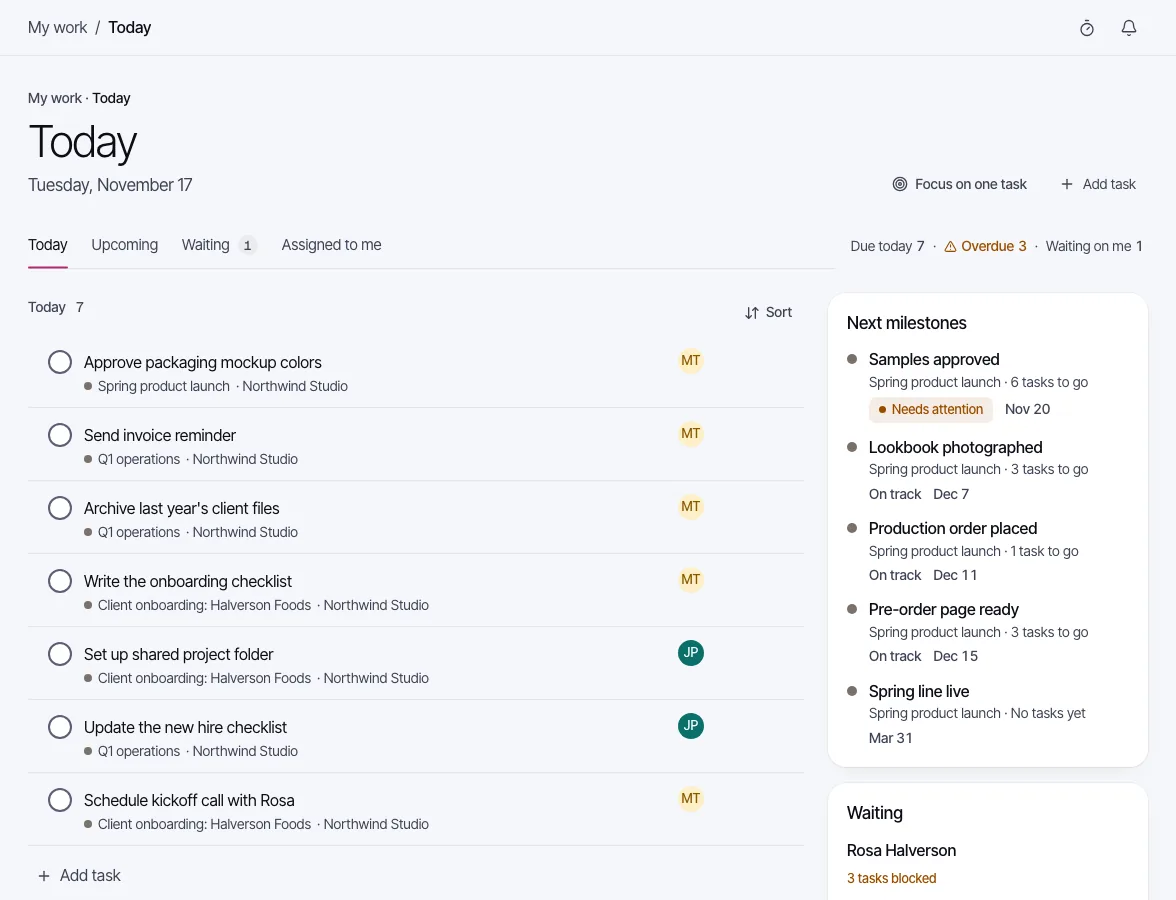
Note: Today shows tasks assigned to you, every task in your personal projects, and the tasks of team projects that have Show in my Today switched on. A task in a team project with that switch off stays off your Today unless it is assigned to you.
Open it and set the date#
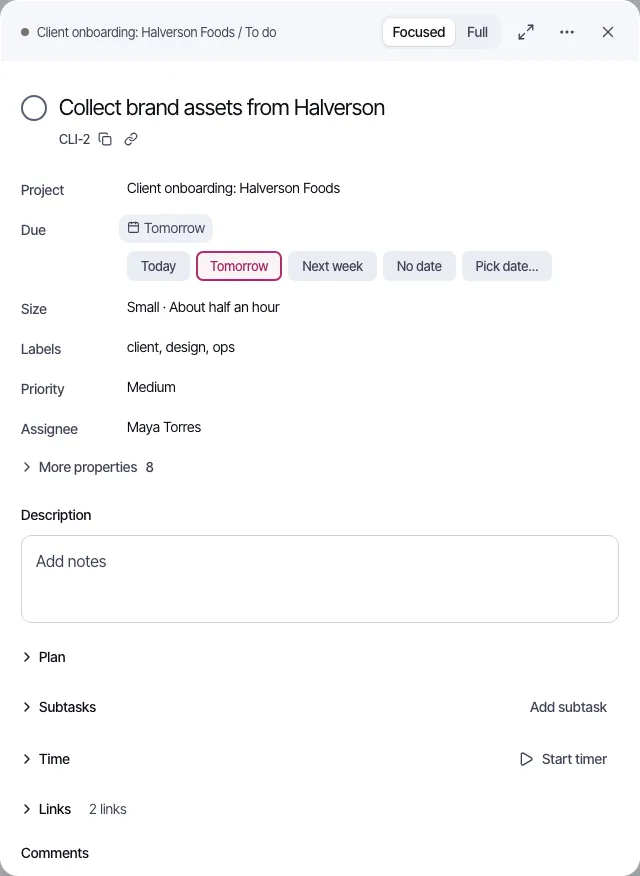
- Click the task's title. The task panel slides in from the right.
- Under Due, press Today, Tomorrow, Next week or No date.
- For any other day, press Pick date… and type it in words, such as
next friday. A preview shows what Yipadoo understood before you pressEnter. - Add notes under Description if the task needs them.
- Press
Esc, or the X (Close task details), to close the panel.
Finish it#
Press the round checkbox at the start of the row. The row slides away and a toast says Task completed. (or Yipadoo! Task done. while celebrations are on). Press Undo within five seconds to bring it back. You can also click a row, or move with J and K, and press X.
When nothing is left for today, Today says Day cleared.
Related#
- Quick Add, every mark it reads
- The task panel
- Finish, undo and delete
- Find your way around
- Your first plan