
Build a plan with milestones
Add milestones on the Plan tab, link tasks to them, set dates and owners, then keep the plan honest as dates move.
A milestone is a checkpoint in a project: "Checkout works", "Pilot with three clients". It tracks the tasks you link to it, so the plan and the daily work stay one thing. When the linked tasks are done, the milestone is too.
Note: Planning needs Pro, a Team seat or, on Free, a project your active Goal links. Where it is locked, the Plan tab says "Planning requires Pro" with a See plans link, and milestones you already have stay readable. See Planning at a glance for the full comparison.
The Plan tab#
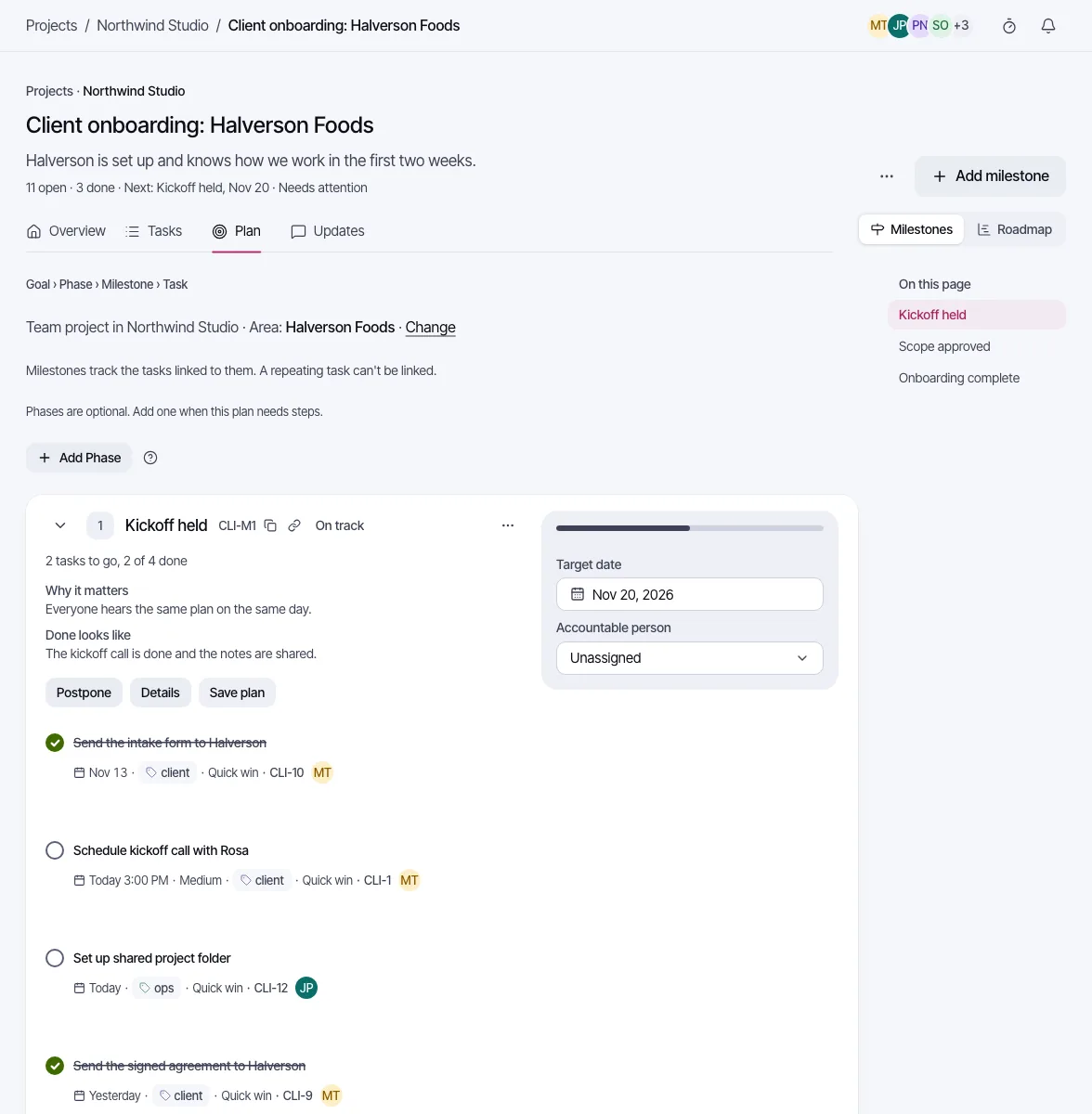
Open a project and click Plan. The Milestones view lists the project's plan, with milestones grouped into Phases if you use them (see Phases). A new plan reads "No milestones yet." and tells you to add the first one. The other view, Roadmap, draws the same plan as a chart; see Roadmap.
Add a milestone#
- On the Plan tab, click Add milestone.
- Type a Title.
- Optionally fill Why it matters and Done looks like, one or two lines each.
- If the project has Phases, pick a Phase. The default is Ungrouped.
- Set a Target date.
- Pick an Accountable person, or leave Unassigned.
- Save.
The Title is the only required field. You can change every other field later on the card.
Work on a milestone card#
A folded card shows the number, title, a health pill, the date and the task count. Click the chevron to open it.
Beside the title is the milestone's reference, such as CP-M3: the project's abbreviation, then M and the milestone's number (see Project color, abbreviation and delete). Two icon buttons sit next to it, with the tooltips Copy reference and Copy link, and the link opens this milestone on the Plan tab. Phases and Goals have no reference. A card folded to Reached hides them.
Link tasks#
A milestone has no complete button. It finishes when its linked tasks do.
- Open the card and find Link an existing task….
- Search for a task and choose it. Create tasks first with Quick Add or on the project's Tasks tab.
- To unlink one, use Remove from milestone on its row.
Each linked task has its own checkbox. The progress bar and the line "N of M done" move as you check them off. A repeating task cannot be linked.
Link a task from the task panel#
You can also link from the task. Open it and, in its Plan group, find the Milestone row.
- Open Add to a milestone… and choose a milestone. The task is linked at once. The menu lists the project's milestones the task is not on yet.
- The row shows a chip for each milestone the task is on: its reference and title and, with Pro, its health. Click the X on a chip to take the task off that milestone.
A subtask is on its top-level task's milestones, which its row shows with "via parent"; set them on the top-level task. A subtask with none reads "None. Set it on the top-level task." A repeating task's row says "A recurring task can't be on a milestone."
Dates and the accountable person#
In the card's side column, set the Target date and the Accountable person, and change the Phase. If the date has passed, click Give it a new date to pick another.
When every linked task is done, the card folds to one line that reads Reached with the day the last task was finished.
Hard to undo and blast radius#
Under Accountable person, the side column has Reversibility (Easy to undo or Hard to undo) and Blast radius (Just me, Team, Customers or Public). Click a value to set it, and click it again to clear it. A Hard milestone shows "Hard to undo" beside its title, with its blast radius when one is set.
On a milestone these are labels only. Nothing holds a milestone back, since it finishes when its tasks do; a project's work rules gate its Hard tasks instead. The Add milestone panel doesn't take them, so set them on the card. See Hard to undo and sign-off.
The milestone menu#
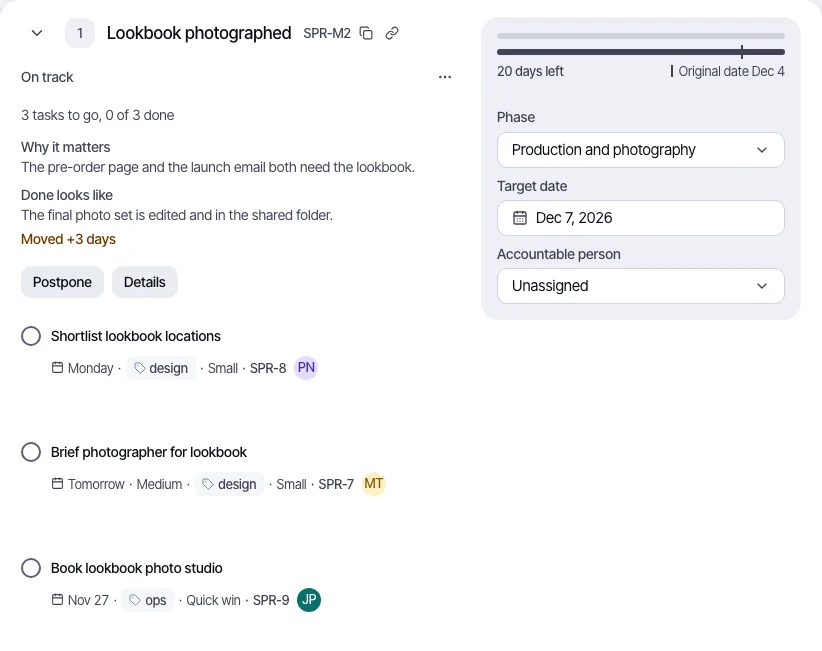
An open card has three buttons: Postpone (or Bring back), Details and, until you save the plan, Save plan. The ⋯ menu on a card (or right-click) holds the rest: Rename, Move earlier, Move later, Save as template, Delete milestone (which asks first), Mark as final milestone and, once the plan is saved, New plan. You can also drag a card by its grip to reorder.
Keep the plan honest#
Health#
Each milestone, Phase and project shows a health pill. The words are On track, Needs attention, Target passed, Postponed and Completed. Click a pill to read why, with the unfinished or blocked work behind it (see Plan a task for blocked work), and Review linked work in Plan to go fix it. Health describes the work as it stands today; it is not a forecast.
Postpone and Bring back#
Click Postpone on the open card to park the milestone on purpose. It leaves health checks and next-up lists until you click Bring back. Use it for paused work, so it stops showing as late. The Overview tab's Status card has the same action in its milestone menu.
Save plan, Moved and New plan#
Save plan keeps a milestone's current target date as the baseline. After that, a later change to the date shows as a move.
- Click Save plan on the card of a milestone that has a target date.
- If you change the date later, the card shows "Original date" and a note such as Moved +3 days, or "Moved up 2 days" when you pulled it in.
- To start over, open the card's ⋯ menu and choose New plan. Answer What changed?, then click Make the new plan. The new date becomes the original, and the move clears.
Details and status updates#
Click Details on the card to open a side panel for the people following the milestone. (In the Overview tab's Status card, the same panel is the Details and updates menu item.)
- Links: add a Link name and Link URL, then Add link.
- Status history: pick a Current status (On track, At risk or Off track), write an Update and click Post update.
The latest update shows on the card as a badge such as "Update: At risk". This is a note a person writes, separate from the health pill the app computes.
Related#
- Phases groups milestones into ordered steps.
- Final milestones marks a milestone as a promise.
- Roadmap draws the plan as a chart.
- Project Overview and Brief shows the next milestone on the Status card.