
People and roles
What Owner, Admin, Member and Guest can each do, and how to invite people by email or link, change a role, remove someone or leave.
Everyone in a workspace holds one role, and the role decides what they see and change. Give each person the smallest role that lets them do their job. You can change it later.
The four roles#
The person who creates a workspace is its Owner, and the Owner is always an admin too. The other roles are Admin, Member and Guest.
| Owner | Admin | Member | Guest | |
|---|---|---|---|---|
| Sees projects | Every project | Every project | Projects open to all members, and any they are added to | Only projects they are added to |
| Changes tasks in those projects | Yes | Yes | Yes | No, comments only |
| Adds team projects, uses Team Inbox and Contacts | Yes | Yes | Yes | No |
| Can be assigned tasks | Yes | Yes | Yes | No |
| Proposes workspace and Area decisions | Yes | Yes | Yes | No |
| Accepts or rejects decisions | Yes | Yes | No | No |
| Adds workspace and Area glossary terms, and reads them | Yes | Yes | Yes | No |
| Accepts or rejects proposed glossary terms | Yes | Yes | No | No |
| Edits workspace settings, folders, Member groups and project visibility | Yes | Yes | No | No |
| Invites by email, changes roles, removes people | Yes | Yes | No | No |
| Copies the invite link | Yes | Yes | Yes | No |
| Sees the member list | With emails | With emails | With emails | Only themselves and people on their projects, no emails |
| Makes someone an Admin | Yes | No | No | No |
| Transfers or deletes the workspace | Yes | No | No | No |
| Leaves the workspace | No | Yes | Yes | Yes |
Note: Adding people needs the workspace's owner on Team. Admins and members each use a paid seat. Guests are free, up to 5 for each paid seat. If there is no room, the invite is refused and says so.
Invite by email#
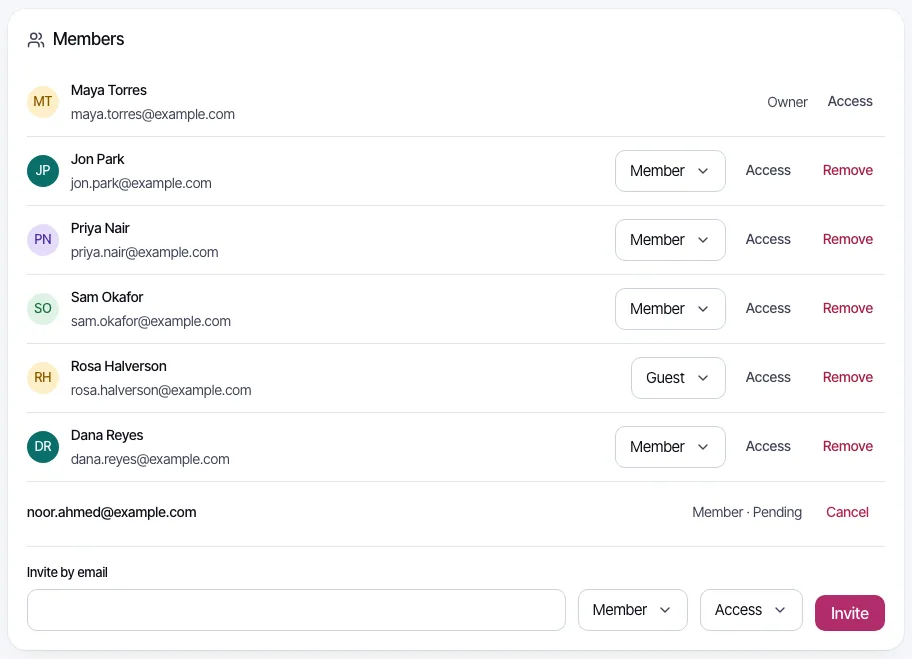
Admins invite people from the Members card on the workspace page.
- Type the address in Invite by email.
- Pick Member or Guest in the role menu beside it. Member is the default, and you cannot invite an Admin.
- Optionally click Access to tick the projects and Member groups the person gets on accepting. The button appears when there is something to give. A member's list holds only Restricted projects, since members already see the rest. A guest's list holds every project, with no Member groups.
- Click Invite.
A message confirms with "Invite sent to" the address, or says the person already has an account and the invite is waiting for them in Yipadoo. People with no account get an email whose link lets them choose a name and password (see below). Nothing is given until they accept.
Other answers: "<address> is already a member." and "<address> is already invited." If a link went to the address less than a minute ago, the form says the invite is waiting and to invite again in a minute to send another.
Waiting and declined invites list under the members with Cancel, plus Send again on a declined one. One invite names at most 50 projects and 20 Member groups.
Accept an invite as a new person#
A person with no account gets an email titled "You're invited to Yipadoo". Its link opens a page headed Set your password, marked Join, with the line "You're invited to Yipadoo. Set a password to join."
- Type your Full name and a Password (the same rules as in Sign in and security).
- Click Set password. You land in the app, signed in.
The link works once and lapses after an hour. If it has, the page says "This invite link has expired or was already used. Ask for a new one, or sign in if you already chose a password." Ask an admin to invite your address again, which mails a new link (see When something goes wrong). A refused password also uses the link up, so ask for a new one. Opening the page without the link says "This page opens from the link in your email. If you have just passed the access check, open the link from your email again." An account made this way starts on Free; see Plans and pricing.
Accept an invite#
Sign in with the address that was invited. A row at the top of the app reads "<Name> invited you to <workspace>", with Decline and Accept. After you accept, a message says "You joined" the workspace and you land on its page. A guest given exactly one project lands in that project.
The invite link#
The Invites card, visible to admins and members, holds a shareable link. The switch Invite link on controls it: "Anyone with the link joins as a member." Click Copy to copy it, or use Copy invite link in the workspace's ⋯ menu. Admins also see Regenerate, which kills the old link without turning the feature off.
The link always joins as a member. Someone who opens it lands on a page headed Join workspace and joins at once. A link that is off or was regenerated reads "This invite link is invalid or turned off." It never brings back someone who was removed or who left, who sees "An admin removed you from this workspace. Ask an admin to invite you back." Only an admin's email invite does.
Admins also have two switches here. Guests allowed lets people be invited as guests, and without it an invite fails with "This workspace does not allow guests." Guests only from your email domains requires a guest's address to use the same domain as one of the workspace's admins, and otherwise the invite fails with "That email is outside this workspace's allowed domains."
Change a role#
- On the Members card, open the role menu on the person's row.
- Choose Member, Guest or, if you are the Owner, Admin.
A message confirms, such as "Maya is now a guest." The Owner's row and your own show plain text instead of a menu. Only the Owner promotes someone to Admin, and an admin can demote another admin.
Choosing Guest opens "Make <name> a guest" first. It warns that they lose every project they were not added to by name, their tasks become unassigned, they can no longer add or change tasks, invite people or add projects, and they leave every Member group. Click Make guest to go ahead. If your account has an authenticator app, a role change also asks for a fresh code.
Remove someone#
- On the person's row, click Remove.
- In the dialog "Remove <name> from <workspace>", read what they lose: its projects, tasks, Team Inbox and contacts at once. Their tasks there become unassigned.
- Click Remove from workspace.
To return, they need a new email invite from an admin. You cannot remove the Owner or yourself.
Leave a workspace#
Anyone but the Owner can leave from the workspace's ⋯ menu. See Workspaces.