
Activity and the Bin
See what changed and who finished what in Progress, read a workspace's History, and restore or permanently delete work from the Bin.
Progress shows what has moved across your projects and who did it. The Bin holds deleted work for a while so you can bring it back.
Progress#
In the left rail, open Tools, then Progress. The page says "Changes across your personal and shared projects." and has a switch with Activity, Completed and Daily summaries. Daily summaries is covered in Notifications and reminders.
Activity#
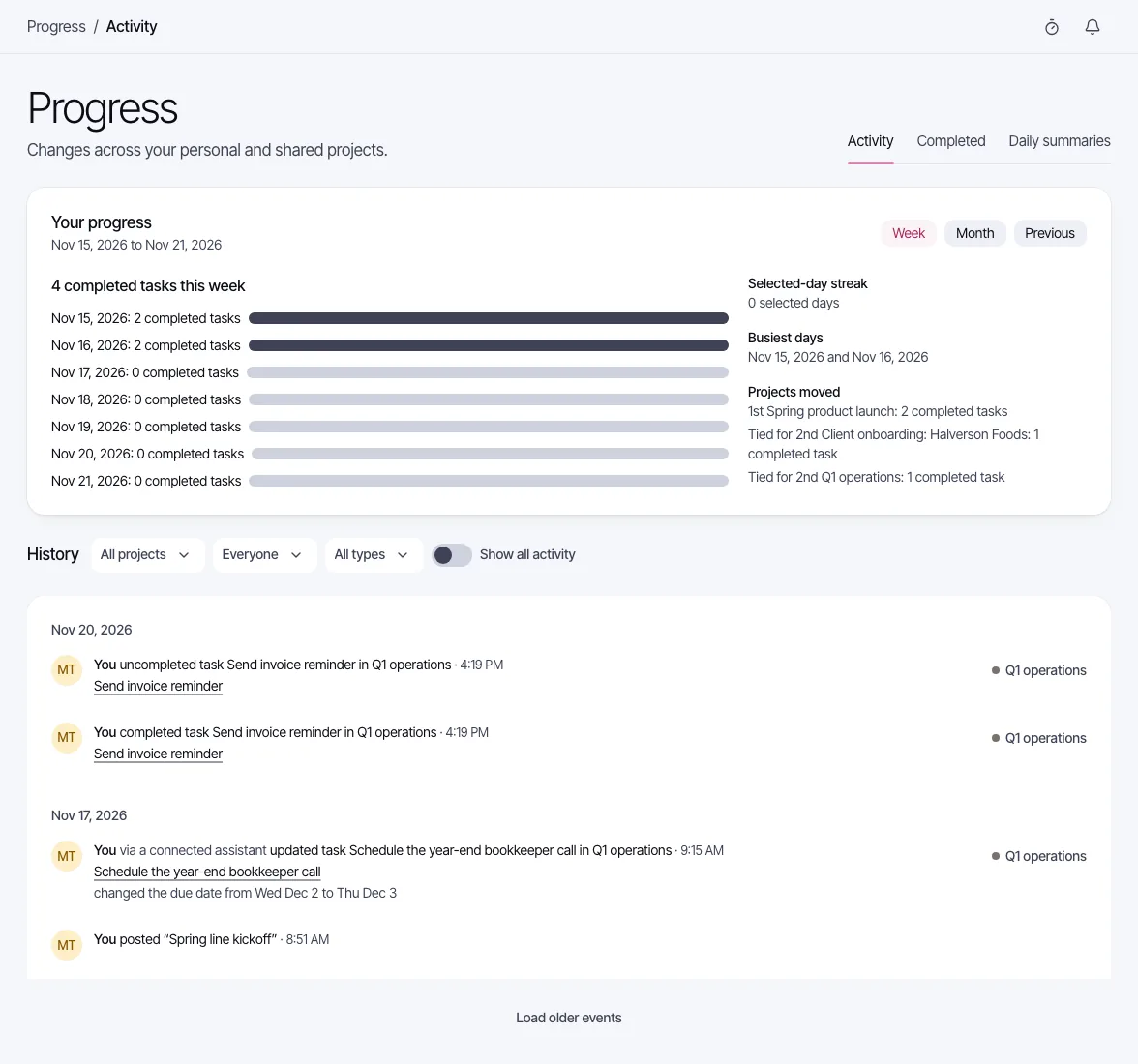
The top of the page is a Your progress chart. It counts the tasks you completed each day, with Week and Month buttons and Previous and Next to move through time. Under the chart, History is a log of changes, newest first.
Beside the daily counts, three notes sum up the period:
- Selected-day streak counts how many of your selected days in a row had a completed task, newest first. Your selected days are the Summary days in Settings. Today does not break the streak while you have finished nothing yet; it adds one once you finish something.
- Busiest day, or Busiest days when there is a tie, names the days with the most completed tasks.
- Projects moved ranks your projects by completed tasks, such as "1st" or "Tied for 2nd", each with its count.
Three menus filter it. They read All projects, Everyone and All types until you choose: a project, a person (You or a teammate) and a kind of change, such as a task added. The Show all activity switch adds routine changes that are hidden by default: reordering, folding a row, and unarchiving. Picking a type shows that type either way. Scroll, or click Load older events, for more. An empty log reads "Quiet so far."
A run of changes folds into one row. An assistant's run on one task within 5 minutes reads "N events on" the task. One person's milestone edits in a project within 5 minutes read "N changes to milestone" and its title, or "N milestone changes in" the project when they touched several. Click the row to show or hide what is inside. A group at the bottom may say "Earlier events may continue this group." until you load older events.
Changes to glossary terms show here too, as a term is added, proposed, accepted, rejected, changed or deprecated: a project term's with its project, and a workspace or Area term's for the workspace's admins and members. All types doesn't list them, so they show only while it reads All types.
To see one project's log, open the project's Updates tab and switch to Project activity.
Note: A Free account sees the last seven days of history, counting today and the six days before. On Free, Month and Previous are greyed out, with the line "Free includes seven days of history. Month and earlier periods are available on Pro." Pro and Team see everything.
Completed#
Switch to Completed for "Everything you finished this week, day by day." The person menu starts on You. Choose Everyone for the team's week, or pick a teammate. A project menu narrows it. When nothing is done yet the page reads "Fresh week."
History in the Team Inbox#
The History tab of a workspace's Team Inbox shows the same kind of log for that workspace: its posts, the changes to its projects, its workspace and Area decisions as they are proposed, accepted, rejected, superseded or unlinked, and its workspace and Area glossary terms as they are added, proposed, accepted, rejected, changed or deprecated. It never sends an alert. See Team Inbox.
The Bin#
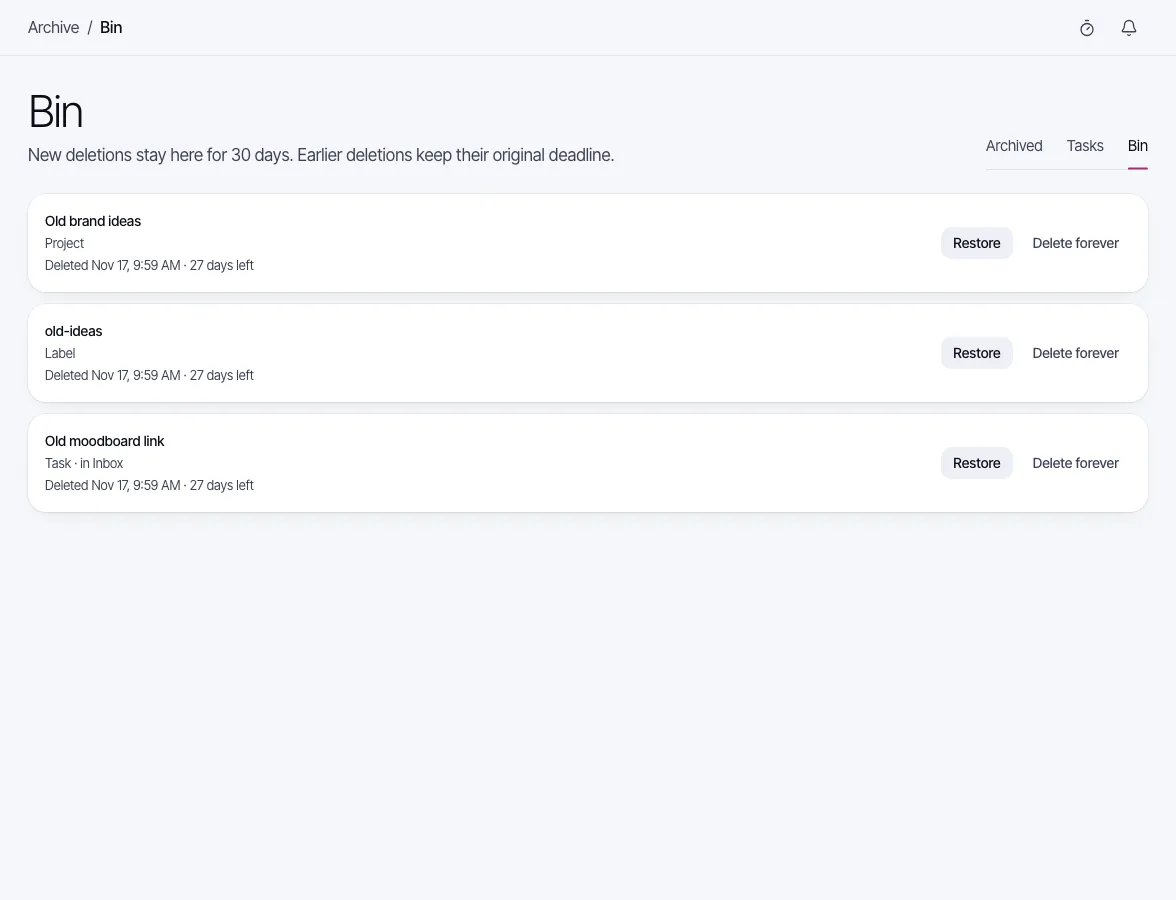
Deleted work does not vanish at once. It goes to the Bin. In the left rail, open Tools, then Archive, then Bin.
Each entry names its kind: Project, Section, Task, Label, Filter, Comment, Project comment, Milestone, Phase, Workspace, Contact, Business or Group. It also shows where it was, when it was deleted, and how long is left, as "N days left" or "Goes today".
You see entries in places you can edit. A guest sees only the comments they wrote. Admins see deleted contacts, businesses and groups. The owner sees a deleted workspace.
How long deletions stay#
The line under Bin says "New deletions stay here for N days. Earlier deletions keep their original deadline." N is 7 for personal work you delete on Free and 30 on Pro and Team. Work deleted inside a workspace and a deleted workspace itself stay 30 days, whatever the plan. After that, the Bin purges the entry.
Restore#
Click Restore on an entry. A guest cannot restore a team project. Restoring a Phase brings back an empty Phase, and its milestones stay where they are. For a task, see Finish, undo and delete.
Delete forever#
Click Delete forever, then confirm. The question names what goes with it, such as "Delete this and 12 tasks, 3 comments forever? This can't be undone." If your account has an authenticator app, you are asked for a fresh code first. Both buttons appear only where you may use them. Inside a workspace, only its admins can delete work forever.
Restore a workspace#
Only the owner can restore a deleted workspace.
- Open Tools, then Archive, then Bin.
- Find the entry marked Workspace. Check its days left.
- Click Restore.
Its members and open invites come back with it. Its Member groups were never removed, so they are there when it returns. If the owner's seats no longer cover the people, the restore stops with a message and nothing changes. See Workspaces.