
Find your way around
The left rail, top bar, Search, Quick Add, the phone's bottom bar, the account menu, keyboard shortcuts and the line that says what is syncing.
Every signed-in page has the same frame. A left rail takes you places, a top bar shows where you are, and a few keys work everywhere.
The left rail#
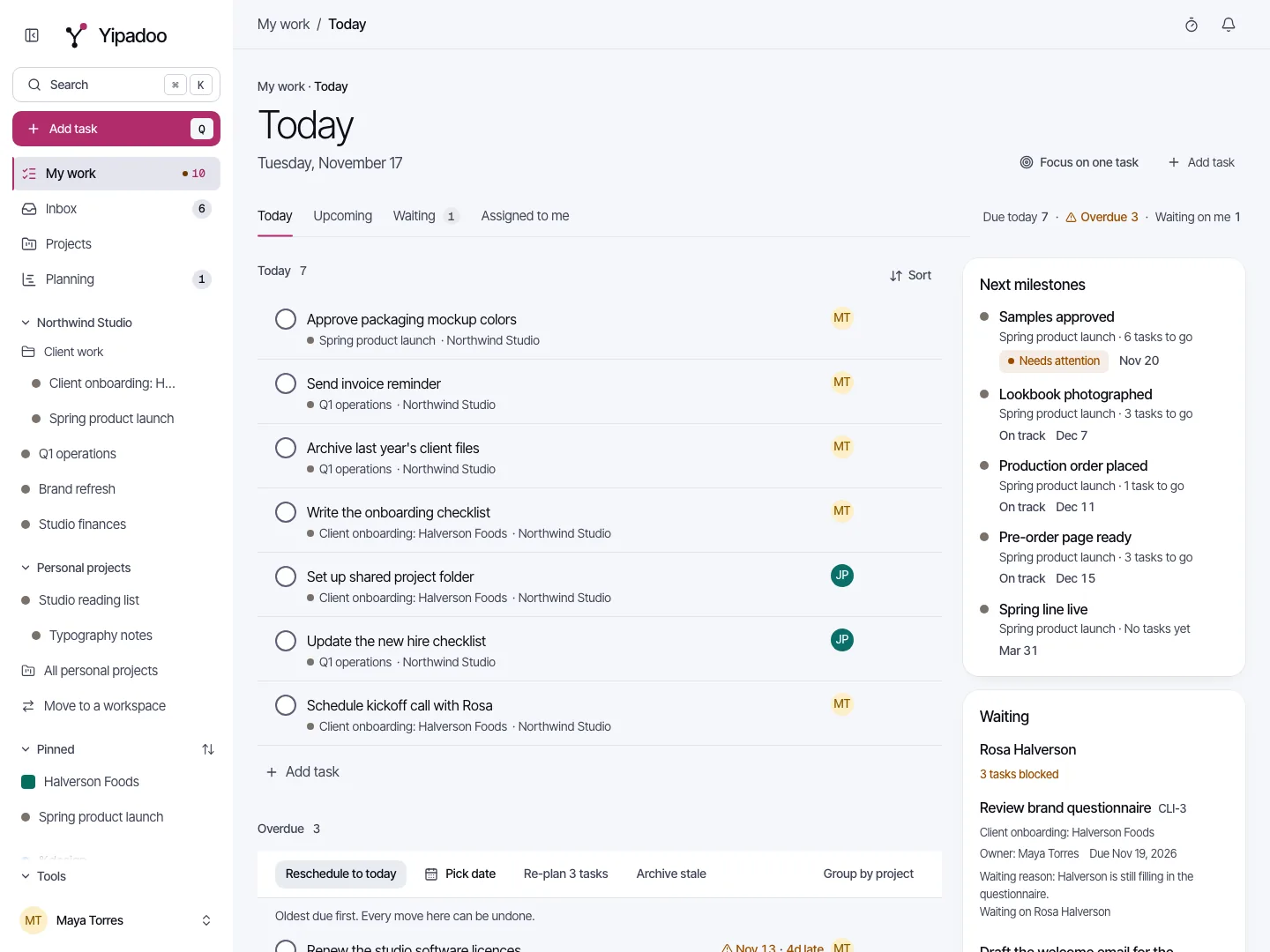
At the top are the Yipadoo logo, which opens Home, then Search and Add task. Below them are four main rows:
- My work opens on Today and holds the tabs Today, Upcoming, Waiting and Assigned to me. A badge counts the tasks that are overdue or due today, with a small dot when some need a new date.
- Inbox holds tasks you have not filed. Its badge counts what is left to sort.
- Projects lists every project you can open, by workspace, then your Personal projects.
- Planning opens the Timeline, with Goals and Weekly reviews beside it.
Under those rows are two groups with headings you can fold:
- Pinned appears once you pin something. It holds pinned projects, Areas, labels and saved filters, and a sort menu with Manual, Name, Recent and Due.
- Tools holds Progress, Yippee Timer, Templates, Labels and filters and Archive (which also holds the Bin).
Click a group's heading to fold or open it; Yipadoo remembers your choice.
Between the four main rows and Pinned, the rail lists your projects:
- Each workspace you belong to has its own section, named after it. Click its heading to fold or open it. The fold is yours alone and never changes the workspace.
- A section shows its first five projects, with the folders they sit in. Click Show all N to see the rest, and Show fewer to fold them back.
- Personal projects comes after the workspaces, when you have any. It ends with All personal projects, which opens the Projects page narrowed to them, and, if you are an admin of a workspace and own a personal project that can move, Move to a workspace (see Moving projects).
- A workspace guest sees a section only once someone has given them a project in it, and it lists just those projects.
The small button with two arrows on the Pinned heading sorts the group. It starts on Manual:
- Manual keeps the order you set. Drag a row to a new place, or use the up and down arrow buttons on the row, which show only in Manual. The top row has no way up and the bottom row no way down.
- Name runs A to Z.
- Recent puts first the project or Area whose tasks changed most recently.
- Due puts first the one with the soonest open date: a next milestone date or an open task's due date, overdue ones included.
In Recent and Due, a row with nothing to go by comes last, and ties go by name. An Area is judged by its projects. Yipadoo keeps your sort and your Manual order on your account, so they follow you to another device. They apply to pinned projects and Areas; pinned labels and saved filters stay below them.
Press Collapse navigation at the top of the rail to shrink it to icons, and Expand navigation to bring the names back. Until you choose, the rail shows icons below 1024 pixels wide.
The top bar#
The strip across the top shows a breadcrumb of where you are, such as Projects / Northwind Studio / Website. Click any parent to go up a level. On the right are, in order, the people on the current project (inside a project only), the Yippee Timer button and the bell (Notifications).
The people button is a row of overlapping round avatars, up to four, with a +N circle when more people can reach the project. It counts you too. Click it to see who is on the project. On a team project it opens the workspace's People page (see The People page); on a personal project it opens the Share dialog (see Share a project). The button shows only when at least one other person can reach the project, and not on a screen narrower than 640 pixels.
Search#
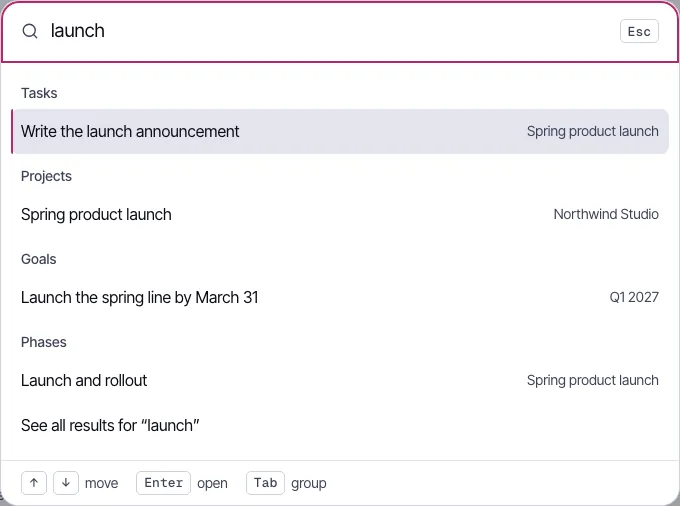
Click Search in the rail, or press Cmd+K on a Mac or Ctrl+K on Windows. The Search and commands pop-up opens. Type to find tasks, projects, Areas, Goals, Phases and milestones, then use the arrow keys and Enter to open one, and Tab to jump between groups. See all results opens the full results page, which / also opens. With nothing typed, the pop-up lists actions such as Add task and Go to Today.
Quick Add#
Press Q or press Add task to open Quick Add, from any page. Your first task walks through it.
The bottom bar on a phone#
Below 768 pixels wide the rail becomes a drawer and a bottom bar takes over. It holds My work, Inbox, a large Add task button in the middle, Projects and Planning. Open navigation, at the top left, opens the drawer with Pinned, Tools and the account menu. Search is an icon in the top bar, and the timer shows there only while a round runs.
The account menu#
At the foot of the rail, the button with your avatar and name opens a menu:
- Profile and settings opens Settings.
- Help and shortcuts opens Help: every keyboard shortcut, a finder for pages, and short definitions of Goal, Project, Phase, Milestone and the other planning words.
- Theme, where you choose Light, Dark or System.
- Report a bug or ask for a feature, covered in Get help and report a bug.
- Sign out, with the app version under it.
Keyboard shortcuts#
Press ? outside a text field to open the Keyboard shortcuts sheet. All of Help on that sheet opens the full Help. Shortcuts are ignored while you type in a field.
| Keys | Action |
|---|---|
Cmd+K on a Mac, Ctrl+K on Windows |
Search and commands |
Q |
Quick Add task |
J and K |
Select the next or previous task |
X |
Mark the selected task done |
E |
Edit the selected task's title |
T or G then T |
Go to Today |
U |
Go to Upcoming |
G then M, I, P, L |
Go to My work, Inbox, Projects, Planning |
? |
Show or hide the shortcuts |
The sync line#
While a page shows what your device saved last time, the top bar reads Refreshing, as long as the fresh data takes more than a moment or fails to arrive. On a window 640 pixels wide or more it adds how old that copy is, such as "showing what you had 3 minutes ago". The line goes away when fresh data arrives.
If your connection drops, a notice says "Could not reach Yipadoo. Your changes are saved on this device and will sync when you are back." A Reconnecting… notice means Yipadoo is retrying by itself and nothing is lost.
If a change or a refresh fails for another reason, a banner opens at the top of the window with the reason, a Try again button that asks Yipadoo for the latest data again, and an X to close it. "Too many requests. Retrying shortly." means Yipadoo sent requests faster than the server allows and is waiting to retry on its own. When something goes wrong lists each message and what to do.