
Read a task row
What each part of a task row tells you, the quick controls on it, three ways to open its menu, how to select several rows, and what Focused and Full change.
A task row shows what you need to decide about a task, so you rarely have to open the task panel. This page names each part of a row, the small controls on it and how a row changes between Focused and Full.
What a row shows#
From the left, a row has:
- The round checkbox. Press it to finish the task. See Finish, undo and delete.
- The title. Long titles stop after two lines. Click the title to open the task panel.
- A project line under the title, on lists that gather tasks from several projects, such as Today and Assigned to me. It shows the project's colored dot and name.
- The short take under the title, in Full only: the first line of the task's Game plan, when it has one.
Beside the title on wide lists, and on a line under it on narrow windows and in a project's List (where the date sits in the Due column), in this order:
- The date. "Today", "Tomorrow", a weekday such as "Thursday" or a date such as "Oct 8". A repeating task adds a ↻. Once the day has passed on an open task, the date changes color and the word Overdue follows it. On the Overdue card on Today, a short chip such as "3d late" takes the place of that word.
- A deadline note, when the task's deadline is within seven days or has passed: "Deadline today", "Deadline tomorrow", "Deadline in N days", "Deadline passed yesterday" or "Deadline passed N days ago".
- Waiting or Blocked. Blocked when an unfinished prerequisite task holds it, Waiting when only a waiting entry does. See Plan a task.
- Hard to undo, with a shield icon, on an open task marked Hard to undo. Its blast radius follows when one is set, as in "Hard to undo · Customers"; a board card leaves the blast radius out. See Hard to undo and sign-off.
- Priority, as the word High, Medium or Low. A task with no priority shows nothing.
- Labels. On a window 1024 pixels wide or more, a row shows the first label and "+N" for the rest.
- Size: Quick win, Small, Medium or Big.
- The task's short reference.
- A comment count, a speech bubble with a number.
- Related project, a link icon and the project's name. Click it to open that project. If you cannot read the project, it says "Unavailable project". See Link a task to a milestone or project.
- The owner, last: a small picture or the initials of the person the task is assigned to. Hover it for the name, which gains "(invited)" until the person accepts the invitation.
A row leaves out any piece the task has no value for, so most rows are shorter than this list.
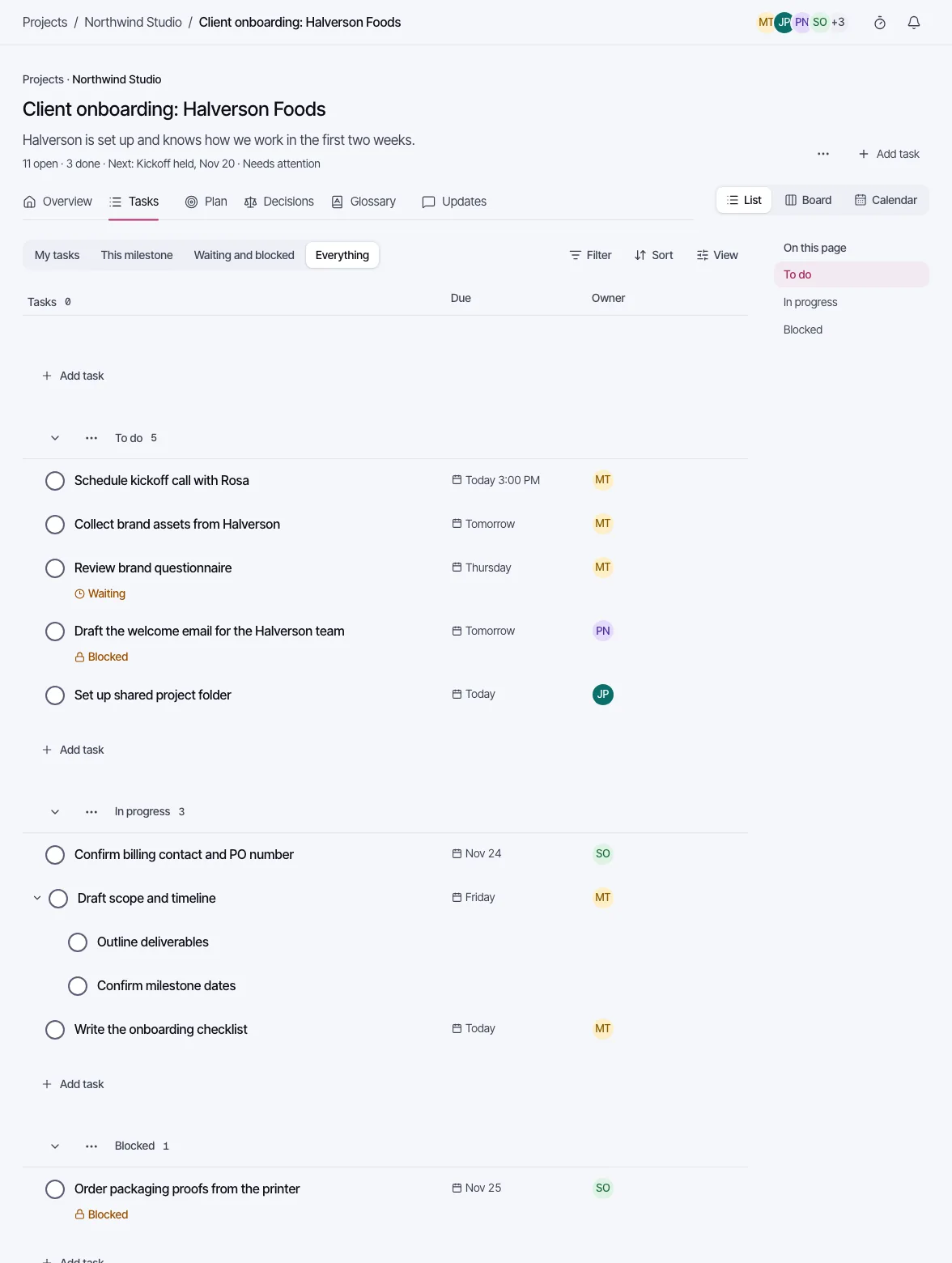
In a project's List on a window 1024 pixels wide or more, the date, the priority and the owner line up in columns under a header row (Due, Priority, Owner). Priority shows only in Full, and Owner only when someone could own a task in that project.
Focused and Full#
The Focused and Full switch sets how much of the row you see.
- Focused keeps the checkbox, the title, the project line, the date, the deadline note, Waiting or Blocked, Hard to undo, and the owner.
- Full adds the short take, priority, labels, size, reference, comment count and related project, and shows the quick controls beside the details.
The switch sits in the header of the Inbox, Upcoming, Waiting, Assigned to me, label and filter pages, and in a project's View menu under Fields. This browser remembers your choice for each screen. Default detail in Settings sets it for screens you have not chosen on yet. See Project views.
Quick controls#
Three small buttons change a task without opening it. Pressing one does not select the row.
- A calendar button opens a date picker. Choose a day and the task moves to it, with an Undo toast reading "Task rescheduled."
- A folder button opens the list of places the task can move to: the Inbox and each project you can change, with a project's sections beneath it. It works like Move to in the Task actions menu.
- A play button starts the Yippee Timer on the task. While the timer runs on that task, the button turns into a square that stops it. A finished task has no timer button.
In Full the buttons sit beside the details. In Focused they fold behind one button with a sliders icon, which opens them on a line under the title. On a screen that has a pointer, that button appears when you point at the row or move focus into it; on a touch screen it is always there.
If you can only read a task, for example as a guest, its row has no quick controls, and its checkbox cannot be pressed.
Open the Task actions menu#
The menu has the same entries wherever you open it. See Finish, undo and delete for the list. You can open it four ways:
- Press the three-dot Task actions button at the end of the row.
- Right-click the row.
- With the row focused, press the Menu key, or
Shift+F10. - On a touch screen, hold your finger on the row for about half a second.
Select rows#
Click a row to select it and open its task panel. Shift+click selects a range of rows. Cmd+click on a Mac or Ctrl+click on Windows adds or removes one row. Press X to finish every selected task at once. See Keyboard shortcuts.
Subtasks on My work lists#
On Today, on its Overdue card and on Assigned to me, a task and its subtasks do not stand side by side. The parent has one row, and under it a button reads "N subtasks". Press it to show or hide them. A group's count counts the parent and its subtasks once. A subtask whose parent is not on the same list keeps a row of its own.
Long lists and groups#
When a list is grouped, each group has a heading you can press to fold it, with the count beside it. This browser remembers each fold.
In Focused, Assigned to me, the label pages and the filter pages show the first five rows of each group and a Show all N button for the rest. A subtask rides with its parent and does not count toward the five. Only the first group that still has open work starts open. In Full, every row shows and every group starts open. Today's own list and the Waiting on me and Waiting on others lists always show every row. The Overdue card shows its first ten rows and a Show N more button. In Focused, the All view of Waiting shows the first five blocker groups and a Show all N blocker groups button.