
Decisions
Record the rules and choices your team has made, see which ones are in force for a project or a workspace, and know who can accept them.
A decision records a rule or a choice your team has made, such as "Every client invoice goes out within 5 working days", together with why. A rule kept in a comment thread or a task description gets buried. A decision puts it in one place, which people and connected assistants both read before they change the work.
Note: Decisions work on every plan, Free included. Workspace and Area decisions need a workspace.
What a decision holds#
- Title: the rule or choice in a few words.
- Decision: what is decided, written as a rule someone can follow.
- Context: why it needed deciding.
- Options considered: what else was weighed, and why it lost.
- Consequences: what follows from it.
- Scope: where it holds, described below.
- Owner: who answers for it.
Only the title and the decision are required.
Every decision gets a reference such as DEC-12. References count up from DEC-1 in each workspace, and separately across your personal projects. Quote the reference in a comment or a task so others can find the rule you mean.
Scope#
A decision holds in one of three places:
- Workspace: every project in the workspace.
- Area: every project in one Area of the workspace.
- Project: one project.
A decision in a personal project holds for that project.
Statuses#
| Status | What it means |
|---|---|
| Proposed | Someone has put it forward. It waits for a person to accept or reject it, and governs nothing yet. |
| Accepted | In force. It is a standard everyone in its scope follows. |
| Rejected | Turned down. It stays on record. |
| Superseded | Replaced by a later decision. It stays on record and links to the decision that replaced it. |
Nobody can edit a decision's words once it is proposed. A Proposed decision is accepted or rejected as written. To change an Accepted decision, propose a new one that supersedes it: when the new one is accepted, the old one becomes Superseded. Every decision stays on record. See Supersede a decision.
Who can do what#
| Propose | Accept or reject | |
|---|---|---|
| Workspace decision | Admins and members | Admins |
| Area decision | Admins and members | Admins |
| Decision in a workspace project | Anyone who can change the project's tasks | Admins |
| Decision in a personal project | The project's owner | The project's owner |
A workspace admin accepts or rejects at every scope, their own proposals included. Accepting and rejecting happen only in the Yipadoo app. A connected assistant can propose a decision but can never accept or reject one.
A project's decisions can be read by everyone who can open the project, guests and the people a personal project is shared with included. Workspace and Area decisions are for the workspace's admins and members; guests never see them.
Where to find decisions#
- On a project, open the Decisions tab, between Plan and Glossary. It lists the project's own decisions and those of its Area and its workspace.
- For a workspace, open the workspace page and choose Decisions in the switch at the top. It lists every decision in the workspace that you can see, at every scope, project decisions included. Admins and members see it. A guest who opens it reads "Decisions are for members."
When you can accept or reject, a number beside Decisions counts the Proposed decisions waiting on you. A project's tab counts the project's own; the workspace's counts every one in the workspace.
Both open on the register.
The register#
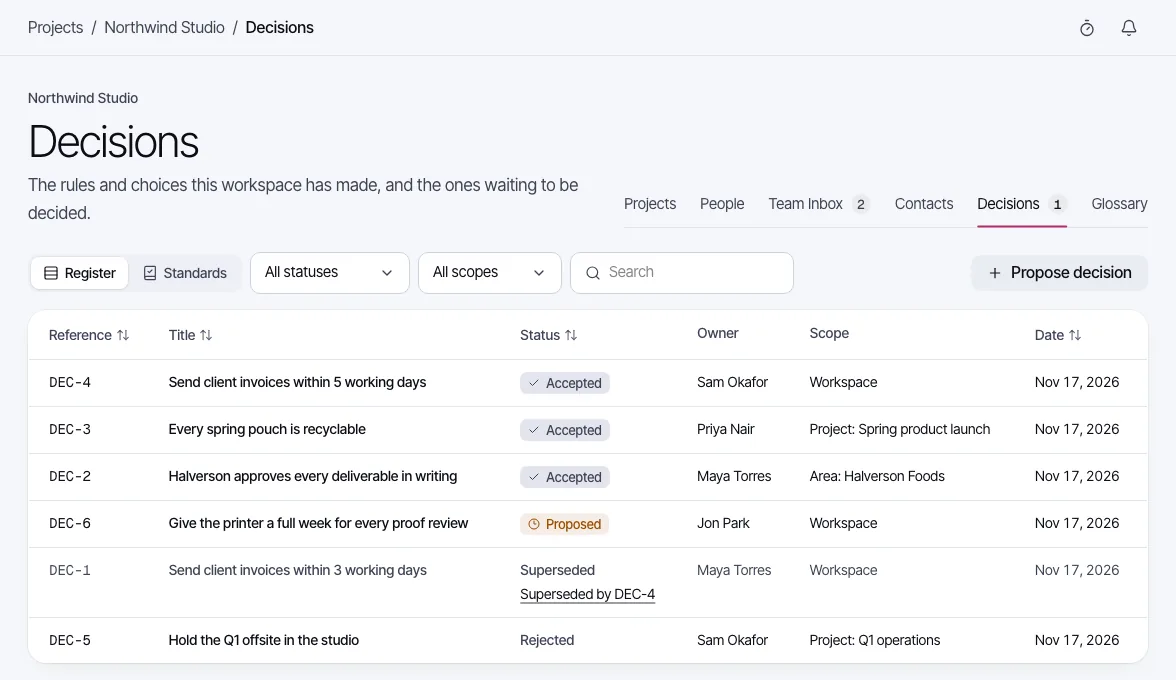
The register is a table with the columns Reference, Title, Status, Owner, Scope and Date. The date is the day a decision was accepted or rejected, or the day it was proposed while it still waits.
- Accepted decisions come first, then Proposed, then Superseded, then Rejected, newest first in each group.
- A Superseded row is grayed out and links to its replacement, as "Superseded by DEC-4".
- Click a title to open the decision.
- A Glossary decision, which changes or deprecates a glossary term, carries a Glossary chip after its title. Click the chip to open the term.
To narrow the list:
- Pick a status in All statuses to show only that status.
- Pick Workspace, Area or Project in All scopes to show only decisions with that scope.
- Search matches the reference, the title and every text field.
- Once the register holds a Glossary decision, a menu offers Show Glossary decisions, Hide Glossary decisions and Only Glossary decisions.
When nothing matches, the table reads "No decisions match." with Clear filters.
To sort, click the Reference, Title, Status or Date header. Click it again to reverse the order, and a third time to go back to the default order, Accepted first. Owner and Scope don't sort.
A place with no decisions yet reads "No decisions yet." with a line about what to record there.
Standards#
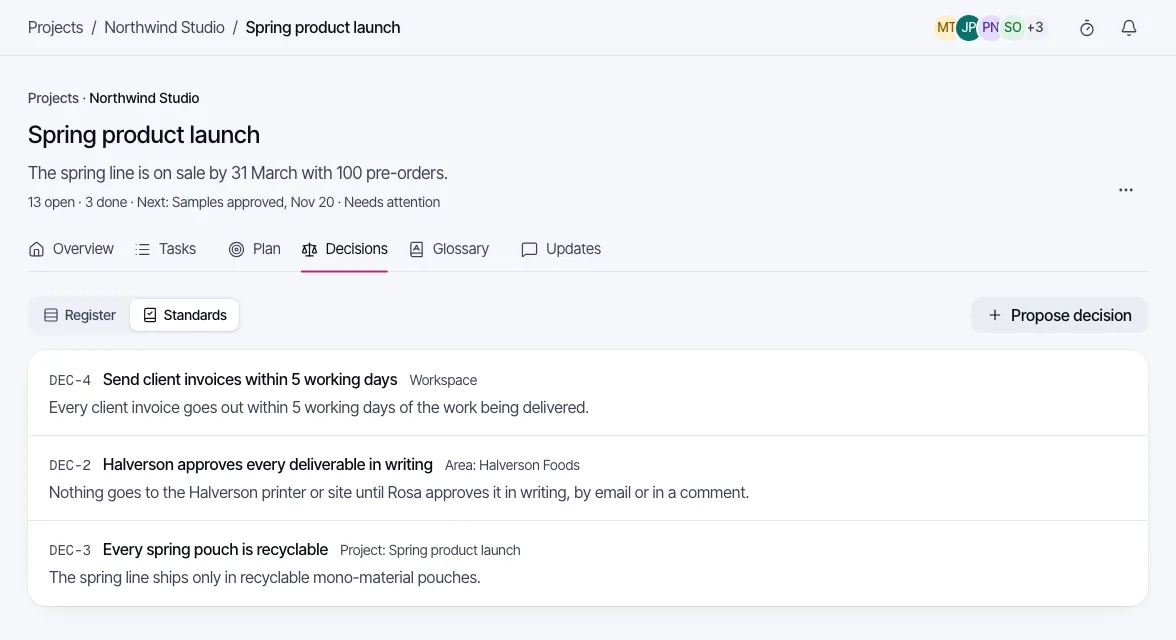
Choose Standards in the switch beside Register to see only the Accepted decisions in force, each with its reference, title, scope and what it decides. Workspace decisions come first, then Area decisions, then the project's own.
- On a project, Standards holds the project's own Accepted decisions and those of its Area and its workspace.
- On a workspace, Standards holds the workspace's decisions and its Areas'. A project decision governs only its project, so it stays out of the workspace's Standards.
Related#
- Propose, accept and link decisions covers the decision page, sign-off and what assistants do with decisions.
- People and roles covers who is an admin, a member or a guest.
- Areas covers the middle scope.
- Glossary covers terms, which change through Glossary decisions.