
Contacts
Keep a shared address book of the businesses, people and groups your team works with, link them to meetings, and export or delete a record.
Contacts is your workspace's shared address book: clients, partners, investors and anyone else outside the team, plus teammates who have no login. Nobody in it needs a Yipadoo account. Only your workspace can see it, and contacts are never shared across workspaces. Admins and members use it. A guest who opens it sees "Contacts are for members."
Open the workspace page and choose Contacts in the switch at the top. A second switch offers Businesses (the default), Groups and People. The large button at the top follows the view: Add business, Add group or Add contact.
Add a contact#
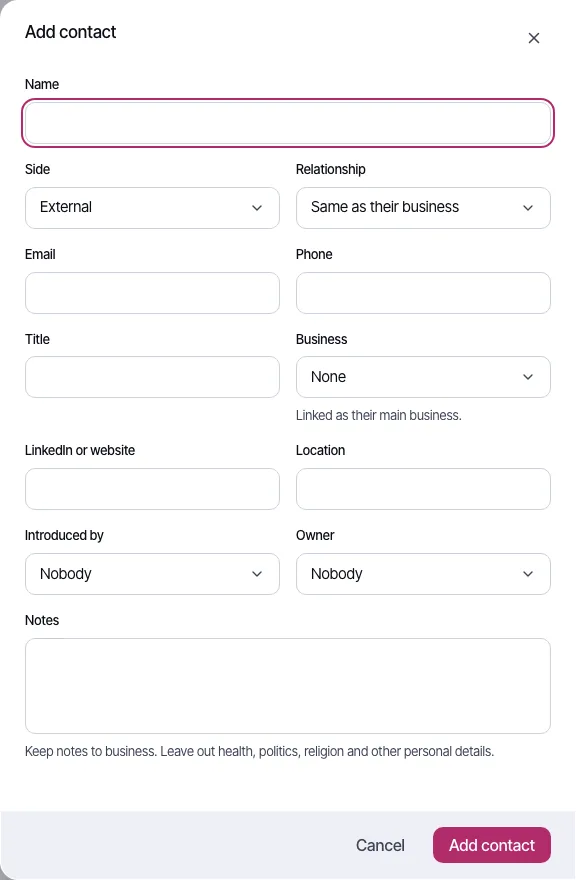
- Switch to People and click Add contact.
- Type the Name. It is the only required field.
- Set the Side: External, or Internal (on our side, no login).
- Fill what you know: Relationship, Email, Phone, Title, Business, LinkedIn or website, Location, Introduced by and Owner.
- Write Notes if you need them.
- Click Add contact.
Relationship starts at Same as their business. Choose a label, or Add a label to make a new one, which the workspace keeps for next time. Business links them as their main business, and if their email matches a business's website, a button reads "Link to <business>?". Adding an email that another contact already has opens that contact instead.
Note: Keep notes to business. Leave out health, politics, religion and other personal details. Notes hold up to 4,000 characters.
The People view#
Each person is a row with their relationship and business, an External mark where it applies, and "Last met" with a date, "Not met yet" or "No meetings yet". A mark reading On the team means the contact is linked to a teammate's login. Three menus filter the list, showing All sides, All relationships and All businesses until you choose. Clear filters resets them.
A contact's page#
Click a name to open the page. Edit is in the header. Under Details, Upload photo adds a picture, Change photo replaces it and Remove photo takes it away. Pictures are PNG, JPEG or WebP, up to 1 MB. A contact linked to a teammate's login uses that person's own photo. To link one, edit the contact and use Has a Yipadoo login.
- Businesses lists where they work. Click Link a business, pick the business and set a Role, Started and Ended dates, and the Main business switch. A past Ended date marks the link Former. The pencil edits a link and the X unlinks it.
- Groups lists the groups they are in. Click Add to a group to add one.
- Meetings lists meeting notes that name them, newest first, with their role and an Absent mark if they missed it.
Businesses#
Switch to Businesses and click Add business. Fill the Name, Relationship, What they are to us (one line, shown on the business card), Website, an address (Street, City, State or region, Postal code, Country) and Notes. Saving opens the business page. A name that another business already uses is refused, with a link to open that business.
The page has Upload logo, a People section with Add a person, a Former list for people who left, and Meetings with anyone from the business. In Add a person, choose Someone new or an existing contact, and set their Role.
Groups#
A group collects people and businesses into one list: a portfolio, a board or an intro list. Switch to Groups and click Add group. Give it a Name and a Description. On the group's page, Add member picks any person or business, Upload picture adds an image, and the X beside a member takes them out of the group only.
Note: Groups in Contacts are not the same as Member groups, which give teammates access to projects. See Control who sees what.
Meetings#
Contacts connect to meetings through Team Inbox. When you write meeting notes, you pick participants from your team and your contacts, or add a new contact on the spot. The notes then appear under Meetings on each person's page and on their business's page. See Team Inbox.
Export and delete#
Admins can export and delete a record. On the contact, business or group page, click Export to download that one record as a JSON file. Click Delete and confirm "Delete this contact? It waits in the Bin, then goes for good." A deleted business leaves its people in Contacts. Admins find deleted records in the Bin, marked Contact, Business or Group, and can restore them there. See Activity and the Bin.