
Discuss and attach
Keep links, comments, mentions, reactions and files on a task, use a project's own comment thread, and copy a task's short reference or link to share it.
A task is where the work lives, so its context can live there too. The Links and comments group at the bottom of the task panel holds a Links block for the doc, design or ticket behind the task, and a Comments thread for discussion, mentions, reactions and files.
Links#
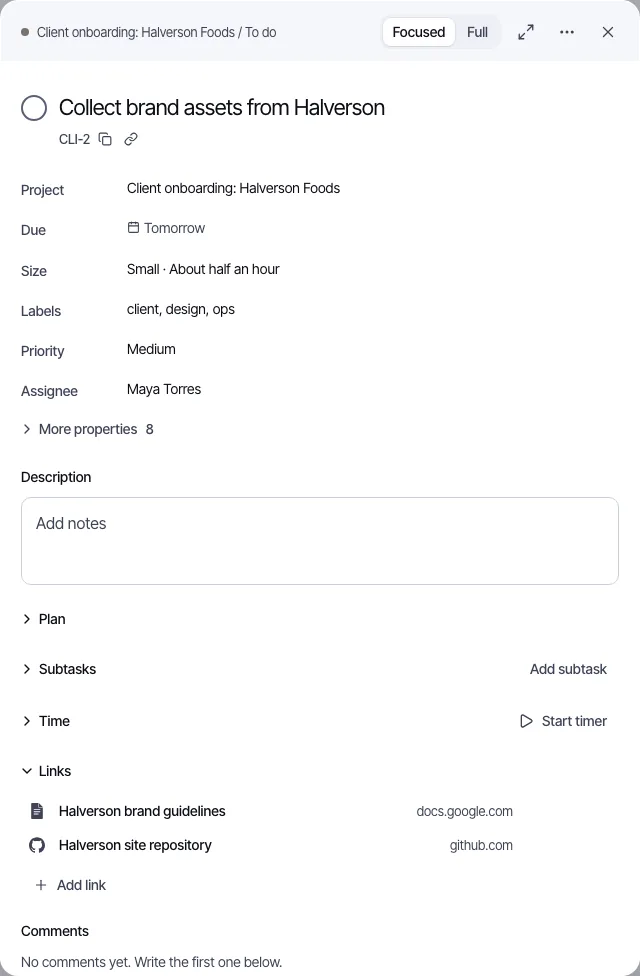
A link is a web address with a name and an optional note. Each one shows an icon for the service it points to, such as Google Docs, GitHub, Figma, Notion, Slack, Loom or Jira. An address from an unknown site shows its domain instead.
Add a link#
- Open the task and find Links. In Focused density it is folded; click it to open.
- Press Add link. The Add link side panel opens.
- Fill Link name and Link URL. Link description is optional.
- Press Save link.
The address must start with http:// or https:// and carry no username or password. A name is required. The name can hold 200 characters, the address 2,048 and the description 4,000.
Work with a link#
Hover or focus a link to show its tools, three small icons. One adds a description (tooltip "Add a description"), one opens the link in a new tab (tooltip "Open" and the link's name), and the X removes it. The X asks "Remove this link?" first. Click the name to rename it, click the address to change it, and click the description to edit it.
Comments#
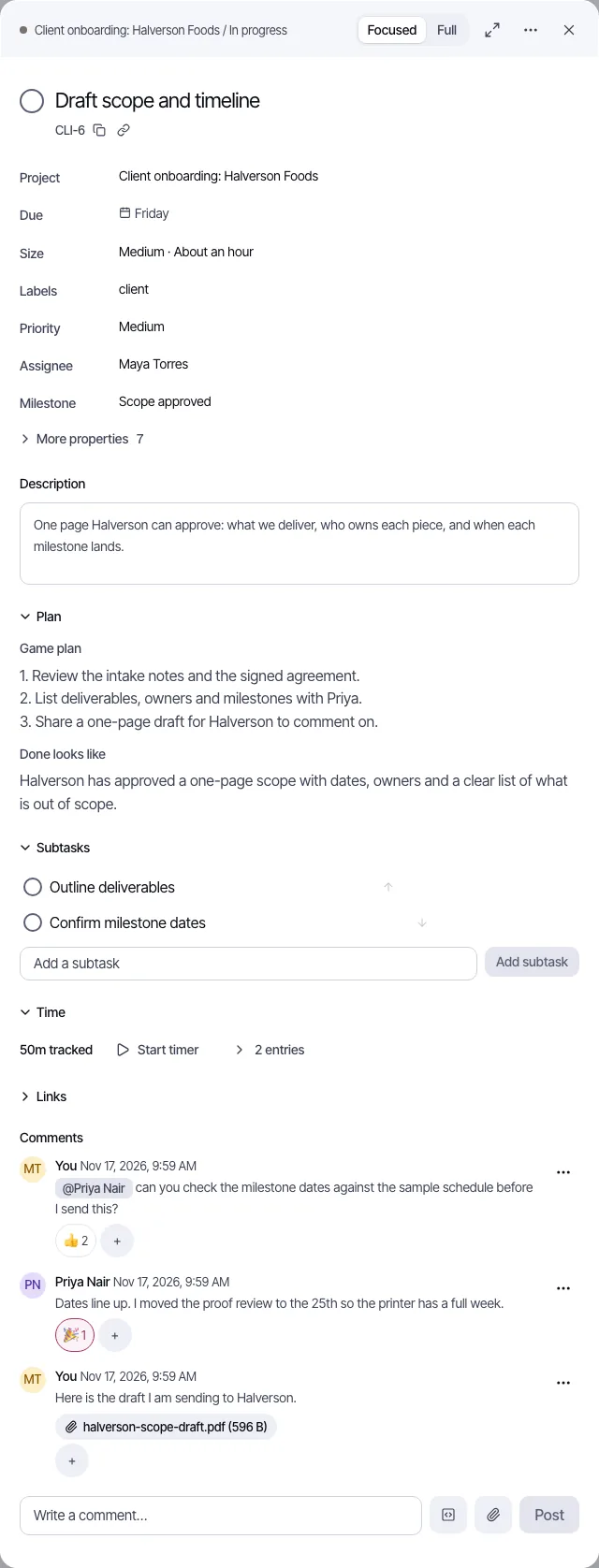
Comments are a thread under the task, oldest first. Each shows who wrote it and when. A count appears on the task's row in Full density.
Post a comment#
- Open the task and scroll to Comments.
- Click Write a comment… and type. Comments take Markdown, such as bold text, lists, links and code blocks. A comment can hold 16,384 characters.
- Press Post, or
Cmd+Enteron a Mac orCtrl+Enteron Windows.
The code block button beside the paperclip fences your selection as a code block. An image link shows as a link, never as a picture.
Mention someone#
Type @ and the start of a name. A list of matching people opens. Move with Up and Down, then press Enter or Tab, or click a name. The name turns into a chip. You can mention anyone who can open the project, a guest included, except yourself.
Pick the name from the list. A name you type out by hand stays plain text and notifies nobody. The person you mention gets a notice in the bell that opens the comment.
React#
Press the + button under a comment and choose one of six: 👍 ❤️ 😄 🎉 👀 🚀. Each reaction shows as a pill with a count. Click a pill, or pick the same one again, to remove your own.
Edit or delete#
Click the text of your own comment to edit it. Press Cmd+Enter or Ctrl+Enter to save. The ⋯ button on a comment (also right-click) opens Comment actions: Edit and Delete for your own comment, and Delete alone for someone else's if you are a workspace admin. Delete asks first, and a deleted comment goes to the Bin. See Finish, undo and delete.
People with view-and-comment access can write comments and react to them. They can read and open links, but not add or change them.
Attach a file#
Each comment takes one file.
- Press the paperclip beside the comment box and choose a file. The line "name ready to attach" confirms it uploaded.
- Write your comment and press Post.
The comment shows a chip with the file name and size. Click it to get the file.
| Plan | Largest file | Total you can store |
|---|---|---|
| Free | 5 MB | 500 MB |
| Pro and Team | 100 MB | 10 GB |
Every file you upload counts toward the total, wherever it went. A file over a limit is refused and an error shows under the comment box. A Team seat raises these limits for work in that workspace. See Plans and pricing.
Project comments#
A project has a comment thread of its own, for talk that belongs to the whole project instead of one task. It sits on the project's Updates tab, under Comments. It uses the same editor as a task thread, so Markdown, @ mentions, reactions, one file per comment and the file limits above all work the same way. The steps, the count on the tab and the Project activity switch are in The Updates tab.
Details:
- Anyone who can open the project can post, react and mention, a workspace guest with view and comment access included.
- Editing and deleting follow the task rules: only the author edits a comment, and the author or a workspace admin deletes it.
- A deleted project comment waits in the Bin as a Project comment, where a deleted task comment is a Comment. See Activity and the Bin.
- A mention in a project comment sends the same notice in the bell as one on a task, and the notice opens that comment on the Updates tab. If the comment was deleted since, the thread says "That comment isn't here any more. It may have been deleted."
Share a task#
Under a task's title sits its short reference, such as CLI-6. Two small buttons sit beside it: Copy reference copies the code, and Copy link copies a link that opens the task for anyone who can see it. The same Copy link is in the Task actions menu. Paste the reference into Search to find the task.
A link lands on the task's project, or the Inbox, with the task open. If the task was deleted, or sits in a project you cannot see, you get "This task isn't available".
Related#
- The task panel: the five groups of the panel.
- The Updates tab: the project's own comments and its activity switch.
- Notifications and reminders: where mentions arrive.
- Finish, undo and delete: Copy link and the Task actions menu.