
Glossary
Write down the words your team uses and what each one means, for a workspace, an Area or a project, so people and assistants use them the same way.
A glossary term records a word your team uses and what it means here, such as "Lookbook: the edited set of photos that shows a season's line." Teams drift into using one word for two things, or two words for one. The glossary puts the meaning in one place, which people and connected assistants both read, and Yipadoo points to it from the work itself.
Note: The Glossary works on every plan, Free included. Workspace and Area terms need a workspace.
What a term holds#
- Name: the word or phrase, up to 100 characters.
- Definition: what it means here, in a sentence or two.
- Examples: how it is used.
- Aliases: other names for the same thing. An alias counts as the term wherever the term is used.
- Category: a group to file it under, such as Metrics.
- Words to avoid: words people should not use for it, each with what to say instead.
- Related terms: other terms worth reading beside it.
- Scope: where it holds, described below.
Only the name and the definition are required. A term can have up to 20 aliases and 20 words to avoid.
A term can also be linked to the decisions, tasks, milestones and projects it belongs to. See Link a term.
Scope and inheritance#
A term holds in one of three places:
- Workspace: every project in the workspace.
- Area: every project in one Area of the workspace.
- Project: one project.
A term in a personal project holds for that project.
A project reads its own Active terms, its Area's and its workspace's. It never reads another project's. When two of them share a name or an alias, the narrower term wins in that project: the project's own over its Area's, and the Area's over the workspace's. If a workspace term shares only an alias with a project term, the workspace term still applies in that project under its own name, without that alias.
Inside one scope, only one Active term may hold a given name or alias. A word to avoid can't also be an Active term's name or alias there, and a name or alias can't be an Active term's word to avoid. See When a name is taken.
Statuses#
| Status | What it means |
|---|---|
| Active | In use. Highlights, the avoid-word line and Used in follow it. |
| Proposed | A connected assistant has put it forward. It waits for a person to accept or reject it, and applies nowhere yet. |
| Deprecated | Retired through a decision. It stays on record, and its name is free for a new term. |
| Rejected | A proposal that was turned down. It stays on record and holds no name. |
A Deprecated or Rejected term can't be edited.
A term added by a person in the app is Active at once. A term proposed by a connected assistant is always Proposed.
An Active term's name and definition change only through a decision. Its other details, such as examples, aliases and words to avoid, can be edited directly. See Add, propose and change terms.
Who can do what#
| Add a term | Accept or reject a Proposed term | Propose a change or deprecation | |
|---|---|---|---|
| Workspace term | Admins and members | Admins | Admins and members |
| Area term | Admins and members | Admins | Admins and members |
| Term in a workspace project | Anyone who can change the project's tasks | Admins | Anyone who can change the project's tasks |
| Term in a personal project | The owner and the people it is shared with | The project's owner | The project's owner |
A workspace admin accepts or rejects at every scope. Accepting and rejecting happen only in the Yipadoo app. A term in an archived Area can't be edited, though an admin can still accept or reject a Proposed one.
A connected assistant can read terms, propose a term and propose a change. It can never accept or reject a term, and it can't edit an Active one. See Assistants and the glossary.
Everyone who can open a project can read its own terms, guests and the people a personal project is shared with included. Workspace and Area terms are for the workspace's admins and members; guests never see them.
Where to find the glossary#
- On a project, open the Glossary tab, between Decisions and Updates. It lists the project's own terms at every status, and the Active workspace and Area terms that apply there. A project never opens on this tab by itself, even if it was the last one you used.
- For a workspace, open the workspace page and choose Glossary in the switch at the top, after Decisions. It lists every term in the workspace that you can read, at every scope and status. Admins and members see it. A guest who opens it reads "The glossary is for members."
A place with no terms yet reads "No terms yet."
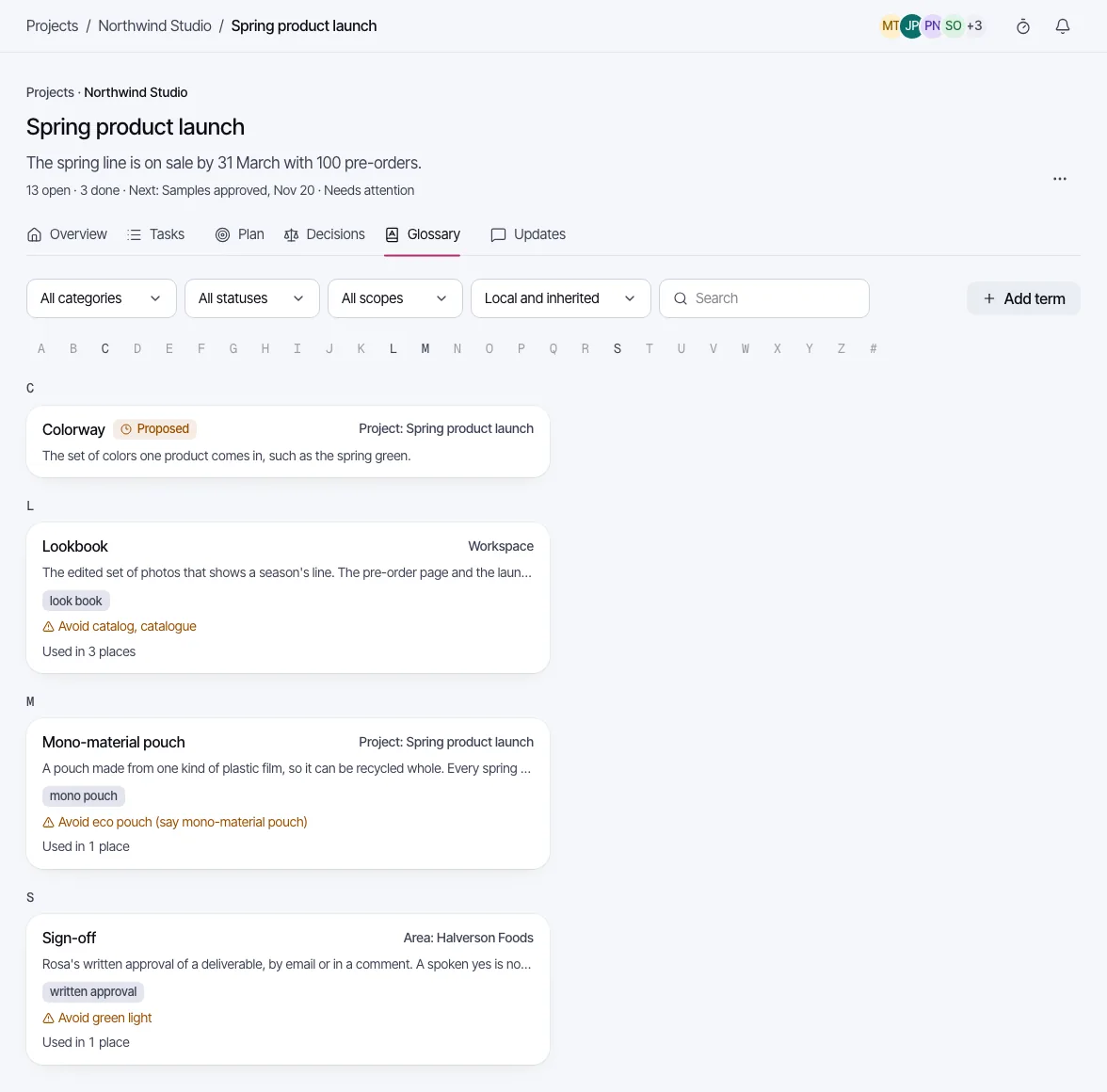
The A to Z list#
Terms are listed A to Z under a heading for each letter. Each card shows:
- the term's name, which opens the term;
- its status, when it is not Active;
- its scope, such as Workspace, Area: Halverson Foods or Project: Spring product launch;
- the first line of its definition;
- its aliases;
- its words to avoid, in amber with a warning icon, as "Avoid catalog, catalogue" or "Avoid eco pouch (say mono-material pouch)";
- for an Active term, where it is used: "Used in 3 places", "Used in 1 place" or "Not used yet".
A Deprecated or Rejected card is grayed out.
Filters and search#
The menus above the list narrow it:
- All categories shows only the terms in one category.
- All statuses shows only one status.
- All scopes shows only Workspace, Area or Project terms.
- Local and inherited, on a project only, shows only the project's own terms (Local) or only its workspace and Area terms (Inherited).
Search matches a term's name, its aliases and its definition. When nothing matches, the list reads "No terms match." with Clear filters.
On a phone, the menus fold under a Filters button, which shows how many filters are on.
The letter rail#
A row of letters, A to Z and then #, sits above the list and stays in view as you scroll. Click a letter to jump to its terms. A letter with no terms shown is grayed out and can't be clicked. A term that starts with a digit, a symbol or a letter from another alphabet files under #, and an accented letter files under its plain letter.
The term page#
Click a term's name to open its page.
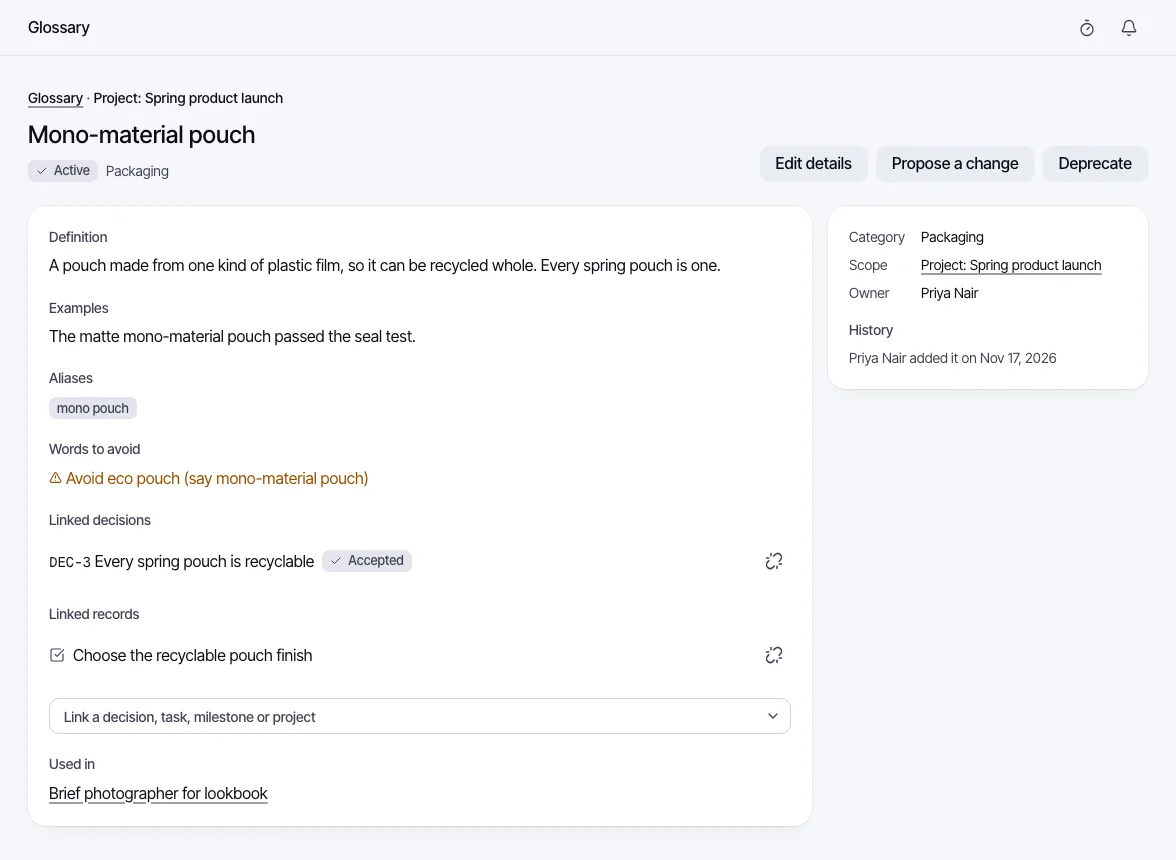
- The header shows the status and the category, with the buttons you may use: Edit details, Propose a change and Deprecate. Glossary above the name goes back to the list the term is on.
- The main card holds Definition, Examples, Aliases, Words to avoid and Related terms, leaving out any that are empty, then Linked decisions, Linked records and Used in.
- The card beside it holds Category, Scope and Owner. Click the scope to open that place's glossary; an Area term's scope opens the workspace's.
- Under those, History lists each step newest first: who added, proposed, accepted, rejected, renamed, redefined or deprecated the term, and when. A change made through a decision names it, as "through DEC-5". A term proposed through a connected assistant reads "through a connected assistant"; the person who proposed it sees the connection's own name instead. Edits to examples, aliases and other details are not in the history.
While a term is Proposed, a Waiting for a decision card sits at the top. See Accept or reject a Proposed term.
Used in#
Used in lists the records that use the term's name or an alias, each a link: a task by its title, "Comment on" a task or project, a project's Brief, or a team post by its title. A project term is looked for in its project. Yipadoo looks for a workspace or Area term in the projects you can read where it applies, and for a workspace term in team posts too.
It counts:
- tasks that are open or done, but not archived, by their title and notes;
- task comments and the project's own comments;
- the Brief's Outcome, Why it matters and Done looks like;
- team posts by their title and body. Replies don't count.
A record counts once per term, and only the first 2,000 characters of each text count. The list shows up to 100 records.
The count on a card follows the list it is on: a project's list counts in that project, and the workspace's list counts across the workspace. Yipadoo reads up to 5,000 records: Briefs first, then tasks, comments and team posts, newest first within each. When it stops short, or a term has more than 100 uses, the term page adds "Only the newest records were read." and a card's count ends in a plus, such as "Used in 40+ places".
Only an Active term shows Used in. A Proposed, Deprecated or Rejected term applies nowhere.
Related#
- Add, propose and change terms covers adding terms, decisions on terms, highlights and the avoid-word line.
- Decisions covers the register that changes an Active term.
- People and roles covers who is an admin, a member or a guest.