
Plan a task
Write a Game plan and Done looks like before you start, note how it went when you finish, and record what holds a task up with Waiting on and the Waiting tab.
Needs Pro
The Plan block on a task holds three short notes: Game plan, Done looks like and How'd it go?. They give you a minute of thought before the work and a line of reflection after. Waiting on records what is holding a task up, so you can see what is stuck and who owes you something.
Note: Game plan, Done looks like, How'd it go? and Waiting on need Pro or a Team seat. A Free account's one active Goal does not unlock them. On Free, Yipadoo refuses the save: "Game plans require Pro. Upgrade your plan to edit one." or "Blockers require Pro. Upgrade your plan to add one." People who can only read a task still see what was written.
Game plan, Done looks like and How'd it go?#
Each note answers one question:
- Game plan: "How will you go about it?" Write it before you start.
- Done looks like: "How will you know it's finished?"
- How'd it go?: what happened, in a line or two. This box appears only once the task is done, with the note "Optional. The task is already done."
Write the notes#
- Click a task to open the task panel.
- Find the Plan block. In Focused density it can be folded; click Plan to open it.
- Under the Game plan heading, click the text or the placeholder and write.
- Do the same under Done looks like.
- Finish the task. How'd it go? appears, ready for a line or two.
Each box takes up to 2,000 characters. Enter starts a new line. To save, press Cmd+Enter on a Mac or Ctrl+Enter on Windows, press Save, or click away. Esc or Cancel throws the draft away.
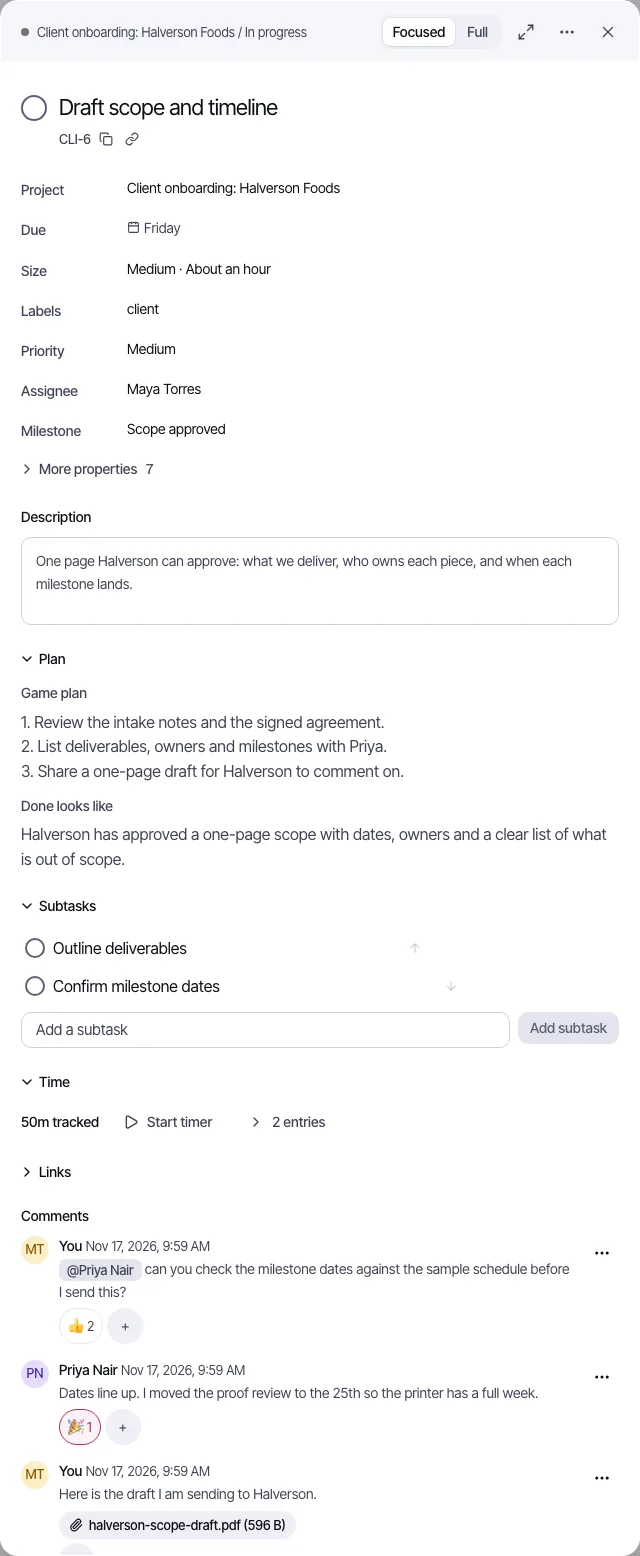
All three notes are optional, and none of them stops you from finishing a task. A finished task keeps its Plan block open, so How'd it go? is there to read. In Full density, the first line of the Game plan also shows under the task's title on the list.
Waiting on#
Waiting on says why a task cannot move yet. A task can wait on a person, a written reason, another task, or a mix.
Add a blocker#
- Open the task and find Waiting on in the Plan group. In Focused density, an empty one sits under More properties.
- Press Add a blocker. The Waiting on side panel opens with the line "Waiting is advisory. You can still complete this task."
- Type a Waiting reason. You need one to save.
- Optionally pick someone under Waiting on. The default is "No person selected".
- Optionally add a prerequisite: type in the field that reads "Search tasks by title or reference…" and choose a task, which is added at once. Or choose New task to create one (the New blocker panel asks for a Title, Description, Due date and Assignee, then Add blocker).
- Press Save waiting reason.
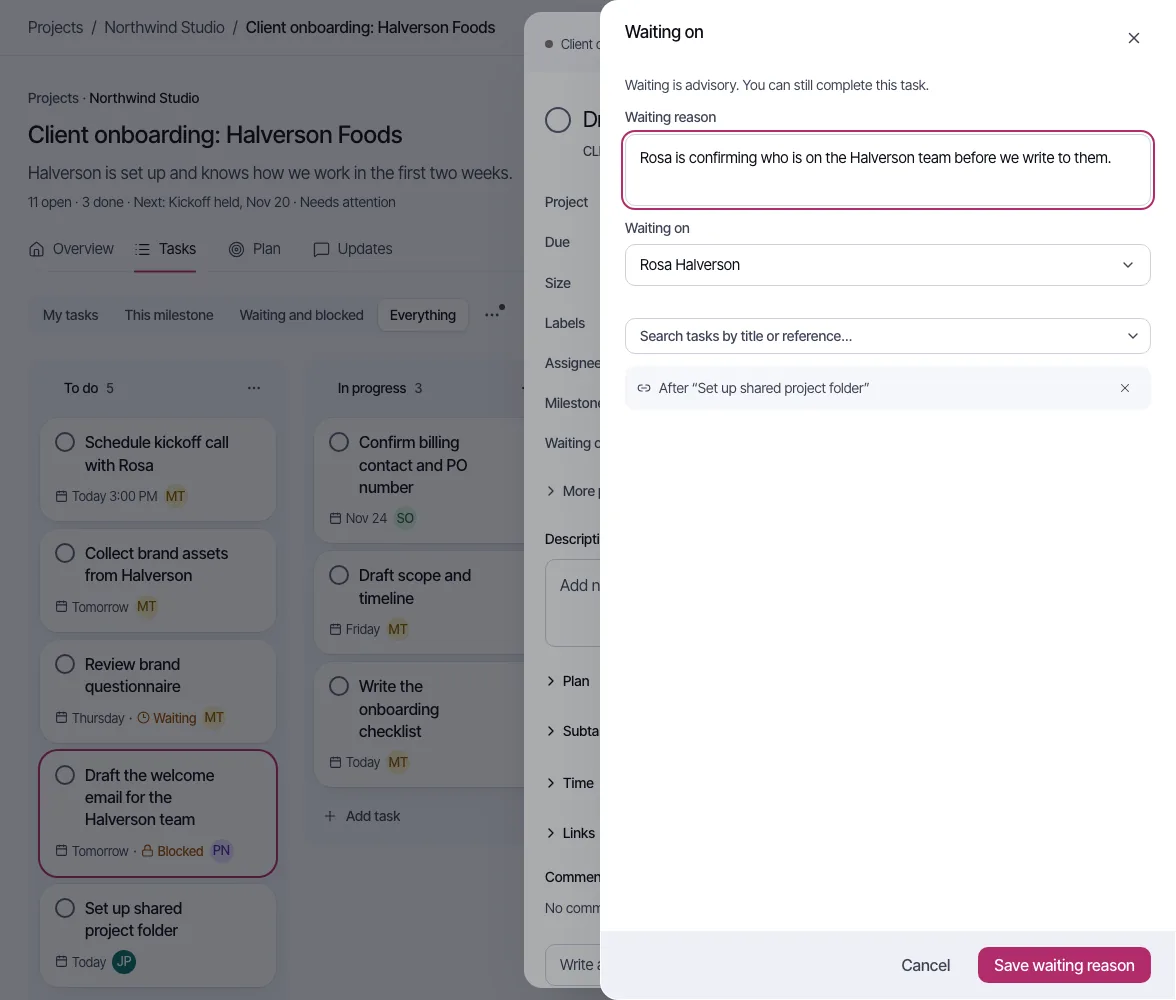
A prerequisite must be a task in the same project, and neither task can repeat. A task that already waits on this one is not offered in the search, and Yipadoo refuses any prerequisite that would close a loop.
Once saved, the panel shows who the task waits on and why, with Edit and Clear. Clear removes the reason; each prerequisite has its own X button to remove it.
How blocked work is treated#
Waiting is a note, not a lock. You can always complete a task that waits.
- On the list. A row shows Blocked when a prerequisite task holds it, and Waiting when only a waiting entry does. A done task shows neither.
- It clears itself. A prerequisite stops holding a task once it is done.
- On Today. A task due today that a prerequisite holds also appears under Urgent attention, marked "Blocked today".
- In Focus on one task. Waiting and blocked tasks are skipped when Yipadoo picks what is next, and so are they on a project's Next task card.
- In a plan. An open linked task that is waiting or blocked counts toward Needs attention on its milestone. See Milestones.
- On a board. Drop a card onto a column whose Column setting is Blocked and Yipadoo asks "Waiting on what?". An answer marks the task as waiting; you can leave it empty.
The Waiting tab#
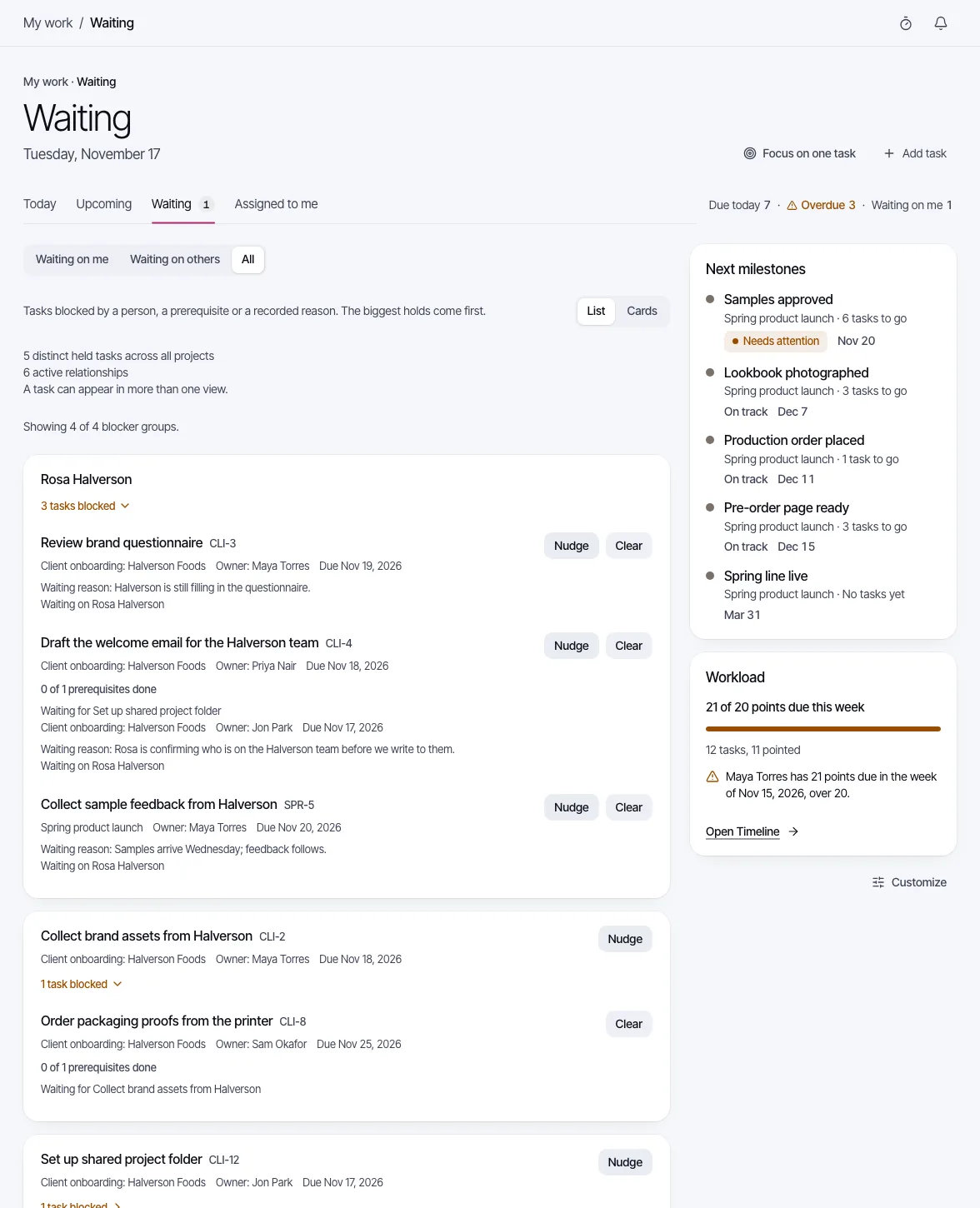
Open My work and choose Waiting, next to Today and Upcoming. The switch under the My work tabs has three views:
- Waiting on me: tasks that need your action, including your own prerequisites that hold up someone else's work.
- Waiting on others: your held tasks that wait on another person, named by a waiting entry or by a prerequisite someone else owns.
- All: every task blocked by a person, a prerequisite or a recorded reason, with the biggest holds first.
In All, List and Cards change the layout. Each blocker is a group; open its "N tasks blocked" line to see the held tasks. Nudge opens a task so you can leave a comment, and Clear drops the hold. A task can appear in more than one view.
Related#
- Link a task to a milestone or project: the Milestone and Related project rows that sit above Waiting on.
- Discuss and attach: the comments you leave with a nudge.
- Focus on one task: how held tasks are skipped.