
Team Inbox
Share headlines, questions and meeting notes with your workspace, turn action items into tasks, and clear what needs you.
The Team Inbox is a shared board for one workspace. Post news, ask a question, report status or record a meeting, and the team replies in one place. It also lists what needs you. Admins and members use it. A guest who opens it sees "This Team Inbox is for members."
Open the workspace page and choose Team Inbox in the switch at the top. A number beside it counts what needs you. The page has three tabs, Needs you, Team feed and History, and a New post button. It opens on Needs you when something is waiting, otherwise on Team feed.
Post types#
A post has one type, chosen when you write it:
- Headline for news.
- Question for something you need answered. A question can be resolved.
- Status for how work is going, marked On track, At risk or Off track.
- Announcement for something everyone should read.
- Meeting notes for a meeting, with participants and action items.
Write a post#
- Click New post.
- Pick a type from the row at the top. Headline is the default.
- Type a Title, up to 200 characters.
- Add Details, or Notes for meeting notes. Markdown works, and
@mentions a person. Details take 16,384 characters. - For a Status post, choose On track, At risk or Off track.
- Under About, link a Goal, Phase or project, or leave Nothing in particular.
- Under Who gets pinged, choose Nobody, Specific people or Everyone. Everyone in the workspace can read the post either way. A ping adds it to their Needs you.
- Click Post.
Read the feed#
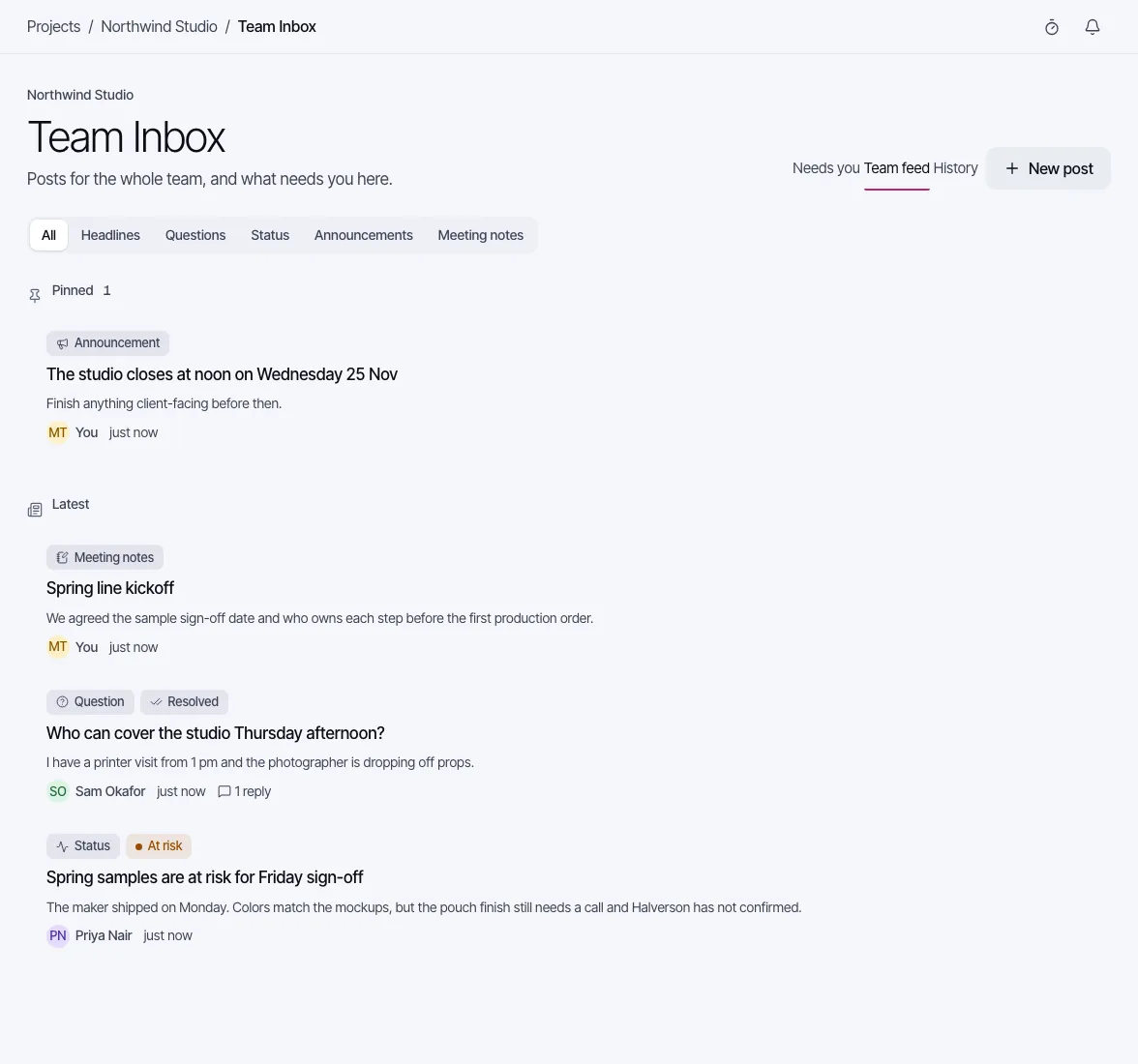
The Team feed tab shows Pinned posts, then Latest. Pills filter by type: All, Headlines, Questions, Status, Announcements and Meeting notes. Each row shows the type, a Resolved mark on answered questions, the title, the author, any linked Goal, Phase or project, and the reply count.
Reply, follow and resolve#
On an open post, write in the reply box and click Reply, or press Cmd+Enter on a Mac or Ctrl+Enter on Windows. Authors edit and delete their own replies, and admins delete any. Follow and Unfollow control whether new replies reach your Needs you. You follow posts you wrote, were mentioned in or were pinged on, and replying makes you a follower.
The ⋯ menu on the post offers:
- Edit, for the author. It keeps the post's type and ping.
- Pin or Unpin, for anyone in the workspace. A workspace can pin at most 5 posts.
- Resolve or Reopen, on a Question, for the author or an admin.
- Make it a task, which adds a task with the post's title to your own Inbox, linked back to the post.
- Delete, for the author or an admin. It asks first and removes the replies too.
Meeting notes#
Pick the Meeting notes type to record a meeting.
- Set the Meeting date.
- Under Participants, use the search box to find teammates and contacts. For each person, set a role (Host, Presenter, Decision-maker or Guest) and a switch that reads Attended or Absent. To add someone who is not listed, type their name, pick the option that adds them as a contact and fill in the short form. See Contacts.
- Write the Notes.
- Under Action items, click Add action item. Type what needs doing, pick who it is for (Nobody yet by default) and a date.
- Under Also send to, choose Attendees only, Specific people or Everyone. Team members who took part always get the notes in their Needs you. Contacts never do.
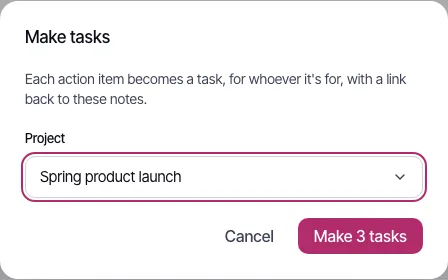
After posting, the author sees an Action items card with Make tasks. Click it, pick a Project, and click Make N tasks. Each item becomes a task for the person it names, with a link back to the notes. You can pick only a project where you can change tasks. Until then, the author can still edit the items.
Posts from Yipadoo#
Yipadoo writes two kinds of post itself. Each shows a sparkle chip in place of a type and pings nobody.
- Needs a new date, titled "<Goal> missed its date" or "<Phase> missed its date". It appears the day after a workspace Goal's or Phase's date passes, with the due date and who can act. A Phase in a Restricted project never posts to the feed.
- Off track, titled "<Goal> is off track". It appears when a weekly review first turns a workspace Goal off track. It names who marked it and adds the blocker and note they wrote. A review that stays off track posts nothing more.
Needs you#
Needs you lists what wants your attention here, newest first. A row says who did what: "mentioned you", "replied to a post you follow", "pinged you" or "pinged everyone", "shared meeting notes with you", "proposed a decision for you to accept or reject", "proposed a glossary term for you to accept or reject", or "asked you to sign off a task that is Hard to undo".
A decision row goes to each workspace admin except the person who proposed it, and opens the decision, where you accept or reject it. It is done for every admin once one of them decides. See Sign-off in Needs you.
A glossary term row works the same way for a term a connected assistant proposed, and opens the term. See Sign-off in Needs you, which covers terms.
When someone asks for a sign-off on a task that is Hard to undo, a row goes to each admin who may sign it. It opens the task, where you press Sign off. It is done for everyone once the task is signed off, the request is withdrawn, or the task is completed or deleted. When your own assistant asked, the row reads "Your assistant asked for sign-off on a task that is Hard to undo". See Sign-off in Needs you, which covers tasks.
A row reading "Your assistant proposed a change for you to approve or reject" names no person, since your own assistant made it at Propose only, in one of this workspace's projects. The change's summary sits under it. It opens that change on Assistant changes, and it is done once you approve or reject it, or the change is withdrawn. See Review an assistant's changes.
Date rows go to the owner of a workspace Goal or Phase, never for a personal Goal. They arrive 7 days before the date, 3 days before, on the day, and 1 and 3 days past it, from 8:00 in the owner's time zone. They read "<title> is due in 7 days", "is due in 3 days", "is due today", "is 1 day past its date" and "is 3 days past its date". A Goal raises them while it is Active, and a Phase while it has unfinished milestones. For a Phase, the owner must also be able to read its project.
Each row has a check button to mark it done, with an Undo, and a clock button to snooze it. The choices are Later today (three hours from now), Tomorrow (9:00) and Next week (next Monday at 9:00). Mark all done clears the list, and the last 20 finished items sit under Done.
Team Inbox alerts#
To get pushes for Needs you, open Profile and settings, the Notifications tab and Team Inbox alerts. Under Send pushes, choose Right away (the default), Daily digest or Off. A digest has a Digest time, 9:00 by default. Switch on Quiet hours to hold pushes from 22:00 to 07:00, and change Quiet from and Quiet until. Needs you fills up in the app either way. Pushes need browser push turned on under Reminders (Notifications and reminders).
History#
The History tab is a read-only log of the workspace's posts and project changes, and of its workspace and Area decisions and glossary terms. It never sends an alert. See Activity and the Bin.